Custom Themes — Create Slides with Your Brand Colors and Fonts
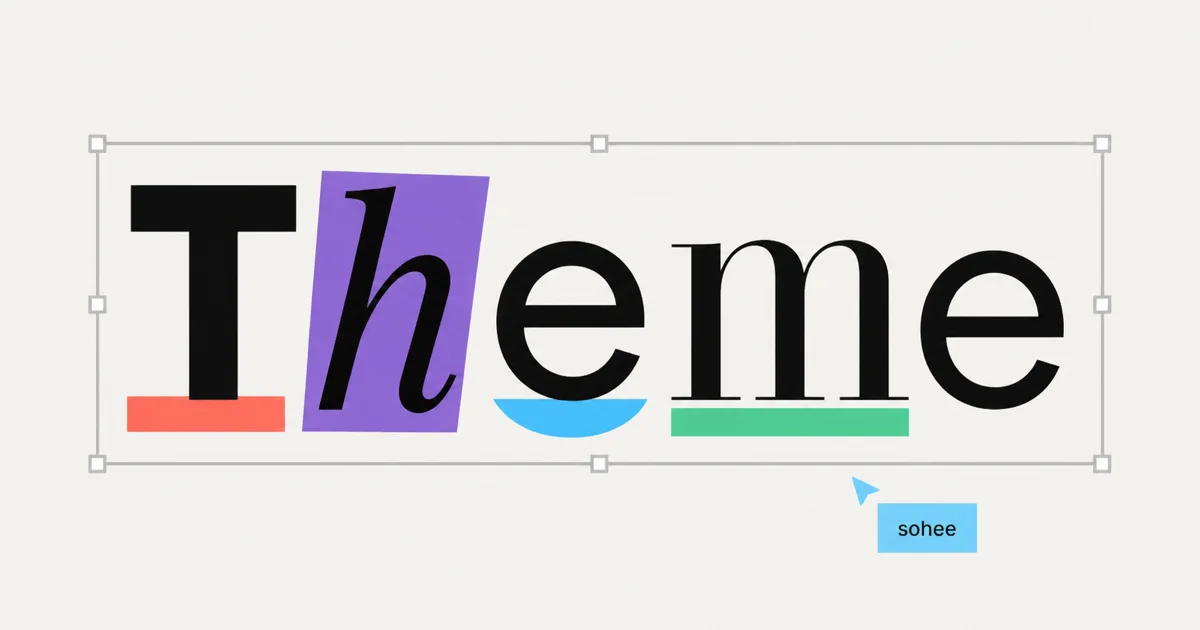
Custom themes let you generate slides with the colors and fonts you want from the start.
Snapdeck now has custom themes! 🎨
You can now generate slides using the colors and fonts your company or brand already uses.
We kept hearing a similar kind of feedback from users: “The content and layout Snapdeck generates are good, but I still have to apply our brand colors again.” Or, “There is a color we always need to use, and changing every element one by one is tedious.” The draft worked, but applying the required design afterward did not.
Some people typed color codes directly into the prompt, with instructions like “Use #F9D8D8.” Others specified the font family and weight for both headings and body text in detail. Some created a first draft in Snapdeck, exported it as PPTX or moved it to Figma, then reapplied the design in another tool.
With this update, you can bring those design choices into the generation step. That means less cleanup afterward and a more complete deck from the start.
The result looked good, but it was not ready to use
Sometimes the content and layout of a Snapdeck presentation looked right, but the deck still could not be used as-is. Its colors or fonts did not match the company’s design system.
In that case, every element had to be selected and adjusted slide by slide. You had to change the heading font, tune the body weight, and match the card backgrounds and accent colors again.
That might be quick for one or two slides. Once the deck gets longer, it is a different story. Re-entering the same colors and checking whether any element was missed takes real time. The tool made it faster to create slides, but the final design pass still required too much manual work.
So we built a way to set the colors and fonts you need in advance and apply them as the slides are generated. 🥳
Your brand colors and fonts
A custom theme combines the colors and fonts for your slides into one reusable theme.
Colors are organized into four roles:
- Primary accent: the color used to emphasize key ideas and elements
- Secondary accent: an accent color for supporting elements
- Background: the background color of the full slide
- Block fill: the background color used for cards and boxes
Typography is split into headings and body text. For each one, you can choose the font family, weight, and color. You can pair different fonts for headings and body text, or use the same family to keep the deck visually consistent.
When you change a color or font, the preview on the right updates immediately. Before generating the deck, you can see how your design rules will look when applied to a slide.
Save frequent combinations as style sets
When you create slides regularly, you often return to the same styles and themes. That is why you can now save frequently used style and theme combinations as a style set.
Once both a style and theme are selected, a small message briefly appears to let you know the current setup can be saved. Use the save button only when you need it, and the combination becomes a reusable style set.
Saved style sets appear at the top of the screen the next time you create a deck. Instead of finding the same style and theme again, you can start immediately with a familiar setup.
Wrap-up
Every company and brand has presentation design rules. They might cover approved colors and fonts, background colors, type weights, and more. Until now, Snapdeck did not have a way to define these choices in advance, so users had to adjust colors and fonts after generating their slides.
Now you can save the colors and fonts you use most as a theme and generate a deck with the design already applied.
Custom themes are available starting with the Pro plan. If your company or brand has design standards that every presentation needs to follow, this feature should be especially useful.
We are starting with colors and fonts. Over time, we plan to expand custom themes so more design rules can be applied naturally inside Snapdeck.
Thank you for reading, and please keep an eye out for what comes next. ☺️