
Polish the deck you have or start a new one: PowerPoint Copilot vs Snapdeck
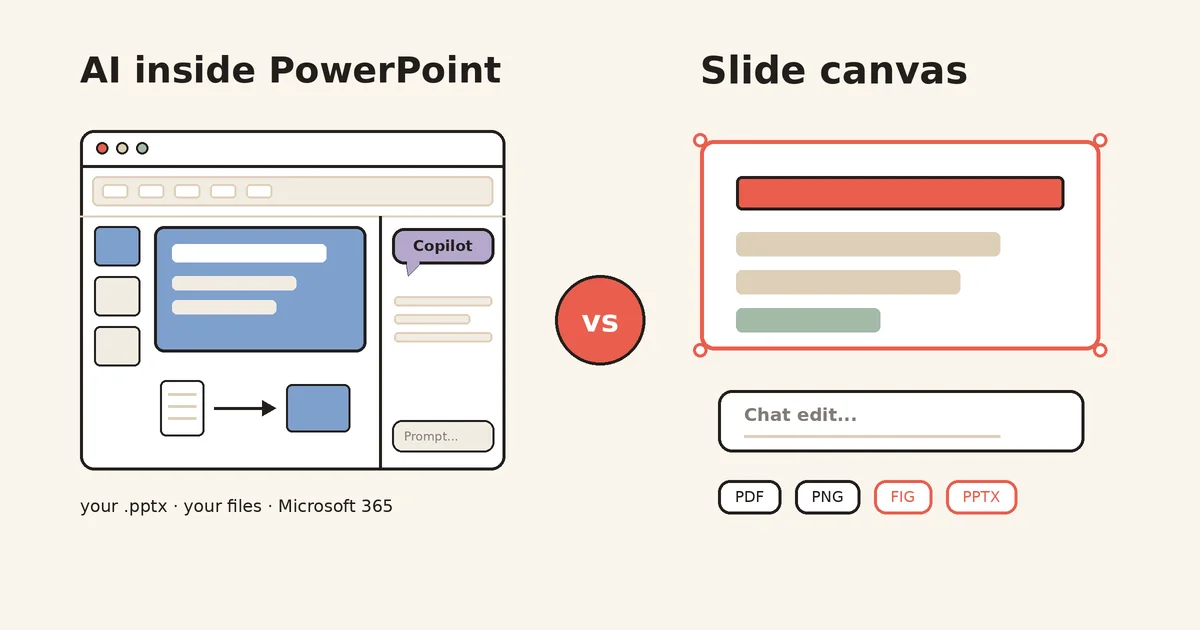
If your company runs on PowerPoint, the Copilot icon is probably already sitting in the bottom-right corner of your slide. It comes with the Microsoft 365 you already pay for, so why open another tool?
But once you try it, questions pop up. Does Copilot build a deck from a blank screen, or is it more about polishing a file you already have? How far does it go with a deck in Korean?
This post splits the two with one question: are you polishing a PowerPoint you already have, or starting a new deck from scratch? There is no ranking here. 🙂
A note on names: Microsoft says in its requirements doc that “Microsoft 365 Copilot is now named Microsoft Copilot.” The pricing pages still sell it as “Microsoft 365 Copilot.” In this post we say “Copilot in PowerPoint” and use plan names exactly as the pricing pages show them.
They start in different places
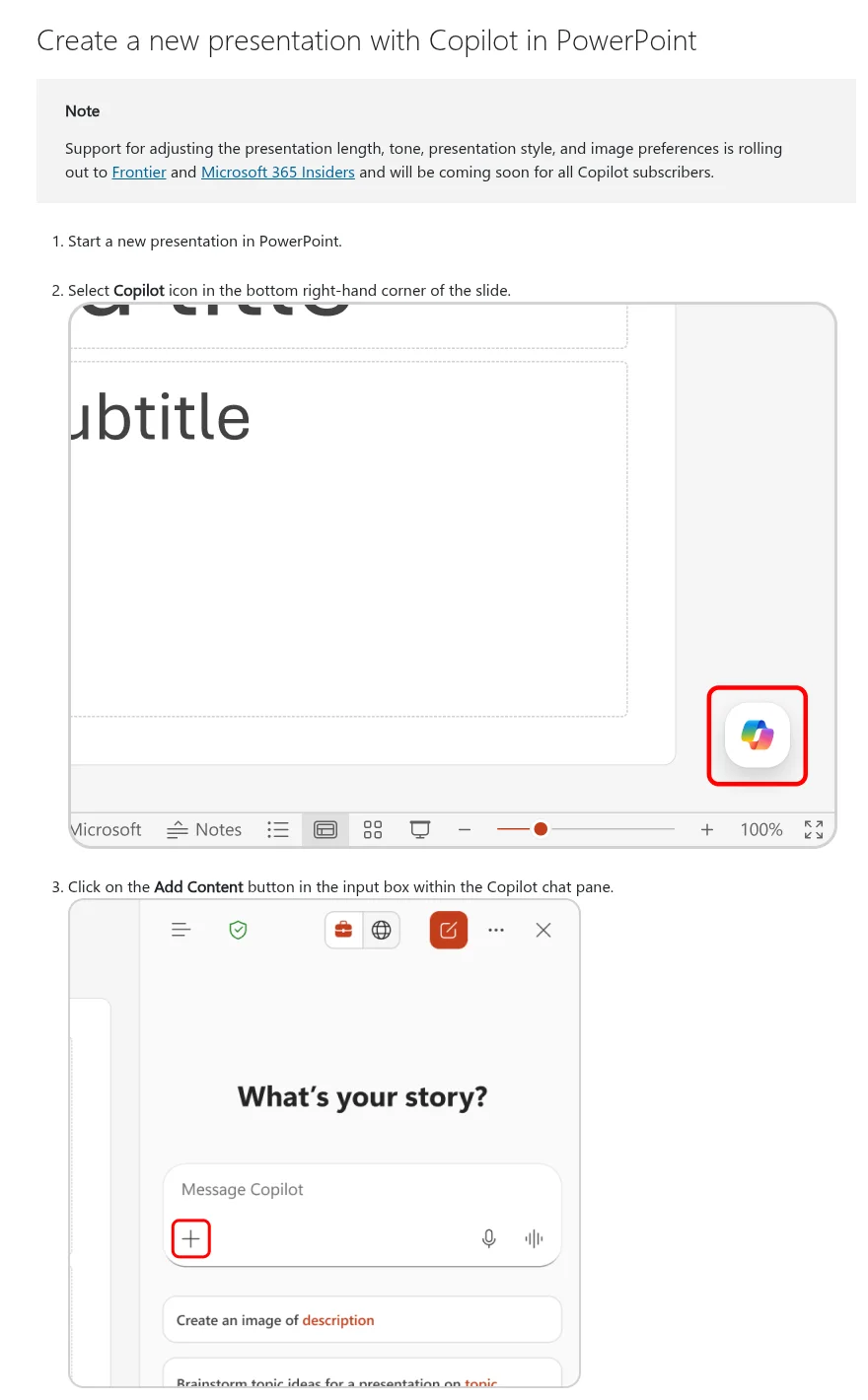
Microsoft’s create a new presentation help describes this flow. Start a new presentation in PowerPoint, select the Copilot icon in the bottom-right corner, then pick Agent Mode from the Add Content button in the input box. Copilot may ask clarifying questions, like who the audience is and what style you want, then shows an outline and generates the slides.
The same page lists conditions. Referencing files in Agent Mode is “coming soon,” and controls for length, tone, presentation style, and image preferences are rolling out to Frontier and Microsoft 365 Insiders first. If your organization has a standard template, Microsoft suggests starting from that file so Copilot keeps its theme and design.
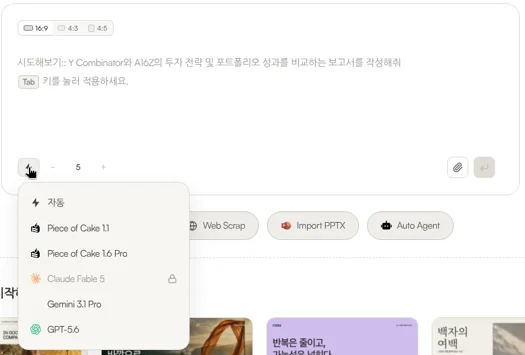
Snapdeck starts outside PowerPoint, in an empty prompt box. The home headline reads “Build a winning deck in a snap.” Above the box you pick a 16:9, 4:3, or 4:5 ratio. Below it you set the slide count or attach a file. The buttons underneath are Web Research, Web Scrap, Import PPTX, and Auto Agent.

The features page lays out three steps. Enter your topic and materials, review and edit the slide-by-slide outline, then choose a style and theme to generate the designs. Styles include Report, Keynote, Portfolio, and Proposal.
Both show you an outline first. What differs is where you start: Copilot inside a PowerPoint file, Snapdeck on a blank canvas.
The comparison, in one pass
Copilot details come from Microsoft’s official docs, checked on 2026-10-12. We did not capture the Copilot pane inside a signed-in PowerPoint. Snapdeck details come from screens captured the same day in a Pro account (Korean UI) and from its features page.
| Copilot in PowerPoint | Snapdeck | |
|---|---|---|
| Where it runs | Inside PowerPoint. Windows, Mac, and the web per the editing help. Per the mobile help, phones get summaries, key slides, and Q&A only, and personal plans run on iPad, Mac, and Windows | Web browser (snapdeck.app) |
| New deck | Agent Mode: questions, outline, slides. File referencing in Agent Mode is “coming soon” | Prompt, ratio, slide count, attachments, Web Research, Web Scrap, Auto Agent. Outline review and edits before design |
| Existing files | Works right inside .ppt/.pptx files. Add slides, rewrite, summarize decks (up to about 40,000 words), speaker notes | Import PPTX: keep working on it, or use it as a reference for a new deck |
| How you edit | Rewrite (Auto-rewrite, Condense, Make professional, per text box), Try a new design, add images | Direct editing plus a Chat panel on the right. Select an area and ask AI, compare results before applying |
| Brand | Brand kit (templates, colors, fonts, assets). Needs a Microsoft Copilot Premium license per the brand kits doc | Custom themes: set colors, fonts, and a logo yourself or import them from a website URL. From Pro |
| Korean | Korean is on the supported languages page. The FAQ says quality is highest in English, and Design Suggestions officially supports en-US only | Captured in the Korean UI. We found no official list of generation languages |
| Working together | Save to OneDrive or SharePoint for co-authoring, comments, tasks, and version history | Has a Share button. Real-time co-editing and comments were not verified |
| Export | Whatever PowerPoint saves (PPTX, PDF, video, images, and more). No Figma format in the official list | PDF, PNG (one per slide), Figma (.fig), PowerPoint (.pptx) |
If your deck is in Korean, look at “supported” and “quality” separately
Microsoft’s supported languages page (updated September 2026) lists Korean for both work or school accounts and personal accounts. That is different from Gemini’s deck generation in Google Slides, which is English only.
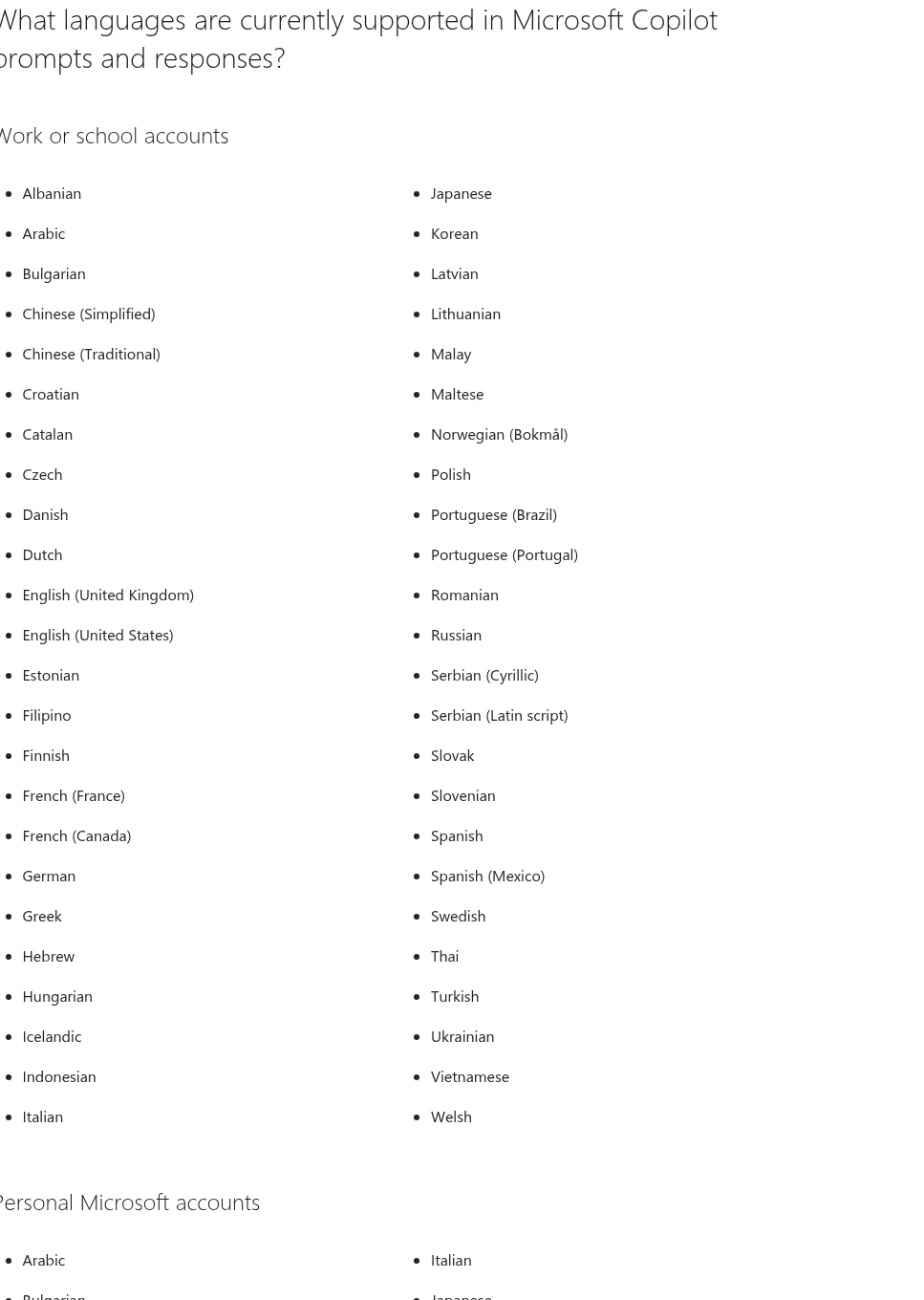
The PowerPoint FAQ adds a caveat. Quality is expected to be highest in English, and other languages should improve over time. Design Suggestions, which proposes layouts, officially supports only en-US results. When you create from a prompt, only one output language works at a time.
We did not test what deck a Korean prompt actually produces. Per the docs, you can use it in Korean, but quality is guaranteed for English first.
Snapdeck is built by a Korean team (its features page says “Built by a Korean team 🇰🇷”), and these captures use the Korean UI. The features page says you can choose from 130 fonts. That said, we did not find an official list of the languages Snapdeck can generate in.
Where Copilot fits: existing PowerPoints, inside the company
Copilot’s real strength is that the file never moves.
- Polish an existing deck. The editing help lists adding slides, updating content, reorganizing sections, and improving flow. It also says you can choose between AI models, including Claude from Anthropic and ChatGPT from OpenAI, for edits.
- Summaries and presentation prep. Per the summary help, it summarizes decks up to about 40,000 words. The speaker notes help covers notes for all slides or the current one, and says it works best under 50 slides.
- Slides from files. On work or school accounts, the supported file formats page lists .docx, .doc, .pdf, .pptx, and .ppsm as sources for creating presentations. Files must be uploaded or in the cloud; local paths are not supported.
- Company brand. Per the brand help, choosing a Brand kit makes Copilot use approved templates, colors, fonts, and assets. Assets can come from SharePoint, OneDrive, organizational asset libraries, and supported third-party DAM systems.
- Editing together. Per the co-authoring help, saving to OneDrive or SharePoint lets you edit with colleagues at the same time, with comments, tasks, and version history.
If your company already runs on Microsoft 365 and the decks live in SharePoint, Copilot is the least friction.
Where Snapdeck fits: building a deck from a blank screen and handing it off as a file
Snapdeck focuses on making a new deck.
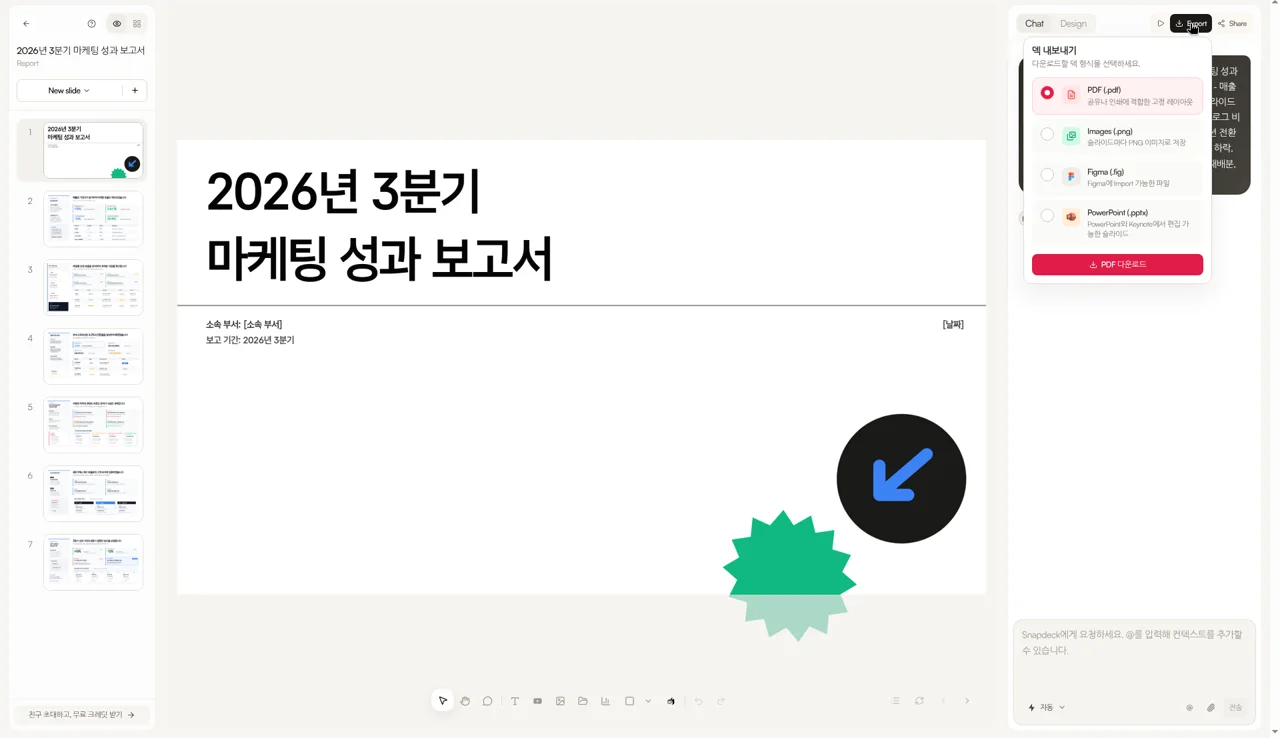
The screen below is a 7-slide “2026 Q3 marketing performance report” (in Korean), made by pasting a draft written with another AI (“[ChatGPT가 만든 PPT 원고] …”, meaning “PPT draft made by ChatGPT”) into Chat. Thumbnails sit on the left, the canvas in the middle, and Chat and Design tabs on the right, with play, Export, and Share buttons on top. The input box says, in Korean, “Ask Snapdeck. Type @ to add context.”
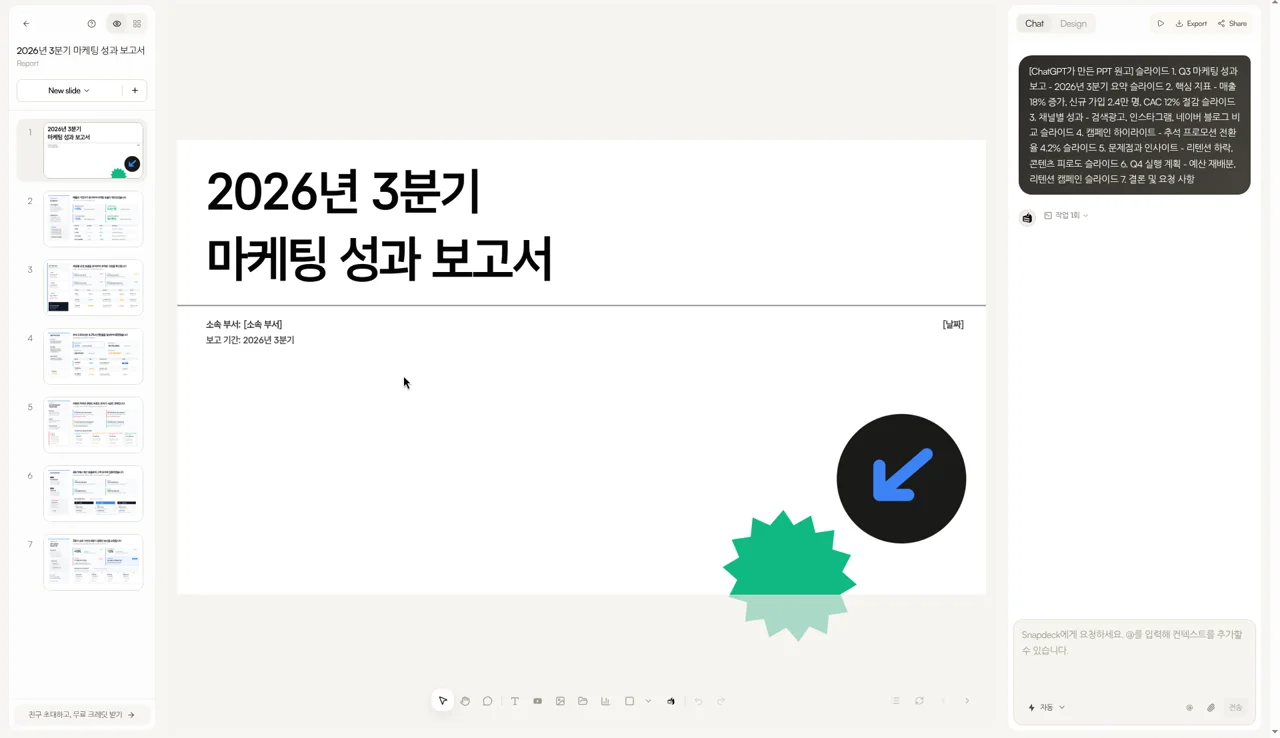
The features page describes three ways to edit. Fix things directly in a Figma-style editor, make changes through AI chat, or select an area and describe exactly what to change. Before AI changes are applied, you compare the results and decide. The point is that you don’t rebuild the whole deck.
You can pick a model, too. The list we opened from the home prompt box on this account showed Auto (자동), Piece of Cake 1.1, Piece of Cake 1.6 Pro, Claude Fable 5 (with a lock icon), Gemini 3.1 Pro, and GPT-5.6. Which models you can use depends on your plan.
If you already have a PowerPoint, the features page FAQ says you can bring it in with Import PPTX to keep working on it, or use it as a reference for a new deck.
When the file has to leave
Copilot’s output is a PowerPoint file from the start. Microsoft’s PowerPoint file formats page includes PPTX, PDF, video like MP4, images like PNG and JPG, ODP, and more. No Figma format appears in that official list.
In Snapdeck, Export opens an “Export deck” panel with four options: PDF (.pdf), “a fixed layout for sharing or printing”; Images (.png), “one PNG image per slide”; Figma (.fig), “a file you can import into Figma”; and PowerPoint (.pptx), “editable slides for PowerPoint and Keynote.” (The labels are translated from the Korean UI.)
To be honest about it: the features page FAQ asks you to check the fonts and layout in your presentation environment after exporting to PPTX. Formats like video and ODP are not in the menu.
Cost: money you already pay vs. money you pay separately
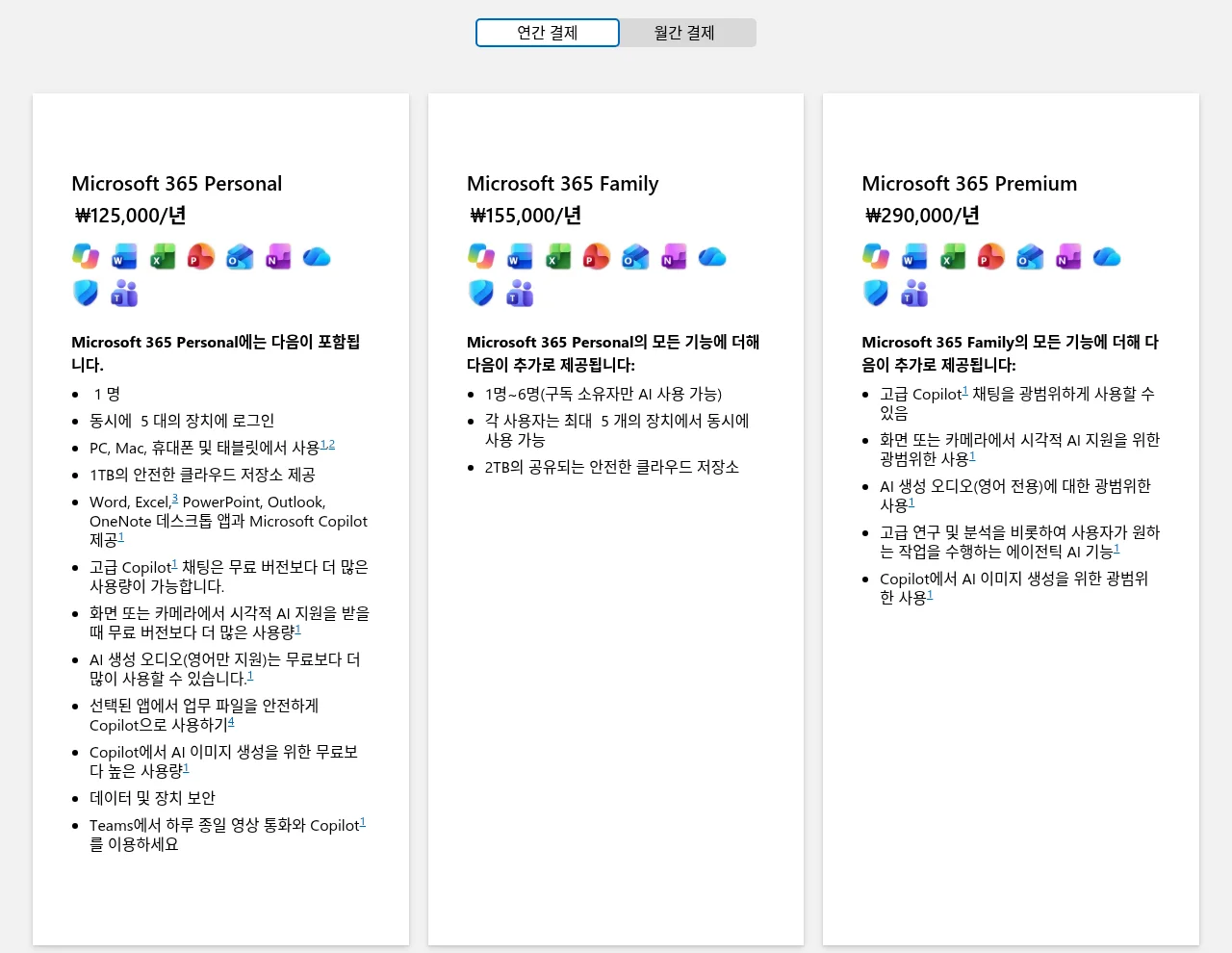
Copilot is tied to a Microsoft 365 subscription. On the Korean Microsoft 365 compare page (checked 2026-10-12), personal plans are Personal ₩125,000/year, Family ₩155,000/year, and Premium ₩290,000/year, and the PowerPoint row reads (in Korean) “generate a presentation outline and format with Copilot in PowerPoint.” On Family, only the subscription owner can use AI, and the AI credits doc says usage limits apply. Prices on Microsoft’s US pages are different.
Business is separate. The Korean business page shows the Microsoft 365 Copilot Business add-on from ₩24,343 (originally ₩28,400) per user per month, paid yearly. That is a first-year promotion running 2026-07-01 to 2026-12-31, prices exclude VAT, and you need a separate qualifying Microsoft 365 plan.
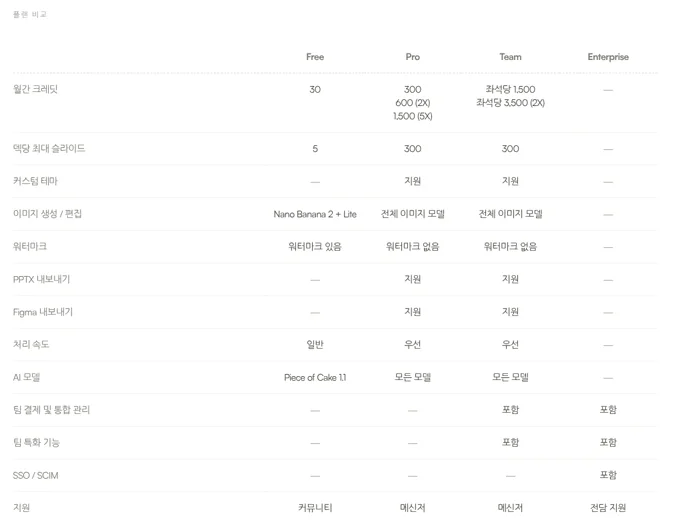
Snapdeck’s pricing page (Korean, in KRW) shows Free ₩0, Pro ₩13,500/month, Team ₩54,000/user/month, and Enterprise with custom pricing. In the comparison table, Free has 30 starter credits, up to 5 slides per deck, and a watermark, and no PPTX or Figma export. Pro has 300 credits a month (600 on 2X, 1,500 on 5X), 300 slides per deck, custom themes, and PPTX and Figma export.
If you already pay for Microsoft 365, Copilot may cost you nothing extra. Snapdeck is a separate subscription, and handing off files needs a paid plan.
Using both together
You don’t have to pick just one.
- Make a draft in Snapdeck from a topic or a written draft, and tidy the outline.
- Pick a style and theme, then fix only the areas you don’t like.
- Export to PowerPoint (.pptx). Check the fonts and layout once.
- Put it on your company OneDrive or SharePoint and edit it with colleagues in PowerPoint. Let Copilot handle speaker notes or a summary.
The other way around: if the job is reworking an existing deck built on your company template, PowerPoint and Copilot fit from the start.
Which one to open
Copilot in PowerPoint fits when
- You are editing, summarizing, or adding speaker notes to a .pptx you already have.
- You need a company Brand kit, assets in SharePoint, or co-authoring, comments, and version history.
- You already subscribe to Microsoft 365 and don’t want another tool.
Snapdeck fits when
- You want a deck fast from a blank screen, starting with one topic or a draft.
- You want to shape the outline first and choose between Report, Keynote, Portfolio, and Proposal styles.
- The result has to go out as PowerPoint, or as a Figma (.fig) file for a designer.
Where the scope differs
Copilot is strong at working inside PowerPoint and with company data, but per the docs English quality is highest and file referencing in Agent Mode is not out yet. Snapdeck is strong at making decks and handing off files, but we did not verify real-time co-editing or speaker notes, and Free has no PPTX or Figma export.
So
If the deck already lives in PowerPoint and your team edits it together, Copilot is the most natural fit. If the core of the job is building a new deck from scratch and handing it off as PowerPoint or Figma, Snapdeck is closer. Need both? Draft in Snapdeck, export a .pptx, and finish it in PowerPoint.
Want to start a deck from one line? Try it on Snapdeck. ☺️
Sources: Create a new presentation with Copilot, Copilot in PowerPoint FAQ, Edit with Copilot, summarize, speaker notes, keep it on brand, official brand kits, mobile, supported file formats, supported languages, AI credits and limits, PowerPoint file formats, co-authoring, Copilot requirements, the Microsoft 365 Korea compare page, the Microsoft 365 Copilot Business Korea page, the Snapdeck features page (Korean), the Snapdeck features page (English), and Snapdeck pricing. Microsoft details come from public docs checked on 2026-10-12; Copilot inside a signed-in PowerPoint was not captured. Microsoft images are captures of public pages. Snapdeck home, model picker, editor, export, and pricing screens were captured on 2026-10-12 from a Pro account in the Korean UI.