
Pick Canva or Snapdeck by what you need besides the slides
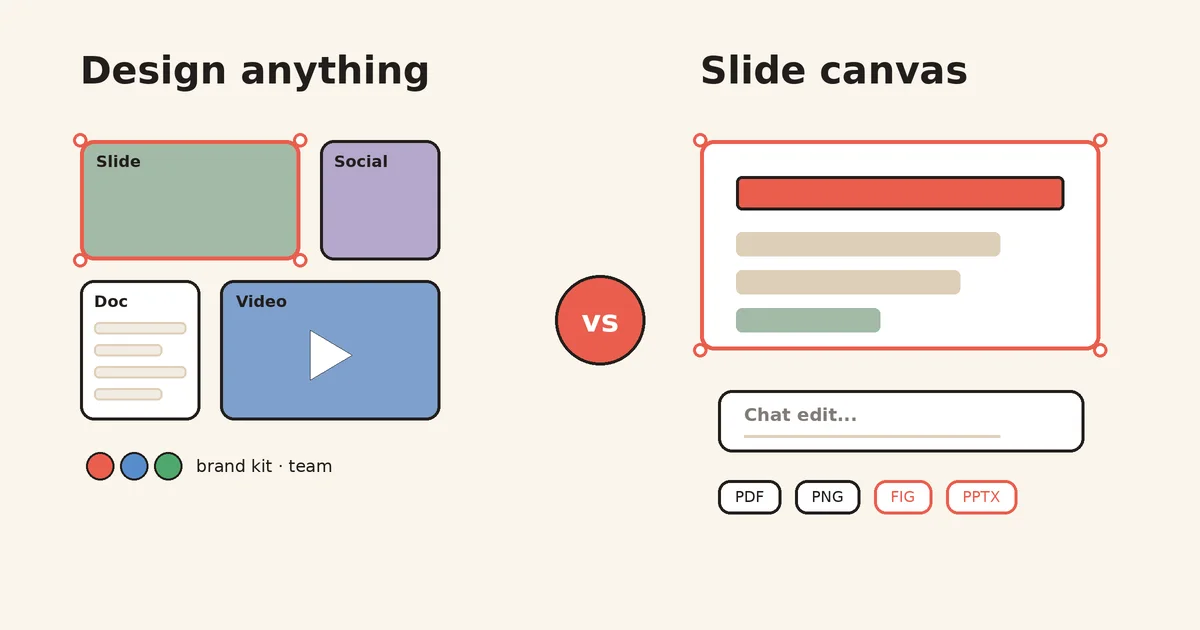
Lots of people open Canva first when they need slides. Their social images and posters already live there.
But if this week’s job is one presentation deck, the question changes a bit. What else do you need in the same tool besides slides? Video, docs, brand assets? Or is the whole job making a deck fast, fixing an existing PPT, and handing it off as PowerPoint or Figma?
This post splits Canva and Snapdeck by that one question. No rankings. 🙂
Both draft with AI. What comes next is different.
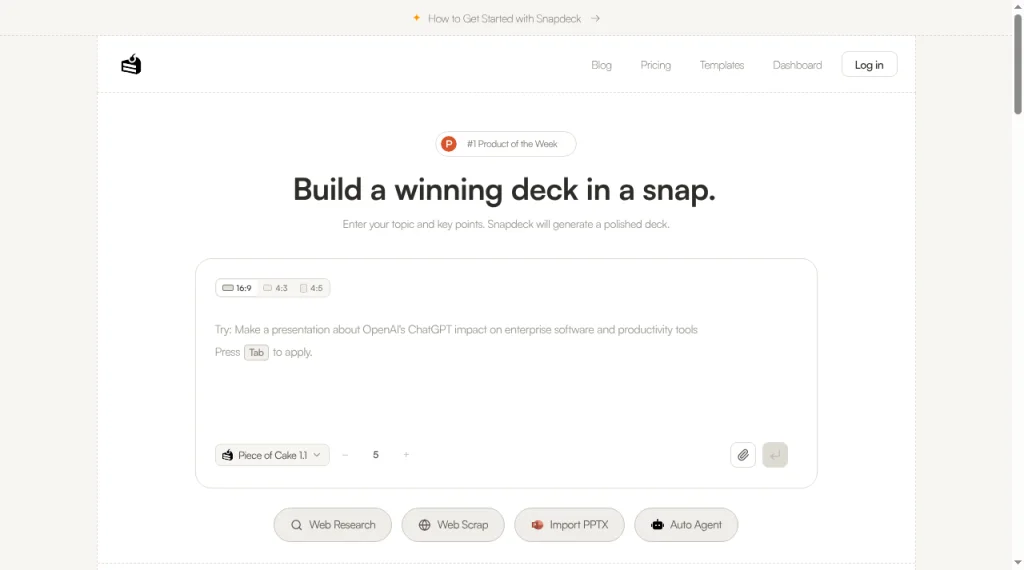
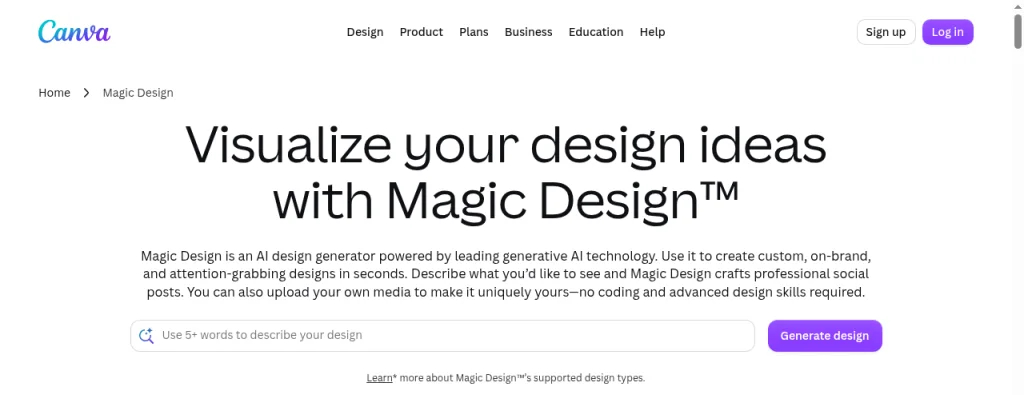
Start with Canva. The headline on Canva’s Presentations page is “Presentations to engage and inspire.” The Canva AI for Presentations help article describes choosing Design → Presentation on the homepage and entering a prompt with your idea, outline, slides, or content. When you start from the homepage, you edit the key ideas for each outline section, then select Generate presentation. You can also attach a PDF or Word file for context. The result is a selection of templates, and you pick one.
The same article calls this a premium AI tool that counts toward your monthly AI usage. The Canva AI help article says Canva AI 2.0, launched at Canva Create 2026, lets you create and edit by chatting with AI in the editor, for Pro, Teams, Business, and Nonprofit. Free and Education users get Canva AI 1.0 features with limited monthly usage.
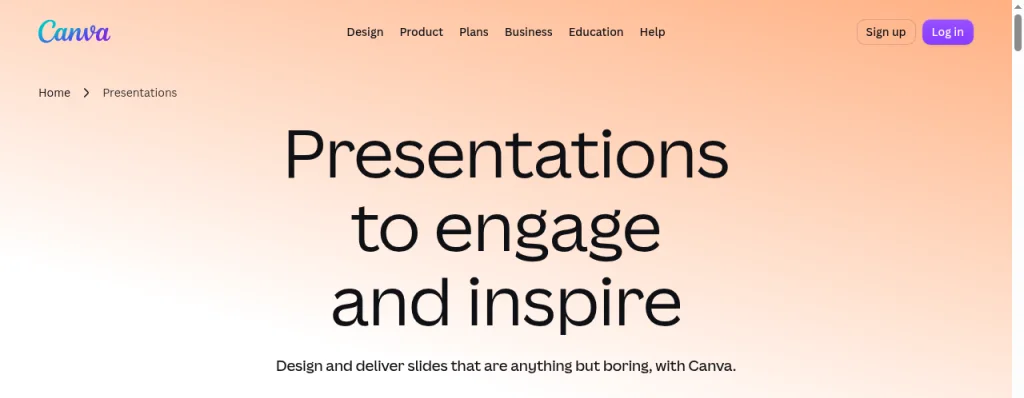
Snapdeck’s home is built for one thing: making a deck. The headline reads “Build a winning deck in a snap.” Above the prompt box you pick a 16:9, 4:3, or 4:5 ratio. Below it you choose the model (Piece of Cake 1.1) and the slide count. The buttons underneath are Web Research, Web Scrap, Import PPTX, and Auto Agent. The features page says you can review and edit each slide’s outline before generating designs.
Up to here they look alike. The split is what else you do in the tool besides slides.
The comparison, in one pass
Canva lines come from official pages and the Help Center, checked on 2026-10-05. Canva’s logged-in editor and download menu were not captured for this post. Snapdeck lines come from product UI captures and the features page.
| Canva | Snapdeck | |
|---|---|---|
| What you make | Many design types, presentations included. Visual Suite says it combines docs, emails, sheets, whiteboards, presentations, social media, video, and websites in a single design | Presentation slides |
| AI start | Canva AI for Presentations: prompt, outline editing (from the homepage), PDF or Word attachments, then pick from generated templates. Chat editing in the editor is Canva AI 2.0 (Pro and up) | Home prompt, 16:9 / 4:3 / 4:5 ratio, slide count, model picker, Web Research, Web Scrap, Auto Agent. Outline review before design |
| How you edit | Direct editing, Canva AI 2.0 chat, Magic Write for copy and presenter notes | Thumbnails, canvas, and Chat on the right. Per the features page: edit directly, ask in AI chat, or select an area and request a change, then compare before applying |
| Brand | Brand Kit: logos, colors, fonts, assets. Per pricing: Free 1 kit (3 colors only), Pro 5, Business 100 | Style sets and custom themes under dashboard Styles. The Snapdeck pricing comparison table lists custom themes on Pro and Team |
| Working together | Real-time editing, comments, link sharing with edit / comment / view permissions | The editor has a Share button. Real-time co-editing was not verified in these screens |
| On stage | Presenter view, Present and record, Autoplay, Canva Live (audience joins with a code for Q&A and reactions) | A play button in the editor header. Audience tools like Canva Live were not seen |
| Export | Help: JPG, PNG, SVG, PDF Standard / Print, PPTX (presentations only), GIF, MP4. Figma (.fig) is not on the list | PDF, PNG, Figma (.fig), PowerPoint (.pptx). No video (MP4 or GIF) |
| Bringing in a PPT | PowerPoint import: beta, desktop browser, .pptx and .ppt, up to 300 slides. Charts, SmartArt, 3D objects, and WordArt are ignored | Import PPTX, then Reference (new deck from it) or Import (open as an editable deck) |
Where Canva fits: the deck is one of many deliverables
Canva’s strength is range. In one tool you make presentations, social cards, video, docs, and websites, and Brand Kit keeps logos, colors, and fonts consistent. The help article says a Brand Kit can be set up automatically from your website or a PDF.
Presenting features are broad too. The presentation modes help covers Presenter view with notes and upcoming slides, Present and record, and Autoplay. With Canva Live, the audience joins at canva.live with an 8-character code or a QR code to ask questions and react.
Sharing works the way you would expect. Per the sharing help, you set a link to only you, only your team, or anyone with the link, and choose edit, comment, or view access.
Where Snapdeck fits: make the deck, fix it, ship the file
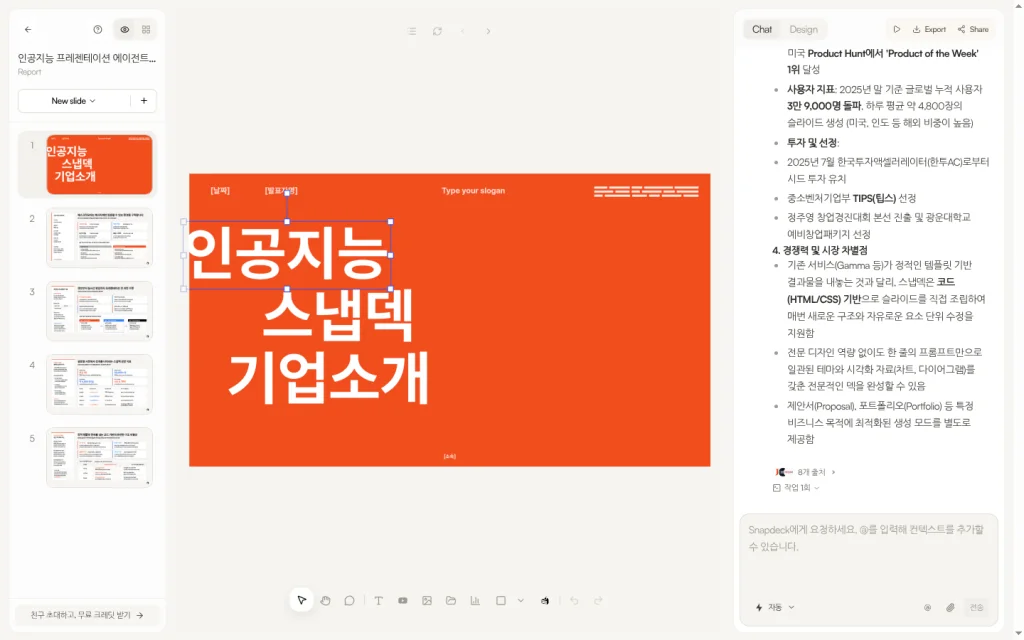
Snapdeck is a slide editor. Thumbnails sit on the left, the canvas in the middle, and Chat and Design tabs on the right. The Chat box asks you to tell Snapdeck what you want, and says you can add context with @. Select an element and describe the change in a sentence.
The features page says you can edit directly in a Figma-style editor, make changes through AI chat, or select an area and ask AI to change it. You compare the suggested changes before applying them. It also says you can generate new designs from the same outline.
You can pick a style from the /template gallery. Each card shows a ratio, a suggested slide count, and tags. Venture Pitch, for example, is 16:9, 12 slides suggested, tagged pitch / startup / business.
It is not as broad as Canva. The Snapdeck screens checked for this post had no video (MP4 or GIF) export, no other deliverables like docs, social posts, or websites, and no audience tools like Canva Live. Real-time co-editing was not verified either.
When the file has to leave
This is where the difference is sharpest.
Canva’s download file types help lists PPTX as a presentations-only format. It notes that designs may look different in PowerPoint and asks you to install the fonts you used in Canva. It says animations and embedded videos are not yet supported in PPTX. The download list checked for this post does not include Figma (.fig). For going from Figma into Canva, the help article recommends a third-party app, Figma to Canva.
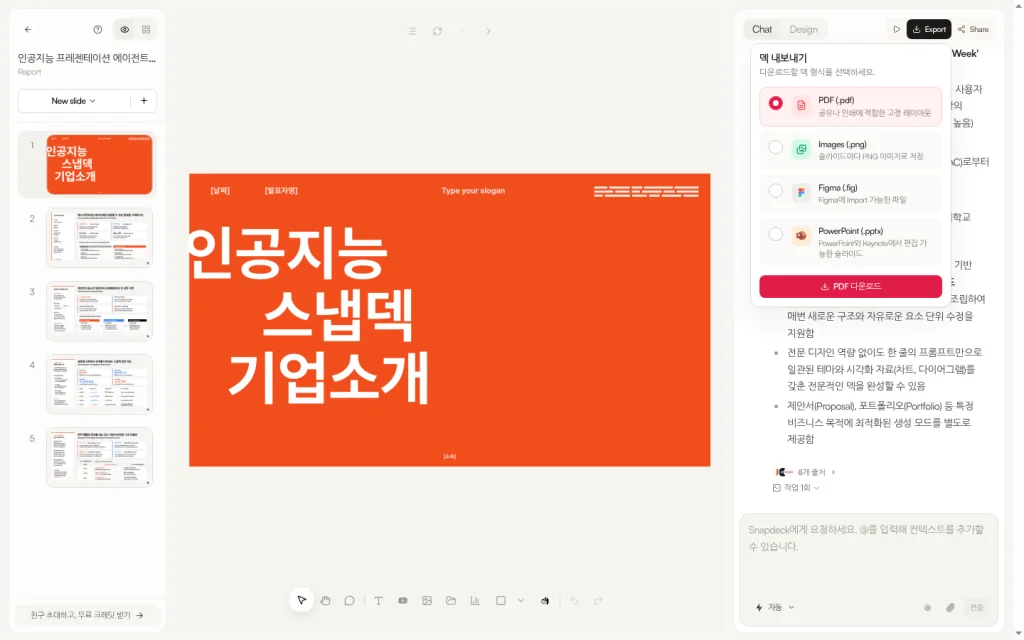
Snapdeck’s export menu is titled “덱 내보내기” (Export deck) and lists four formats:
- PDF (.pdf): a fixed layout for sharing or print
- Images (.png): one PNG per slide
- Figma (.fig): a file you can import into Figma
- PowerPoint (.pptx): slides you can edit in PowerPoint and Keynote
The pricing page comparison table lists PPTX and Figma (.fig) export on Pro and Team, not Free. The features page says you can export to Figma and keep working on the design there.
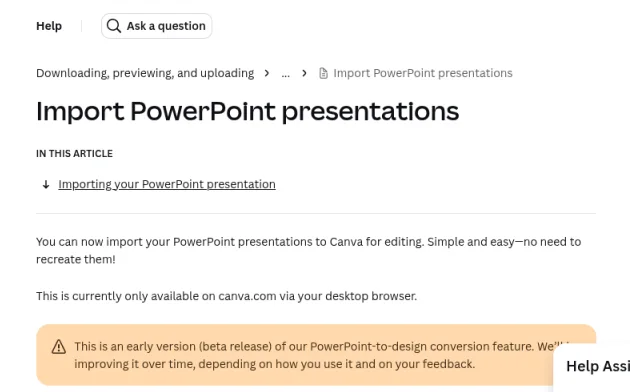
Reusing an existing PowerPoint works differently too. Canva’s PowerPoint import is in beta and only works on canva.com in a desktop browser. It accepts .pptx and .ppt, up to 300 slides. Charts, SmartArt, 3D objects, and WordArt are ignored during import.
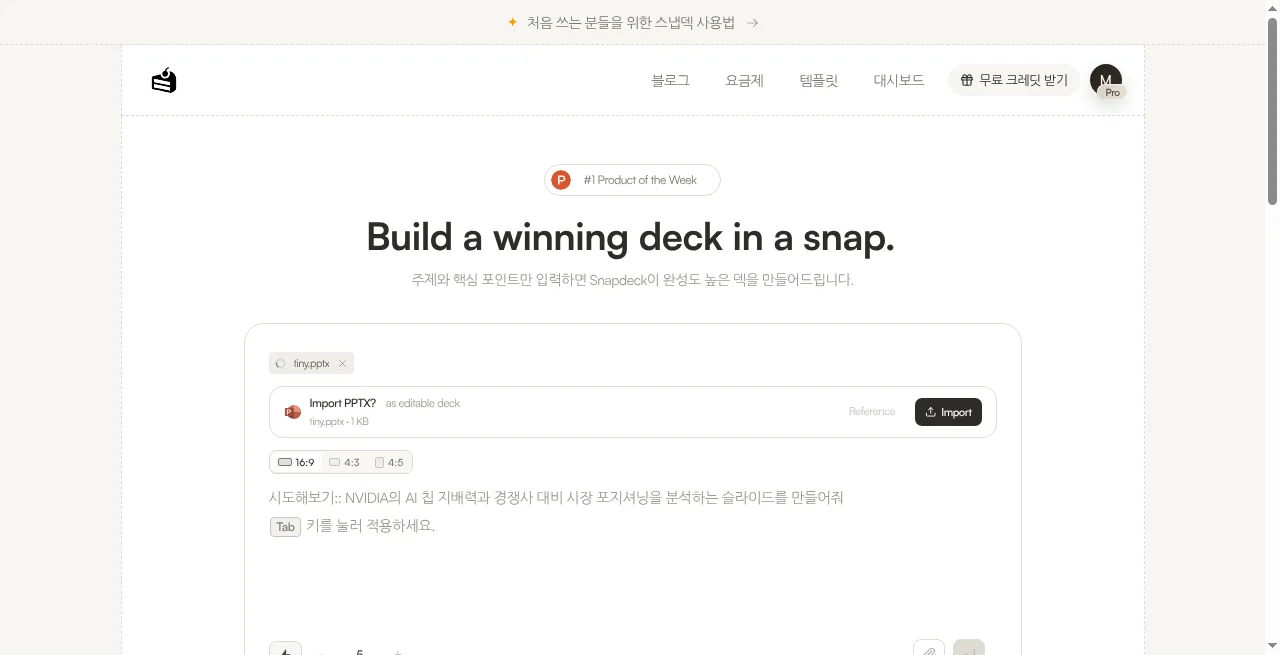
In Snapdeck, uploading a file through Import PPTX on the home screen shows Reference and Import. Reference uses the file as source material for a new deck. Import opens it “as editable deck” so you can keep editing. The features page says you can import an existing PPTX to keep working, and export finished slides to PPTX.
Which one to open
Canva fits when
- You need social images, video, docs, or websites alongside the presentation, in one tool.
- Your team keeps logos, colors, and fonts aligned with Brand Kit and edits together by link.
- You need Presenter view, recording, or audience tools like Canva Live on stage.
- You need a video file such as MP4 or GIF as output.
Snapdeck fits when
- This job is one presentation deck, and you want a prompt draft followed by Chat edits.
- You need to use an existing PPTX as Reference, or open it with Import and keep editing.
- The last step is PowerPoint again, or a Figma (.fig) file for a designer.
Where the scope differs
Canva covers design broadly. Snapdeck does not have that range and stays focused on the deck. On the other side, Canva’s official download formats do not include Figma (.fig), and its PowerPoint import is still in beta.
So
If slides are one of many things you make, Canva is the comfortable choice. If the slides are the deliverable, and the job ends with a PowerPoint or Figma handoff, Snapdeck is the closer fit.
Want to start a deck from a prompt, or open an existing PPT and fix it? Try it on Snapdeck. ☺️
Sources: Canva Presentations, Canva Magic Design, Canva AI for Presentations help, Canva AI help, download file types help, PowerPoint import help, Figma import help, Brand Kit help, sharing help, presentation modes help, Canva Live help, Visual Suite, Canva pricing, the Snapdeck features page, and the Snapdeck pricing page. Canva details come from public pages checked on 2026-10-05; the logged-in editor was not captured. Snapdeck home and template screens are public pages from 2026-10-05; the editor, export, and Import PPTX screens are captures from a Pro account in Korean.