
Instagram carousel with AI, then export to Figma
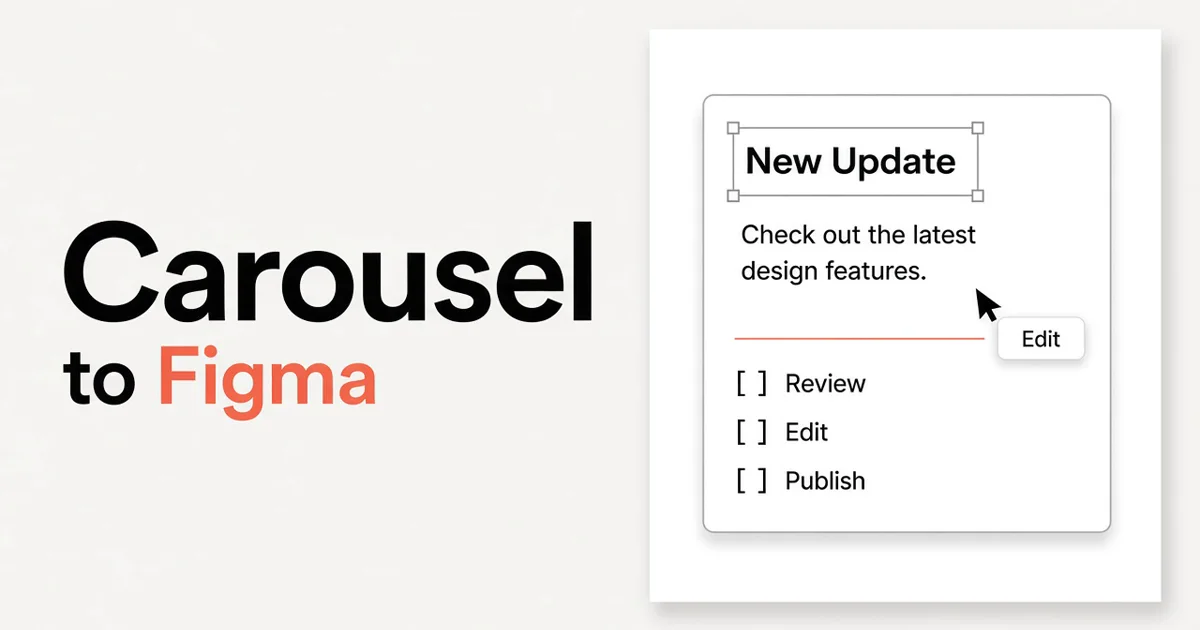
An Instagram carousel is a different job from a 16:9 pitch deck. The first card has to stop a scroll, the middle cards need a reason to be saved, and the file usually leaves twice: once as images you can upload, and once as a Figma file a designer can keep editing.
Here is how to make an Instagram carousel with AI and export to Figma in Snapdeck. Choose 4:5, generate the cards, edit them, then export Figma (.fig). The same menu also gives you PowerPoint (.pptx) and Images (.png).
Snapdeck’s slide ratios are 16:9, 4:3, and 4:5. A square 1:1 carousel size is not one of them. For a feed-ready result, choose 4:5. Those cards are generated on a 1080×1350 canvas, the portrait size Instagram uses for a 4:5 feed carousel.
Choose 4:5 before you generate
On the home screen, set the ratio above the prompt to 4:5. The headline changes to “Build a viral carousel in a snap.” The line under it says Snapdeck will generate a polished carousel from your topic and key points. The field placeholder becomes “Example: enter one trend-driven topic people would want to save or share.”
Write the topic, who it is for, and the points the cards should cover. The home screen also rotates carousel examples. One of them is “The small pattern behind brands suddenly blowing up on Instagram.” Use that, or replace it with your own brief.
Under the prompt you can still set the model and the slide count. The buttons are Web Research, Web Scrap, Import PPTX, and Auto Agent. Auto Agent says “Agent handles the rest,” and that slide count, style, theme, and outline are chosen from your prompt. Skip it when you need to set the card count yourself.
The Free plan is about 2 decks. That is enough to try this flow on a real topic.
A 16:9 deck is still a presentation. Choosing 4:5 first is what switches Snapdeck into the social carousel, including the carousel styles below. The social carousel post explains why this format is built as card news.
Pick a carousel style
With 4:5 selected, the Style screen shows four carousel styles instead of the usual presentation styles. These are the on-screen names and descriptions:
- Magazine — eye-catching card news built around imagery and concise copy.
- Guide — step-by-step information and explanations, in an easy-to-follow sequence.
- Event — multiple images and details in a grid, so varied content reads at a glance.
- Playbook — actionable information built around checklists and execution steps.
A product explanation or a how-to fits Guide or Playbook. A visual story fits Magazine. A launch, or any post with a date, fits Event.
If you change the style, Snapdeck asks: “Changing the style can regenerate the current Draft using the new style. Continue?” The confirm button is Change and regenerate.
You can review the outline before the design is generated. If this is your first project, the getting started guide walks through the prompt, the outline, regenerate, and Magic edit.
Edit the generated slides
The editor has thumbnails on the left, the canvas in the middle, and Chat on the right. The chat box says “Ask something to Snapdeck, @ to add some contexts.”
Select an area and use Magic edit. The prompt says “Describe how to change the selected area.” The button is Apply magic edit. To redo one whole card, use Regenerate slide. Its placeholder is “Describe how this slide should change.”
Keep one idea on each card. The 4:5 generator is aimed at a phone feed: a clear headline, short support, and a visible object such as a checklist or a before/after. Important text stays inside a safe zone, so a slight feed crop is less likely to cut it off. Page numbers and presenter footers are not part of this format.
Export to Figma, PPTX, and PNG
Open Export deck. The menu says “Choose a format to download this deck.”
- Figma (.fig) — “Figma-importable file.” The button is Download FIG.
- PowerPoint (.pptx) — “Editable slides for PowerPoint and Keynote.” The button is Download PPTX.
- Images (.png) — “One PNG image per slide.” The button is Download PNG ZIP. This is the file you upload to Instagram. Snapdeck does not publish the carousel for you.
- PDF (.pdf) — “Fixed layout for sharing or printing.” The button is Download PDF.
Figma and PowerPoint can be plan-gated. The lock copy is “FIG export requires Plus” and “Upgrade to Plus or Pro to export .fig files.” PPTX uses the same gate: “PPTX export requires Plus” and “Upgrade to Plus or Pro to export .pptx files.”
In Figma, each card comes in as a frame, and most text, shapes, and images stay as editable layers. If a font is not in the Figma workspace, Figma can substitute another. The Figma export post covers what stays editable and what falls back to an image. The PPTX post covers sending the same deck to PowerPoint or Keynote.
A practical split: PNG ZIP for the Instagram upload, Figma when a designer still needs to change type, color, or layout, and PPTX when the carousel also has to live in a slide file.
When the carousel has to be square
Instagram also accepts square carousels. Snapdeck’s slide sizes do not include that ratio. The sizes are 16:9, 4:3, and 4:5. There is no 1:1 control, and exporting a 16:9 deck as PNG does not turn it into a carousel.
Use 4:5 when you want the cards generated for a feed. If a placement truly has to be square, that crop happens after export, outside Snapdeck.
Try it
Open Snapdeck, choose 4:5, describe the carousel, edit the cards, then export. The Free plan is about 2 decks. Figma (.fig) and PowerPoint (.pptx) open on Plus or Pro.