
PPTX Import, Export, and AI Editing in Snapdeck
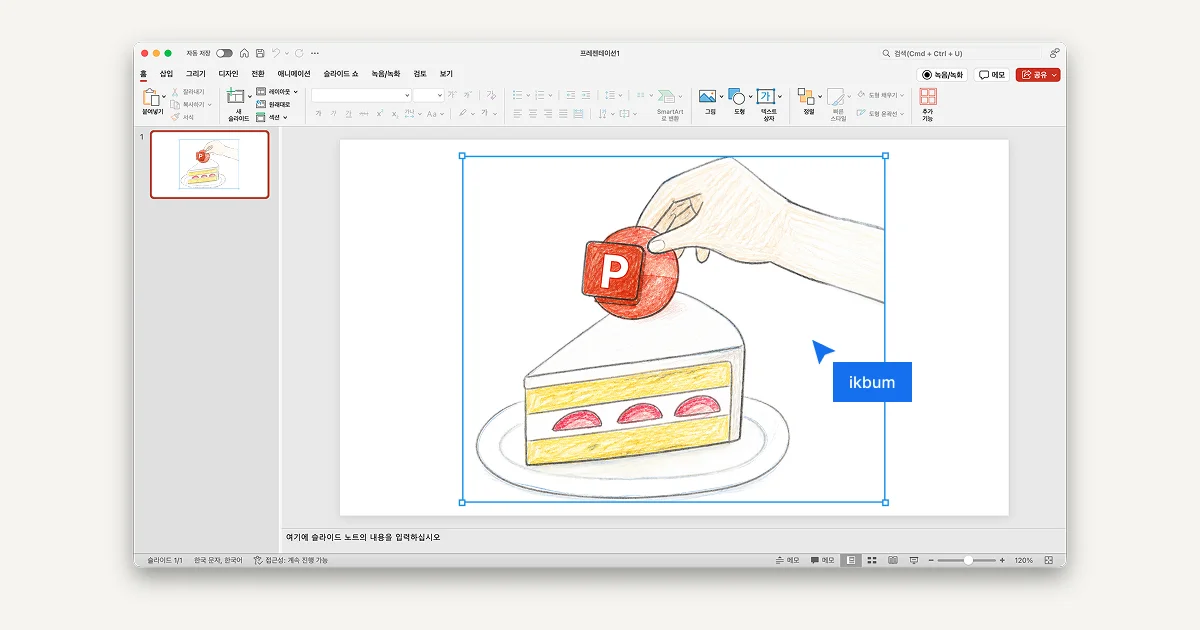
Snapdeck can now import a PPTX file, edit it with AI, and export it back as PPTX.
That sentence is short, but this was one of the harder product loops we have worked on. In presentation work, PPTX is unavoidable. A lot of company decks still move around as PowerPoint files, and many materials you receive from others arrive as .pptx. If Snapdeck is going to be a real working tool, being good at "start from scratch" is not enough.
You need to open existing files, keep working on them, and send them back out when PowerPoint is still part of the workflow.
Import PPTX As A Deck
The biggest change is PPTX Import.
From the home input, click Import PPTX, or upload a .pptx file. Snapdeck can bring that file in as an editable deck. This is not just attaching a static image. It opens the slides inside a Snapdeck project so you can keep working from there.
When you upload a PPTX file, you get two choices.
Reference uses the PPTX as source material. Use this when you want AI to understand an existing deck and create something new from it.
Import opens the PPTX itself as a Snapdeck project. Use this when you want to keep the original deck and edit it directly: an old proposal, company profile, investor deck, lecture deck, or any file where most of the material already exists.
This is also where the work got difficult. Showing a PPTX and making it editable are not the same thing. A preview is one level of the problem. A deck you can keep editing, then export again, is a much higher bar. We could not set the standard too low.
Edit Existing PPTs With AI
After importing a PPTX, you can edit it inside Snapdeck.
You can change text manually, adjust shapes and images, and use AI on top of that. Select an area and use Magic Edit with requests like "make this shorter," "make this sound more professional," or "rewrite this section as product launch copy."
The important part is that you do not have to regenerate the whole deck. You can fix only the part you are looking at.
For example:
- update only slide 3 of an old company deck
- shorten long bullets for a live presentation
- make product screenshot captions clearer
- regenerate one weak slide without throwing away the rest
- compare before/after and decide whether to apply the AI result
That matters in real work. Most deck editing requests are not "make everything again." They are "fix this part and leave the rest alone." Especially when a deck has already been reviewed by a team, control matters more than automation.
This was not easy either. AI output is not the finish line. The user still needs to compare, accept, or discard it. In an editor, the final choice has to stay with the person doing the work.
Export Back To PPTX
When you are done, you can export back to PowerPoint .pptx.
In the project export menu, choose PowerPoint (.pptx). The downloaded file can be opened and edited in PowerPoint and Keynote. Decks created in Snapdeck and decks imported from PPTX follow the same export flow.
The export menu currently supports:
Images (.png)— one PNG image per slidePDF (.pdf)— fixed layout for sharing or printingPowerPoint (.pptx)— editable slides for PowerPoint and Keynote
PPTX export is available on Plus / Pro. PDF is enough for many sharing flows, but teams that need to continue work in PowerPoint need PPTX export.
Export was harder than it looks. PDF is mostly about preserving what you see. PPTX has an afterlife: someone opens the file, edits text, moves images, and saves it again. So export is not just a download button. It is whether the work continues outside Snapdeck.
How To Use It
This is especially useful when the format is already fixed.
For example, many government grants, R&D programs, startup support programs, school assignments, and institutional submissions come with a required PPT template. The cover, agenda, problem statement, strategy, business plan, expected impact, logo placement, font rules, and margins may already be defined. In that case, the job is not to create a beautiful deck from scratch. The job is to keep the required format and improve the content inside it.
That is where Import works well. Bring the template PPTX into Snapdeck, keep the structure, and use AI to refine each slide: tighten long explanations into presentation bullets, move the key message forward, rewrite sections in a clearer evaluation-friendly tone, or make one weak slide easier to read. When you are done, export it back to PPTX for submission.
Good use cases include:
- government grant / R&D / startup support pitch decks
- fixed PPT templates from institutions, schools, or partners
- sales proposals that must use a company template
- investor decks that need updated metrics and messaging
- quarterly reports updated from last quarter's file
- lecture or training decks that keep the same format over time
For these cases, "generate a new deck from scratch" is not always the right answer. The format already matters. Some slides may already be approved. The company or institution template may need to stay intact. Choose Import when you want to preserve the file and revise only what needs work.
Use Reference when the old PPT is only source material and you want a new deck. For example: attach an old company profile and ask Snapdeck to create a new 10-slide sales deck from it.
Why This Matters
The thing we keep seeing is that deck work almost never starts and ends in one clean pass.
Sometimes you create from scratch. But very often, you receive an existing PPT and need to revise it. Last quarter's deck becomes this quarter's version. An old company profile needs a new tone. Someone's rough draft has to become presentable right before a meeting. If a tool only works well for decks created inside itself, it misses a big part of the actual workflow.
So PPTX import, AI editing, and PPTX export are not separate features.
Import → edit → AI revise → export
That loop is the point. Snapdeck can now work not only with decks created in Snapdeck, but also with the PowerPoint files your team already has.
There is still a lot to improve. PPTX files vary a lot, and older company templates can be full of edge cases. But the starting point is here: bring an existing PPT into Snapdeck, edit it with AI, and take it back to PowerPoint when you need to.