
Pick Google Slides or Snapdeck by your deck's language and who edits it
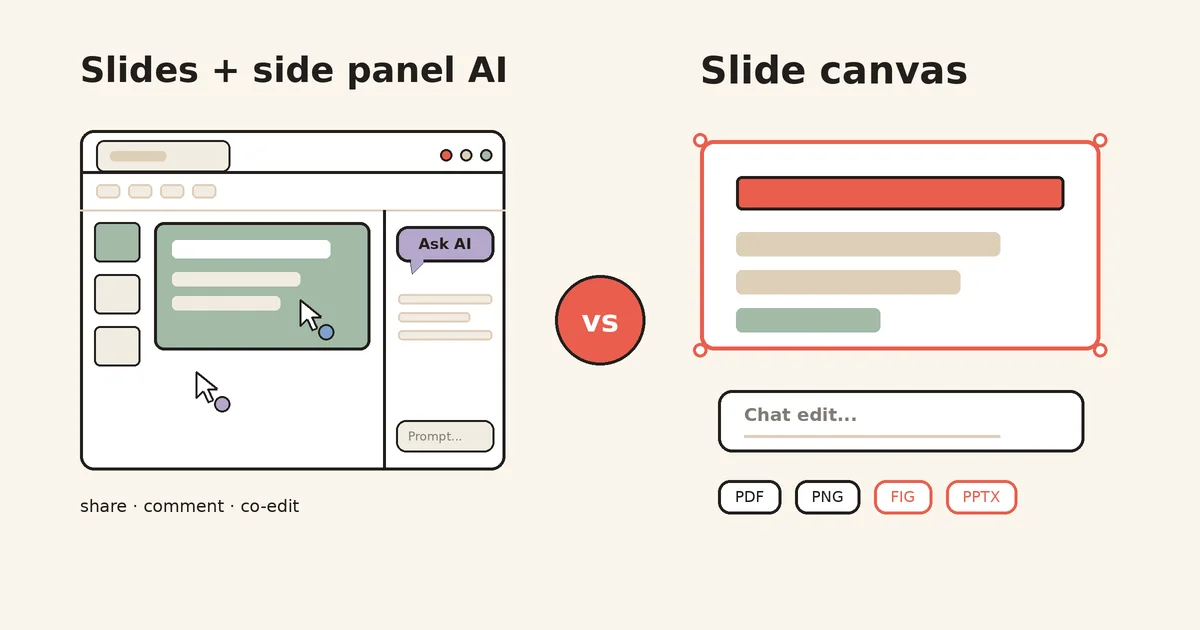
Lots of people open Google Slides first when they need a deck. It is free, and one link brings the whole team in.
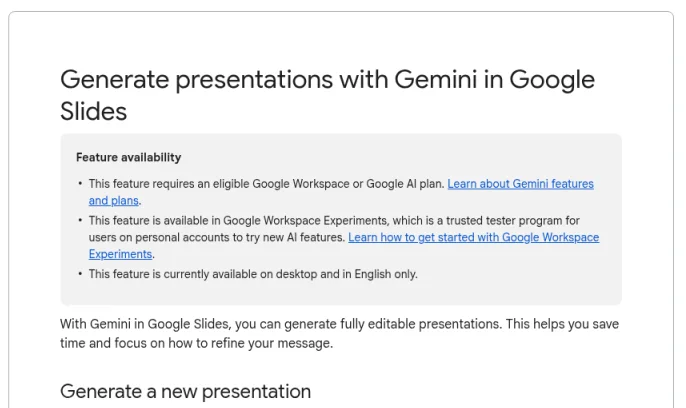
These days you can also have Gemini build a whole deck. But read the official help and there are conditions: desktop, English, and an eligible paid plan.
So this post splits Google Slides and Snapdeck by two questions. What language is the deck in? And who edits it with you? No rankings. 🙂
Both show you an outline first. The conditions differ.
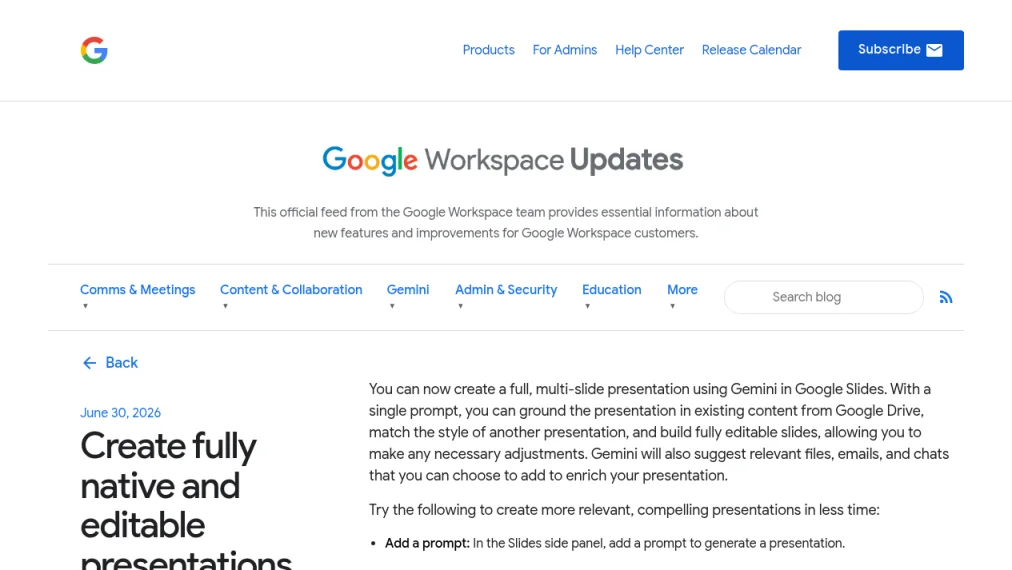
Start with Google. The Generate presentations with Gemini help article describes clicking Presentation on the start screen, or Ask Gemini in a blank presentation with no slides, then describing your topic and goals in the side panel. You can add Drive files as sources, or upload an existing deck to match its style.
Gemini asks follow-up questions, then shows a plan with an outline for each slide. Click Approve when you are happy, and you get fully editable slides. After that, have Gemini refine one slide at a time, or edit by hand.
The conditions sit at the top of the same article. It needs an eligible Google Workspace or Google AI plan, and it is currently available on desktop and in English only. The launch post (2026-06-30) says it launched in English (United States) only, and lists Business and Enterprise Standard and Plus, plus Google AI Pro and Ultra, as eligible plans.
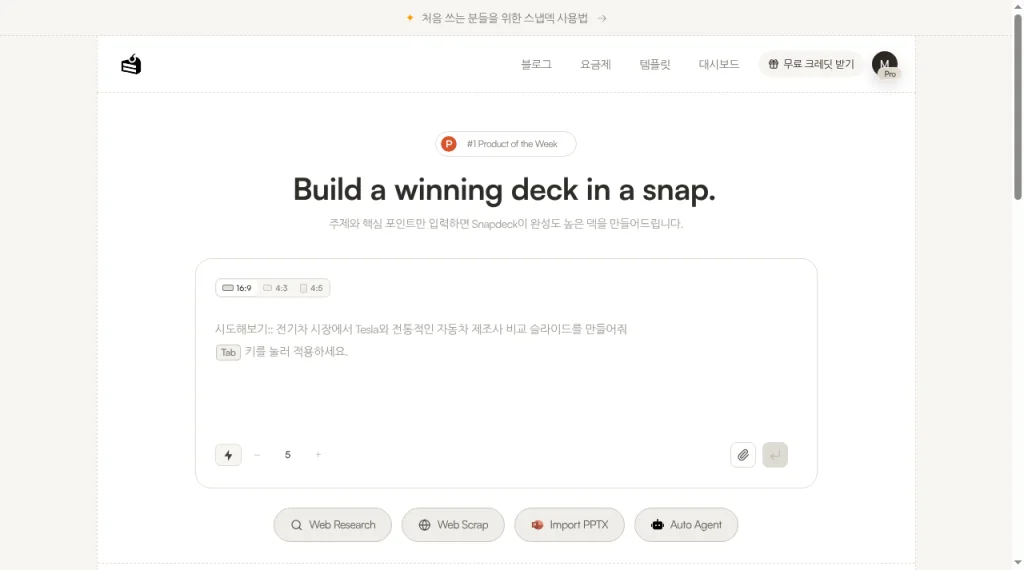
Snapdeck’s home is built for one thing: making a deck. The headline reads “Build a winning deck in a snap.” The line below it says, in Korean, that you enter your topic and key points and Snapdeck builds a polished deck. Above the prompt box you pick a 16:9, 4:3, or 4:5 ratio. Below it you set the slide count or attach a file. The buttons underneath are Web Research, Web Scrap, Import PPTX, and Auto Agent. The features page says you can review and edit each slide’s outline before generating designs.
Up to here they look alike. Both show an outline before the design. The split is language and how you work together.
The comparison, in one pass
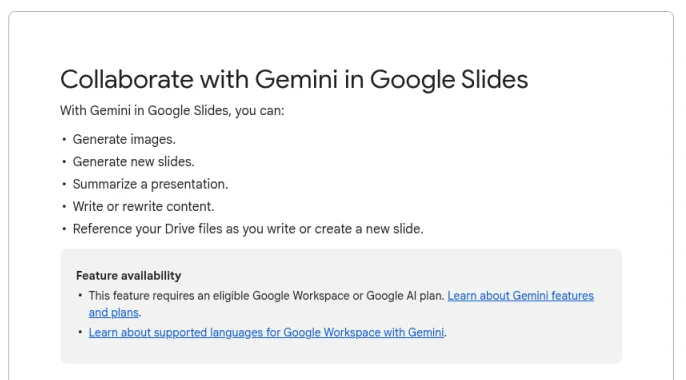
Google Slides lines come from official help articles and the product page, checked on 2026-10-07. The logged-in Slides editor and the Gemini side panel were not captured for this post. Snapdeck lines come from product screens captured the same day and the features page.
| Google Slides | Snapdeck | |
|---|---|---|
| Cost to start | Free with a Google Account, per the product page. Gemini features need an eligible paid Workspace or Google AI plan | On the pricing page comparison table, PPTX and Figma export are on Pro and Team, not Free |
| AI whole-deck draft | Gemini: describe in the side panel → follow-up questions → review and approve an outline plan → editable slides. Drive files as sources, match an existing deck’s style. Desktop and English only | Home prompt, 16:9 / 4:3 / 4:5 ratio, slide count, file attachment, Web Research, Web Scrap, Auto Agent. Outline review before design |
| Korean | Per the supported languages help, the side panel, image generation and editing, and Improve your content support Korean. Whole-deck generation and Generate a slide are English only | These captures use the Korean UI. The home example prompt is in Korean too |
| How you edit | Direct editing, Gemini refining one slide at a time or adding slides, prompt-based slide edits with Replace / Insert, Refine (shorten, rephrase, more formal, bulletize) | Thumbnails, canvas, and Chat on the right. Per the features page: edit directly, ask in AI chat, or select an area and request a change, then compare before applying |
| Working together | Real-time co-editing, comments with @-mentions, roles: Viewer, Commenter, Editor, Owner | Share popover: Not shared / anyone with the link can view, plus a search-engine toggle. No invite field or edit/comment roles seen. Real-time co-editing was not verified |
| On stage | Presenting help: presenter view with speaker notes, auto-advance, laser pointer. Audience Q&A | Play mode: full screen, prev/next, slide counter. No presenter view, notes, or Q&A seen |
| Export | PPTX, PDF, ODP, TXT, and the current slide as JPEG, PNG, or SVG. Figma not found in the docs we checked | PDF, PNG (one per slide), Figma (.fig), PowerPoint (.pptx). No ODP, TXT, SVG, or video |
| Bringing in a PPT | Office files help: convert .pptx and others to Slides, or edit as-is. On conversion, macros are unsupported, charts and videos become images, SmartArt becomes Drawings | Import PPTX, then Reference (new deck from it) or Import (open as an editable deck) |
If your deck is in Korean, check what “supports Korean” covers
Google’s supported languages help says the Gemini in Slides side panel works in 29 languages, Korean included. Image generation and editing cover the same 29 languages. Improve your content, which polishes text, covers 8 languages, Korean included.
Whole-deck generation is not on that list. The same article says features not listed there support English only. The whole-deck help article and the Generate a slide help each say “desktop and in English only.”
So here is the short version. Talking to the side panel in Korean is within the supported range. But building a whole deck or a new slide from a prompt is English only in the official docs. We did not test what actually happens with a Korean prompt.
These captures use the Korean UI (a few buttons like Chat, Export, and Share stay in English), and the home example prompt is in Korean too. That said, we did not find an official list of the languages Snapdeck can generate in.
Where Google Slides fits: many people editing and presenting
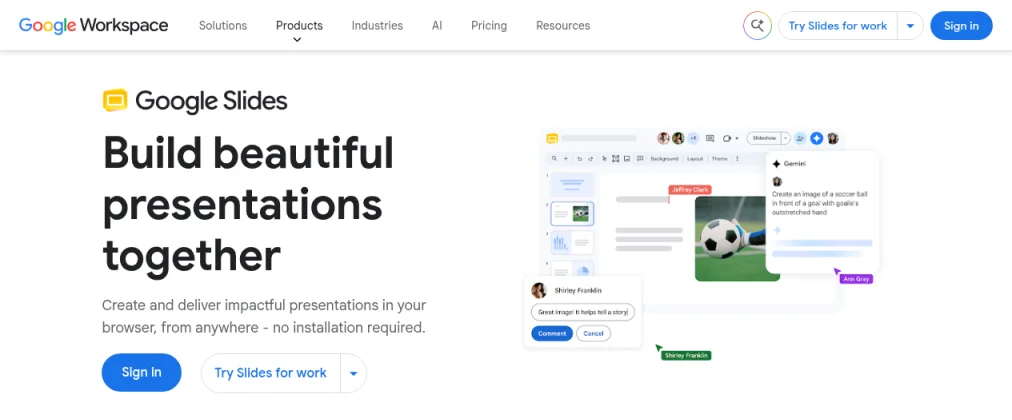
Google Slides’ strength is collaboration. The product page highlights live editing and comments, plus live pointers that show where co-creators are. Its FAQ says co-editing means multiple people can work on the same slide at the same time.
Permissions are fine-grained. The sharing help lays out Viewer, Commenter, Editor, and Owner in a table. Per the comments help, you can @-mention people in comments and, with a work or school account, assign action items.
Presenting is solid too. The presenting help covers presenter view with speaker notes, auto-advance, and a laser pointer. Per the Q&A help, viewers can ask questions from any device, ask anonymously, and vote on questions.
And Slides itself is free with a Google Account. The product page FAQ does note that some features, like recording and speaker spotlight, are only on Workspace plans.
Where Snapdeck fits: a Korean deck, made fast, shipped as a file
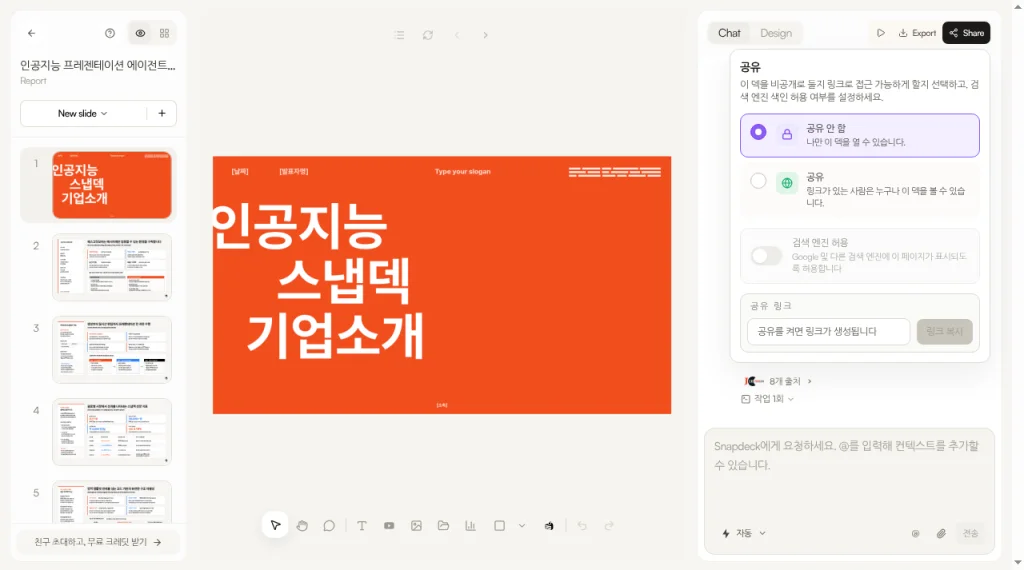
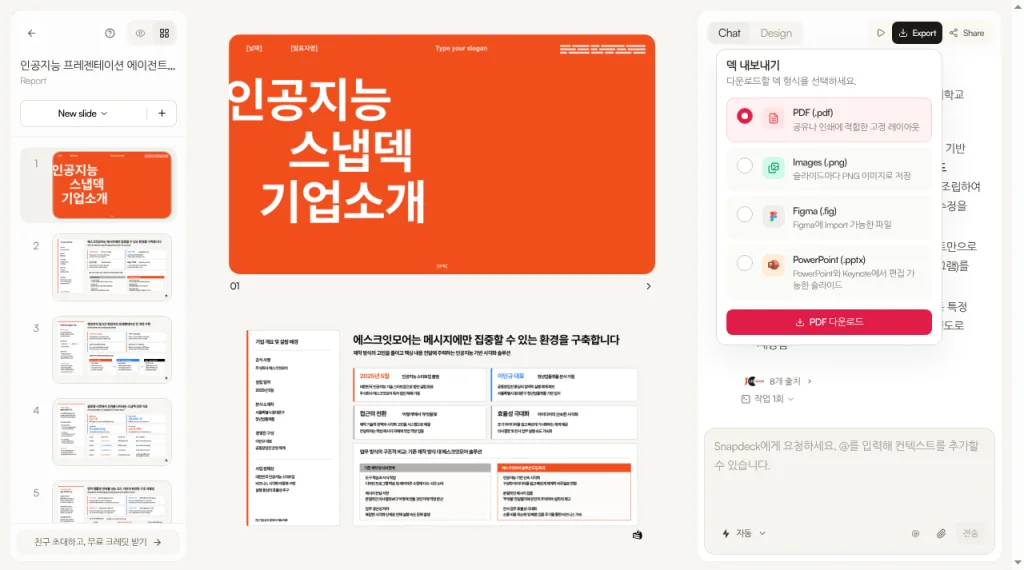
In the Snapdeck editor, thumbnails sit on the left, the canvas in the middle, and Chat and Design tabs on the right. The Chat box asks you to tell Snapdeck what you want, and says you can add context with @.
Here is how a run goes.
- On the home screen, set the ratio and slide count, and write your topic in Korean. Attach a reference file if you have one.
- Per the features page, review and edit each slide’s outline before generating designs.
- When the deck appears, tell Chat what to change in a sentence. Per the features page, you can edit directly, ask in AI chat, or drag an area and request a change, then compare the result before applying it.
- When it looks right, export as PDF, PNG, Figma, or PPTX.
Now the limits, plainly. Clicking Share in the editor opens a “공유” (Share) popover. You get two choices: “Not shared — only you can open this deck” and “Shared — anyone with the link can view this deck.” There is also an “Allow search engines” toggle and a share-link field with a copy button. We did not see a field to invite people, or edit or comment roles, in that popover.
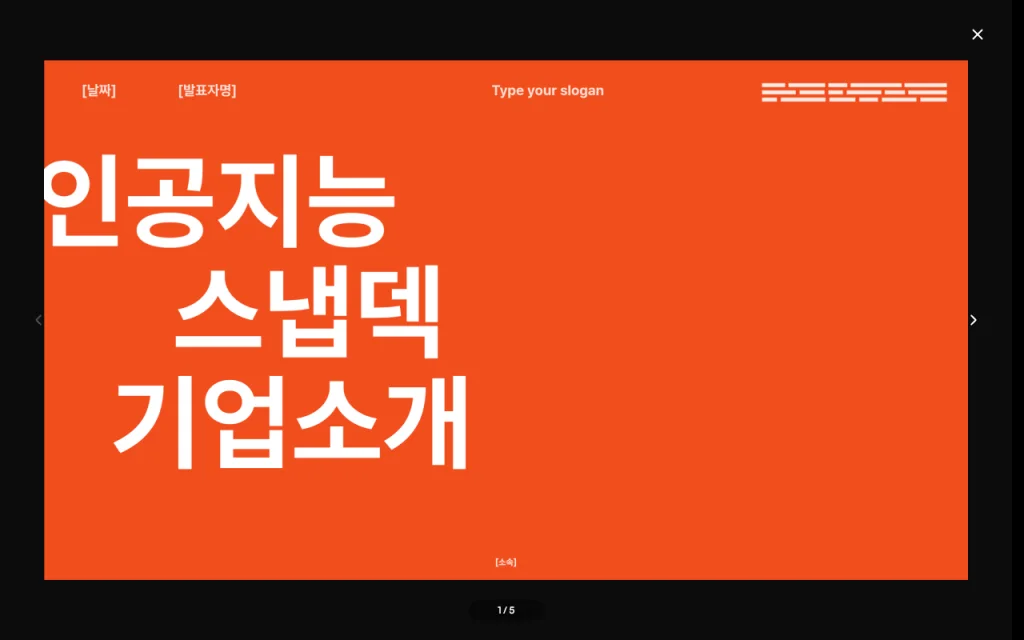
The play button in the editor header shows the slide full screen on a dark background, with prev/next arrows, a counter like “1 / 5,” and a close button. Presenter view, speaker notes, and Q&A were not visible in these screens. We also did not see other people’s comments or presence in the editor, and real-time co-editing was not verified.
When the file has to leave
Google Slides covers many formats. The Slides help (Android) says you can export as PPTX, PDF, TXT, and ODP, and export the current slide as JPEG, PNG, or SVG. We did not find Figma (.fig) export in the Google docs we checked.
Snapdeck’s export menu is titled “덱 내보내기” (Export deck) and lists four formats:
- PDF (.pdf): a fixed layout for sharing or print
- Images (.png): one PNG per slide
- Figma (.fig): a file you can import into Figma
- PowerPoint (.pptx): slides you can edit in PowerPoint and Keynote
ODP, TXT, SVG, and video formats are not in the menu. On the pricing page comparison table, PPTX and Figma (.fig) export are on Pro and Team, not Free. The features page says you can export to Figma and keep working on the design there.
Working with an existing PowerPoint differs too. Google’s Office files help offers two routes: convert a .pptx to Slides format, or edit it as-is in Office Compatibility Mode. On conversion, macros are not supported, embedded charts and videos become images, and SmartArt becomes Google Drawings.
In Snapdeck, uploading a file through Import PPTX on the home screen lets you pick Reference or Import. Reference uses the file as source material for a new deck. Import opens the file itself for editing. The features page says you can import an existing PPTX to keep working, and export finished slides to PPTX.
Using both together
You do not have to pick just one. This flow works too.
- Draft the deck in Korean in Snapdeck and polish it with Chat.
- Export it as PowerPoint (.pptx) (Pro and Team, not Free).
- Upload that file to Google Drive and convert it to Slides format. Google’s help lists .pptx as a format that converts to Slides.
- Your team edits together in Google Slides, leaves comments, and presents with speaker notes.
A few cautions. As noted above, conversion turns charts and videos into images, SmartArt into Drawings, and drops macro support. And we did not test how a Snapdeck .pptx looks after conversion to Slides. Beyond those items, Google’s docs do not say how well layout and fonts carry over. For an important talk, open it once ahead of time.
Which one to open
Google Slides fits when
- Several people edit the same deck at once and split the work with comments and roles (Viewer, Commenter, Editor).
- You need presenter view, speaker notes, or audience Q&A on stage.
- You build decks in English and have an eligible paid plan for Gemini’s whole-deck generation.
- You need ODP, TXT, or SVG as output.
Snapdeck fits when
- You want a fast Korean draft, an outline check, and then Chat edits.
- You need to use an existing PPTX as Reference, or open it with Import and keep editing.
- The last step is PowerPoint again, or a Figma (.fig) file for a designer.
Where the scope differs
Google Slides is strong at editing and presenting together, but Gemini’s deck generation is English only per the official docs. Snapdeck is strong at Korean decks and file handoff, but sharing is a view link, and co-editing and speaker notes were not verified.
So
If editing and presenting as a group is the core of the job, Google Slides is the comfortable choice. If the core is making a Korean deck fast and handing it off as PowerPoint or Figma, Snapdeck is the closer fit. Need both? Draft in Snapdeck, export .pptx, and edit together in Slides.
Want to start a deck from one line in Korean? Try it on Snapdeck. ☺️
Sources: Generate presentations with Gemini help, Gemini presentation generation launch post, Gemini in Slides help, Generate a slide help, Refine help, supported languages help, Google Slides product page, sharing help, comments help, presenting help, Q&A help, Office files help, Slides help (Android), the Snapdeck features page (Korean), the Snapdeck features page (English), and the Snapdeck pricing page. Google details come from public docs checked on 2026-10-07; the logged-in Slides editor and Gemini side panel were not captured. Google images are captures of public pages. Snapdeck home, share, export, and play screens were captured on 2026-10-07 from a Pro account in the Korean UI.