
Genspark AI Slides vs Snapdeck: let an agent research the deck, or shape the outline and hand off PPTX or Figma

"I wish I could just give AI a topic and have it research and build the whole deck." That's usually why people look at Genspark.
Genspark AI Slides is an agent built for exactly that: research, structure, and design in one go. Snapdeck works a little differently. It shows you an outline first, you pick a style and theme, edit on a canvas, and hand off as PPTX or Figma.
In one line: If you want to hand off everything from research to speaker notes, Genspark is closer. If you want to shape the outline yourself and hand off a Figma (.fig) file or PPTX, Snapdeck is closer. If you need a file for free, Snapdeck Free exports PDF and PNG; Genspark Free doesn't export.
There's no ranking here. Let's split it by situation. 🙂
Genspark details come from its official AI Slides help article, membership plans help article, and AI Slides FAQ, checked on 2026-10-28 (KST). We did not log in; public pages only. Snapdeck details come from a signed-in Pro account in the Korean UI the same day, plus the pricing page.
The comparison, in one pass
| Genspark AI Slides | Snapdeck | |
|---|---|---|
| In one sentence | A "presentation agent" that researches, structures, and designs | Outline → style and theme → canvas edits → export |
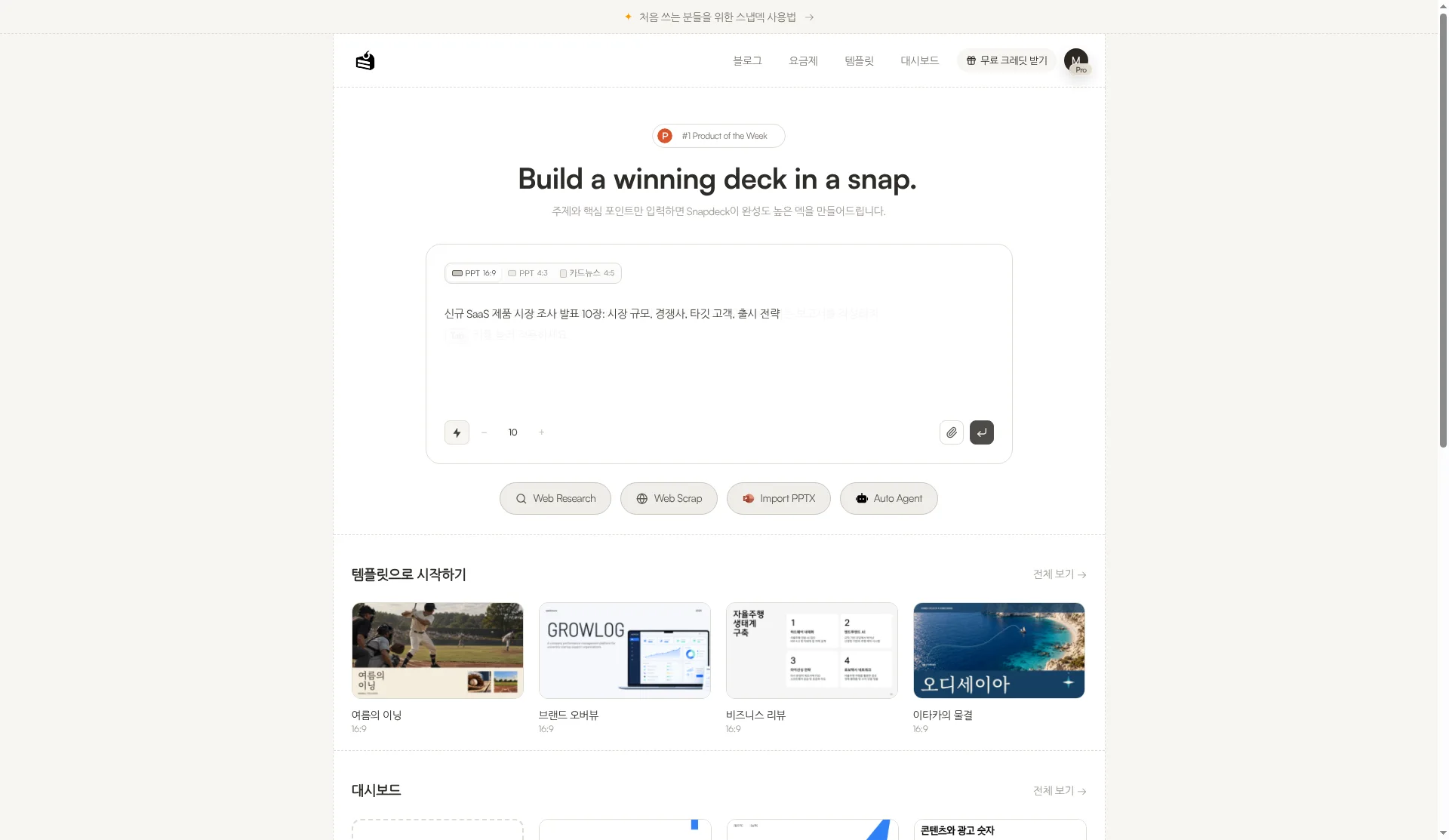
| How you start | Prompt + file uploads (PDF, Word, Excel, PPT). Professional / Creative mode, Guide Mode | Prompt, ratio (PPT 16:9 / 4:3, card news 4:5), slide count, Web Research, Web Scrap, Import PPTX, Auto Agent |
| Review before generating | In Guide Mode, AI asks questions and confirms the outline before building | Outline screen shows each slide's content; edit, then Generate |
| Design starting point | "Skills" (100+ per the help article, replacing the older idea of templates) | Style (A–E variants) + theme; custom themes (Pro) |
| How you edit | Click an element and ask AI, mark spots with pen or box and send edits together, built-in editor (Professional mode) | Direct canvas editing + Chat |
| Speaker notes | Written by AI, included in PPTX | Not included in PPTX |
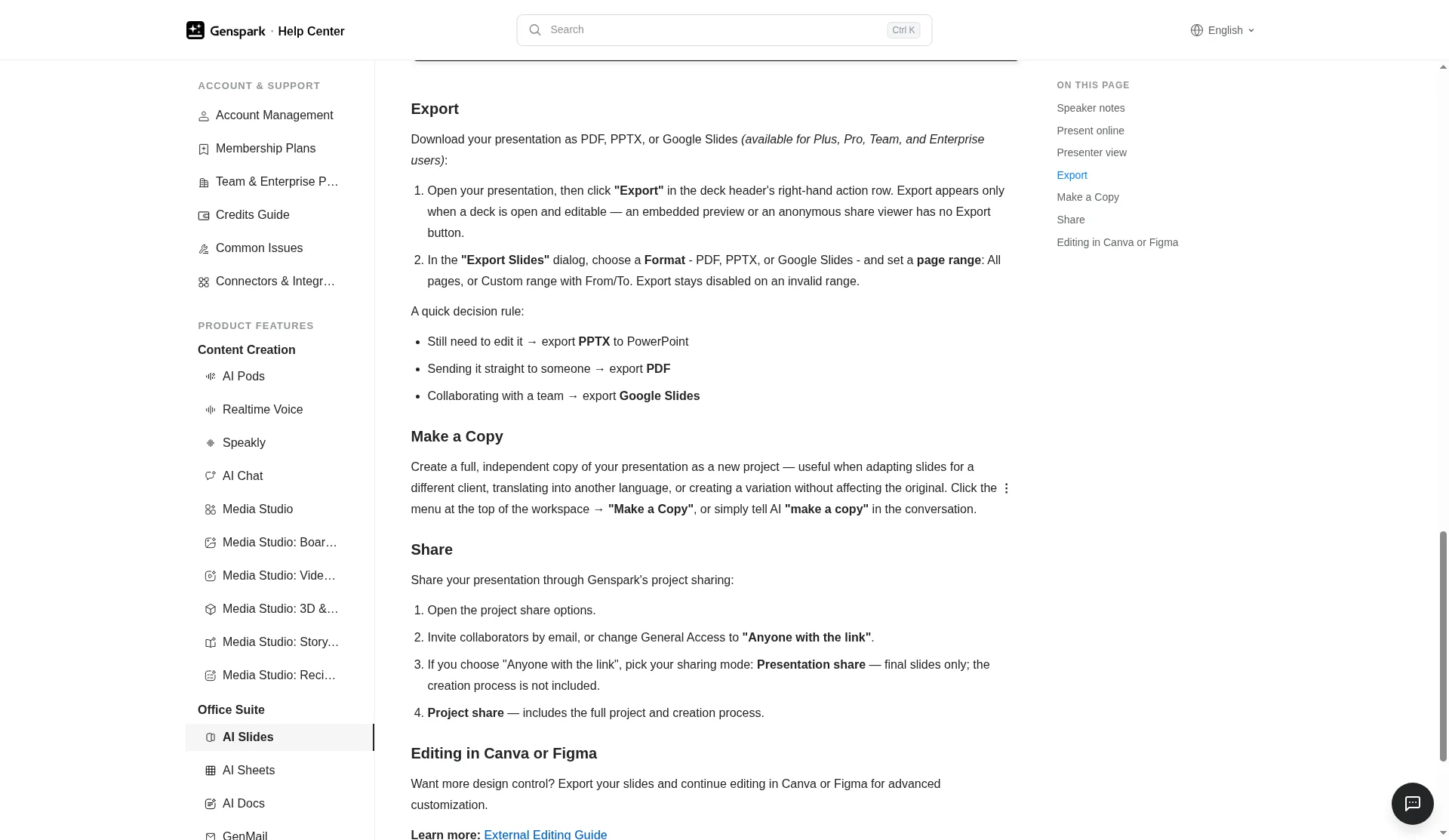
| Export | PDF, PPTX, Google Slides | PDF, PNG (per slide), Figma (.fig), PowerPoint (.pptx) |
| What Free covers | 100 credits a day (with a lifetime cap). Present in browser and share a link, but exporting any format needs a paid plan | 30 starter credits, PDF/PNG export, max 5 slides per deck, watermark |
| Paid entry | Plus US$24.99/month (monthly), US$19.99/month billed annually | Pro ₩13,500/month |
Where Genspark fits: handing off everything from research to presenting
Genspark's help article calls AI Slides an "intelligent presentation agent." You describe your topic and goal, upload files if you like, and it "automatically researches, structures, designs, and generates" the deck page by page in a workspace beside the chat.
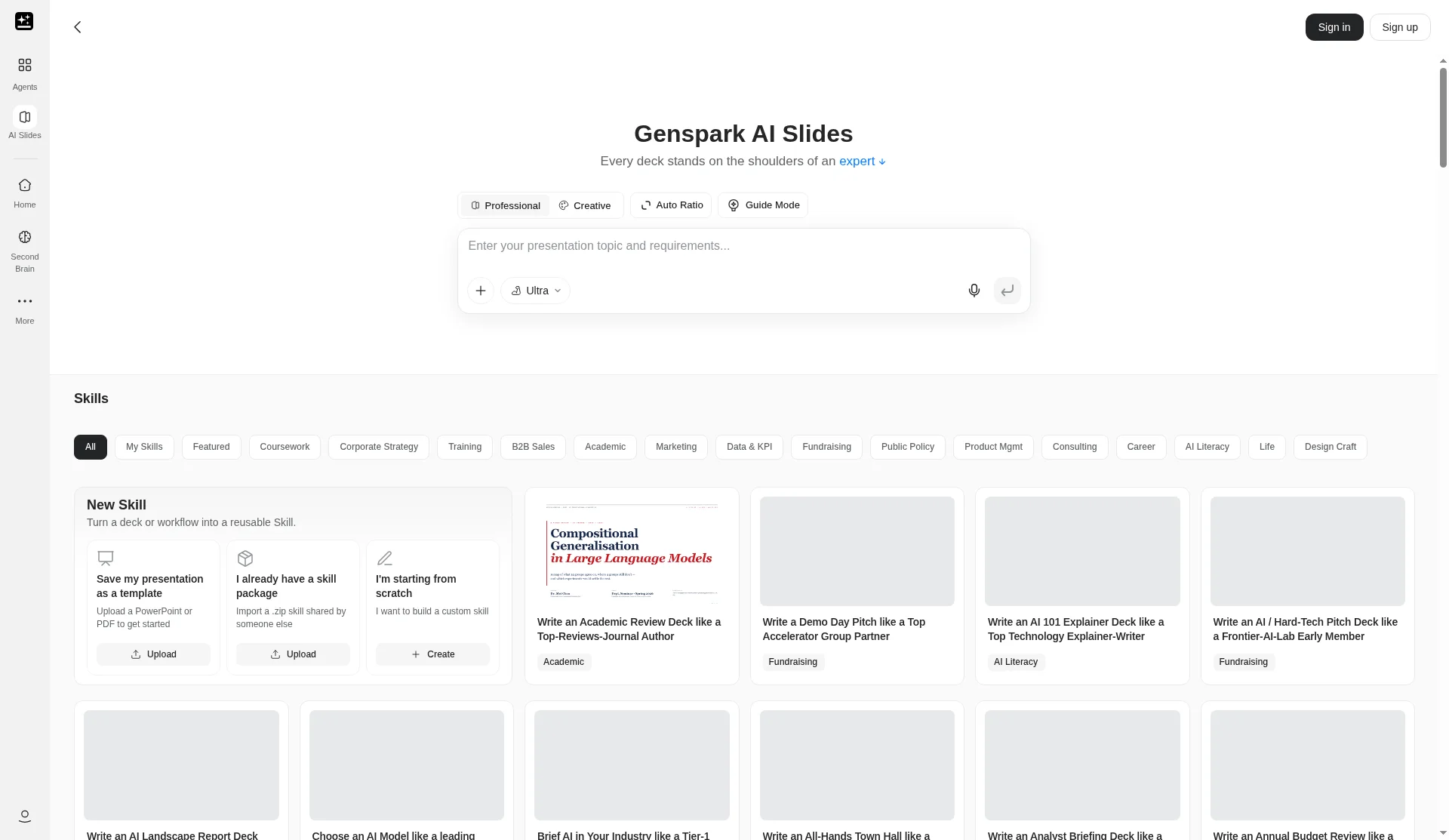
Genspark is clearly ahead in a few places.
- It does the research for you. Searching the web and building the structure is the default flow. If research is half the job, that saves real time.
- Fact checking. "Verify content" has AI cross-check figures and claims against the web or your uploaded files, and the help article says that verification trail goes into the slide notes when you export to PPTX.
- Speaker notes in PPTX. AI asks about the occasion, audience, and tone, writes notes, and they're included in the PPTX. Snapdeck's PPTX doesn't include speaker notes, so Genspark clearly has the edge here.
- Google Slides export. Handy if your team works in Google Slides. Snapdeck's Export menu has no Google Slides option.
- More aspect ratios. Creative mode supports 16:9, 4:3, 1:1, 3:4, 9:16, and 21:9.
- Presenting. Present right in the browser, with a presenter view showing the next slide, notes, and a timer.
To be honest: the help FAQ says "Exporting any format requires a paid plan." On Free you can present in the browser and share a live link, but downloading needs an upgrade. A project's mode can't be changed after it's created, and the manual built-in editor is only available in Professional mode.
How it works in Snapdeck: input → style → generate → export
We ran the same topic ("a 10-slide market research deck for a new SaaS product") in Snapdeck.
1. Input. On home, pick a ratio (PPT 16:9, PPT 4:3, card news 4:5) and a slide count, then type the prompt. Web Research, Web Scrap, Import PPTX, and Auto Agent sit underneath, and you can attach files.
2. Review the outline. Slides don't appear right away. You first get an outline with each slide's title and content. Edit it, then hit Generate. You can also ask in the Chat panel on the right.
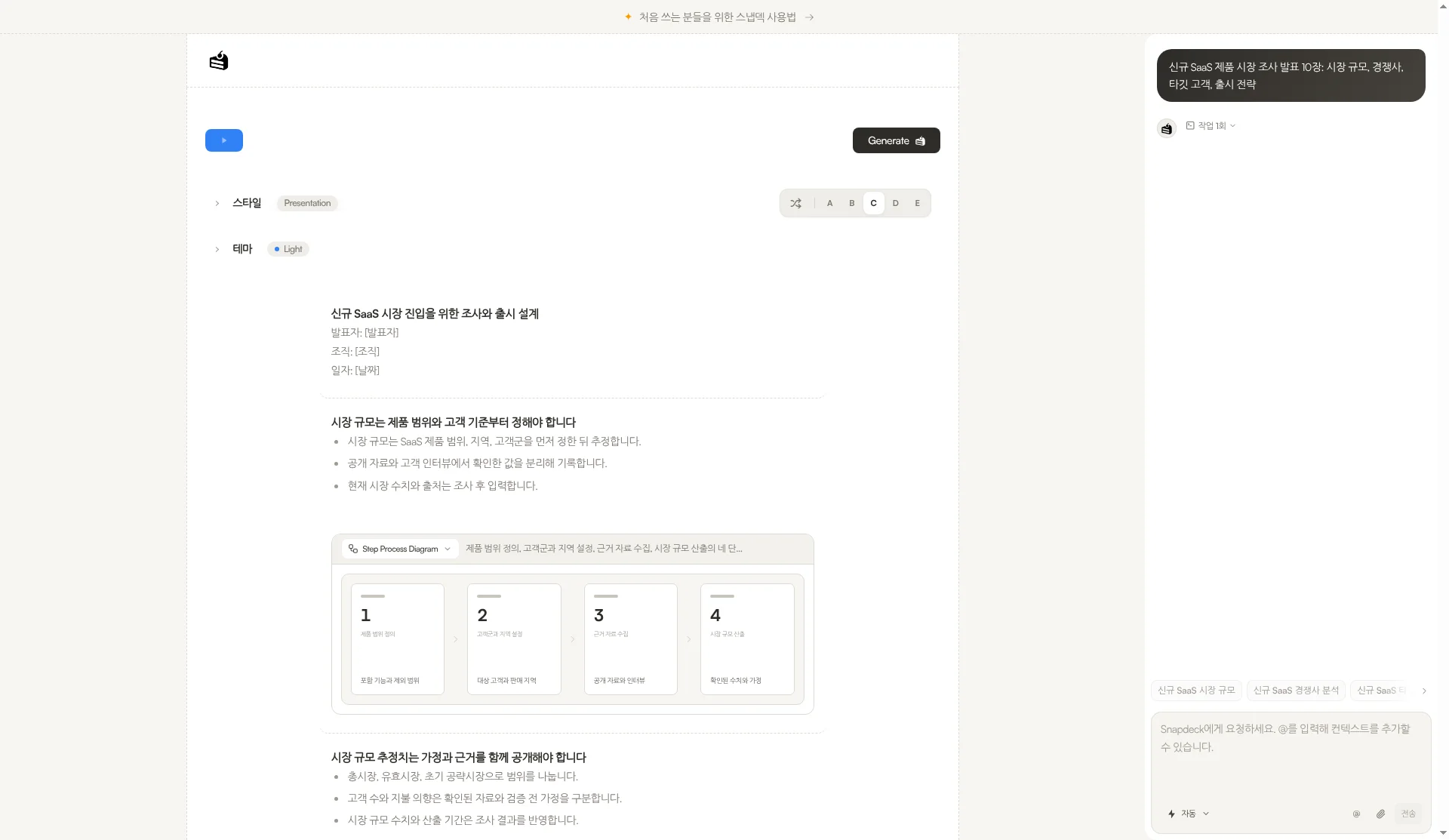
3. Style and theme. Pick a style from the A–E variants, and a theme from the built-in list or the custom theme tab.
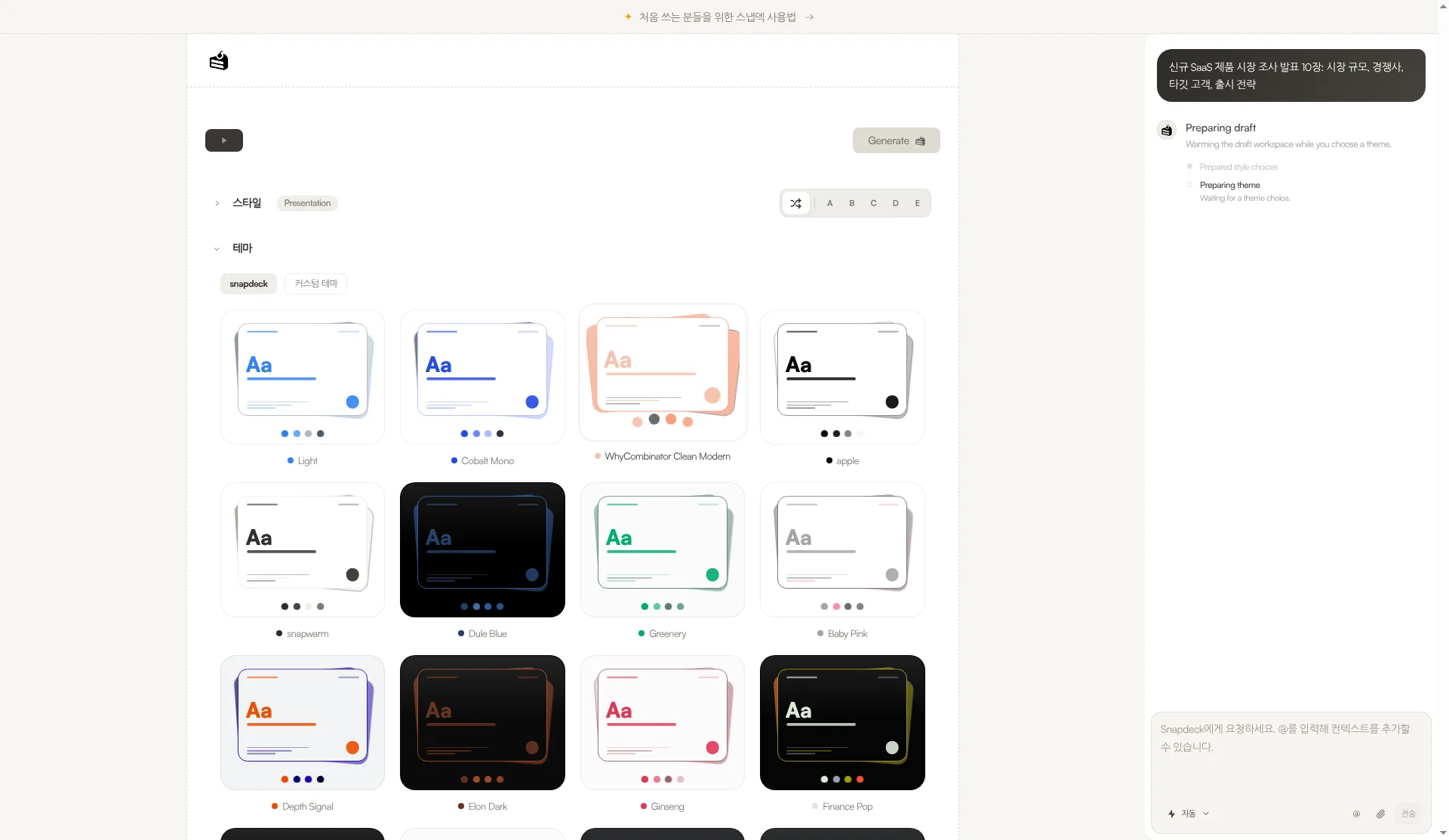
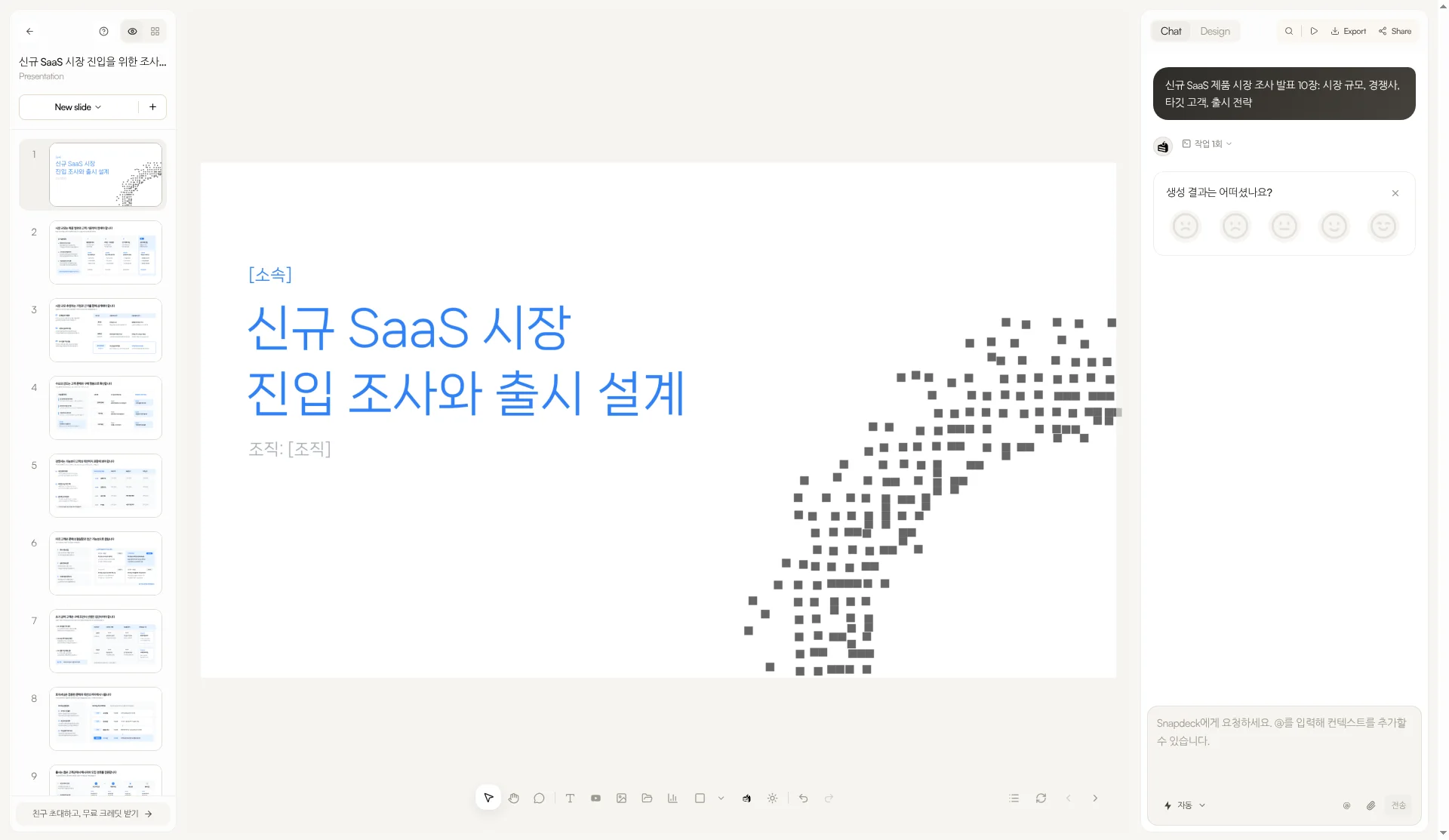
4. Generate and edit. When it's done you land in the editor: thumbnails on the left, the canvas in the middle, Chat and Design on the right. Edit on the canvas directly or ask in Chat.
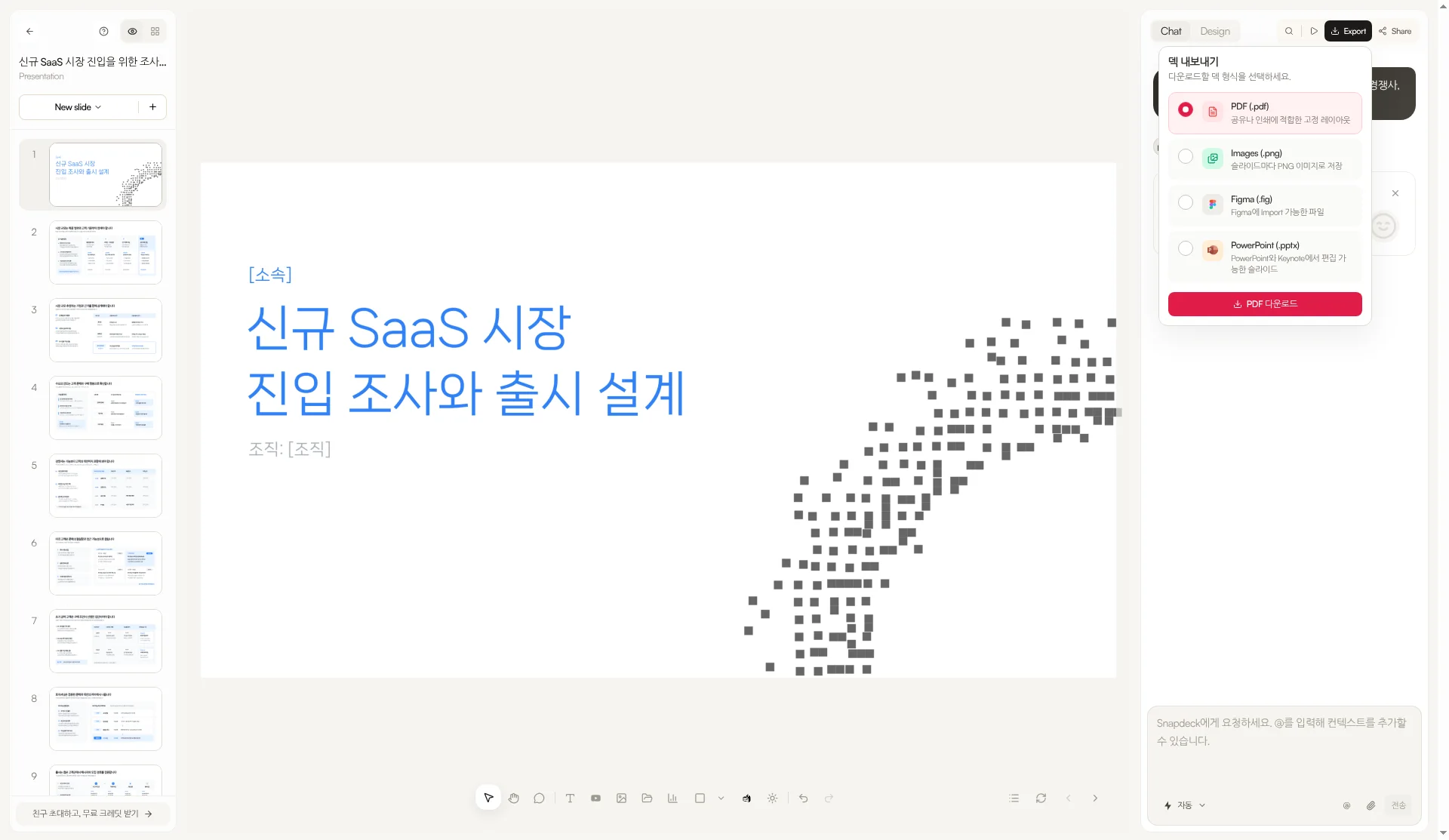
5. Export. Open Export at the top right and you get PDF (.pdf), Images (.png), Figma (.fig), and PowerPoint (.pptx). The Figma item reads "a file you can import into Figma," and PowerPoint reads "slides editable in PowerPoint and Keynote." For teams where a designer keeps refining in Figma, this is the difference. For more on the PPTX flow, see our PPTX import and export post.
Genspark's help article also suggests you "export your slides and continue editing in Canva or Figma." We didn't verify which file format that path uses. What we confirmed is that Genspark's export formats are PDF, PPTX, and Google Slides.
To be honest: Snapdeck's PPTX doesn't include speaker notes, there's no Google Slides export, and there are three aspect ratios. We also didn't see a fact-checking feature like Genspark's "Verify content" on these screens. And Free has no PPTX or Figma export, with a 5-slide-per-deck limit and a watermark.
Cost: how far Free goes, and where paid starts
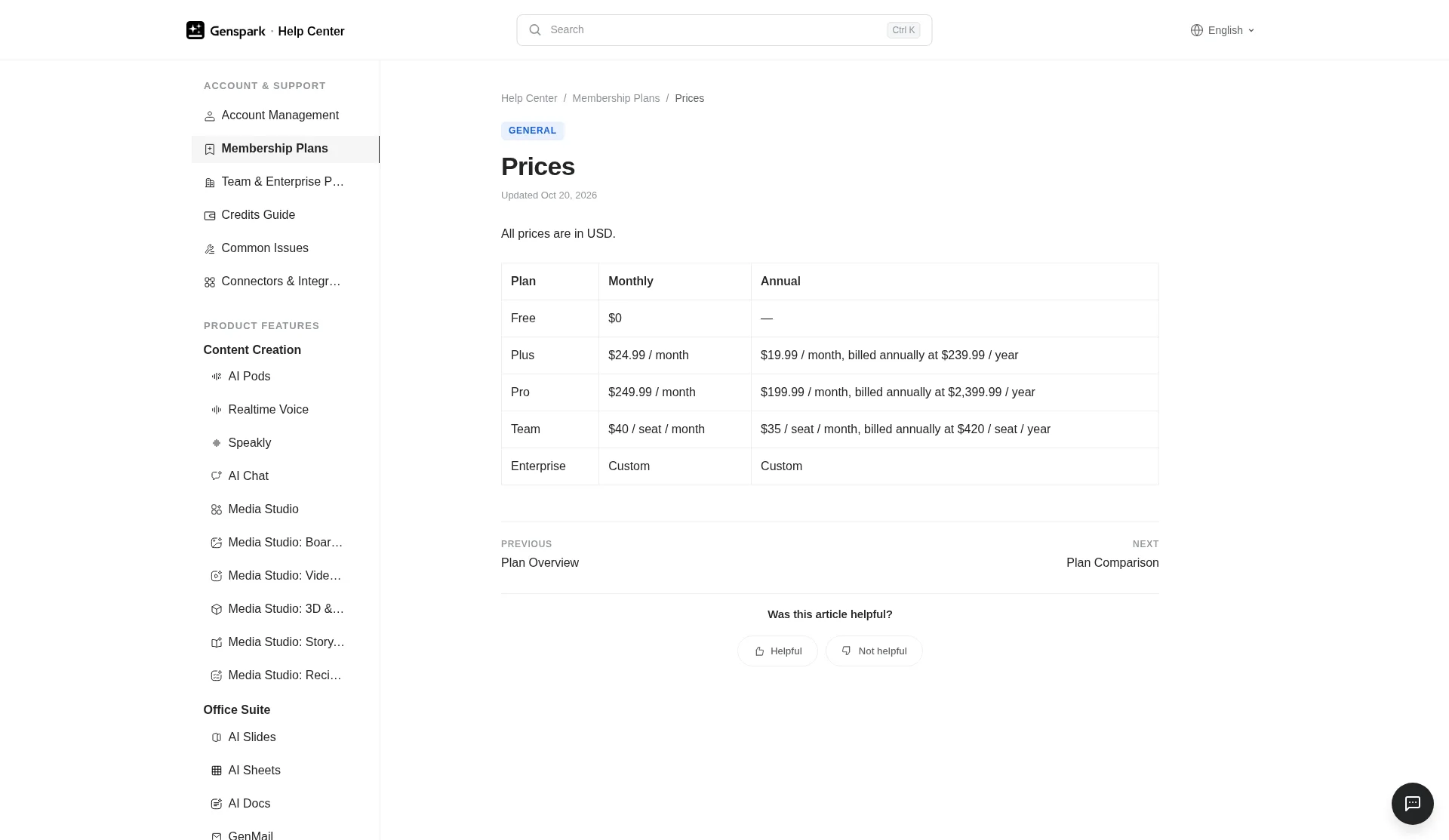
Genspark's membership plans (checked 2026-10-28) say "All prices are in USD."
- Free US$0: 100 credits a day; once you hit a lifetime allowance, the daily refill stops (the number isn't published)
- Plus: US$24.99/month monthly, or US$239.99/year (US$19.99/month) annually. From 10,000 credits a month
- Pro: US$249.99/month monthly, or US$2,399.99/year (US$199.99/month) annually. From 125,000 credits a month
- Team: US$40/seat/month monthly, or US$420/seat/year (US$35/month) annually
- Enterprise: custom
Per the AI Slides help article, Standard quality starts at about 10 credits per page and Ultra at about 100 credits per page. Exporting and manual editing don't use credits. We didn't find KRW pricing on official pages.
Snapdeck pricing (same day, signed-in Pro account, Korean UI, monthly) is Free ₩0 / Pro ₩13,500/month / Team ₩54,000/user/month, with PPTX and Figma export on Pro and Team. Free has 30 starter credits, PDF/PNG export, a 5-slide-per-deck limit, and a watermark. Pro includes 300 credits a month. The Team button says "coming soon," and Enterprise is a custom quote.
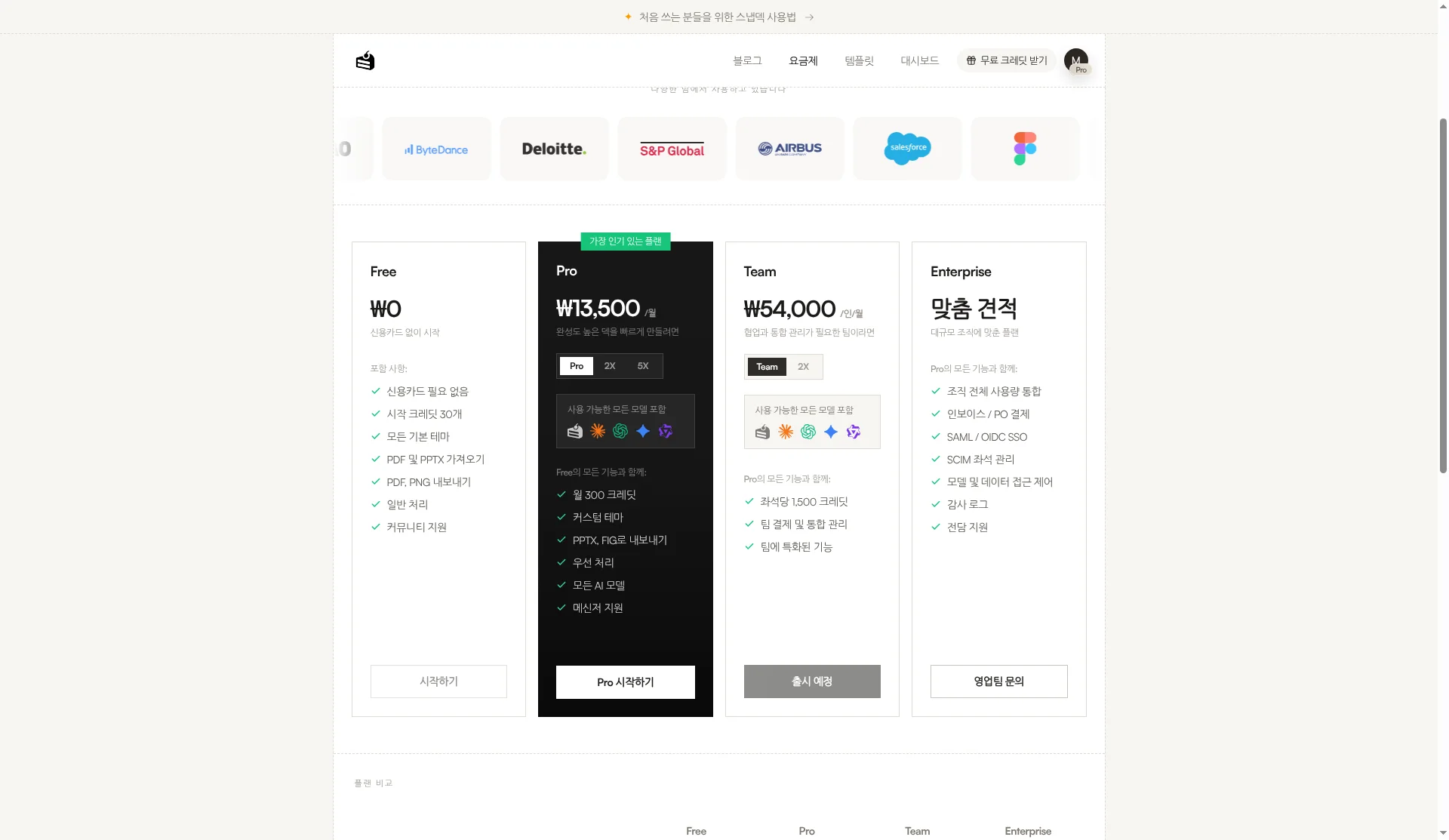
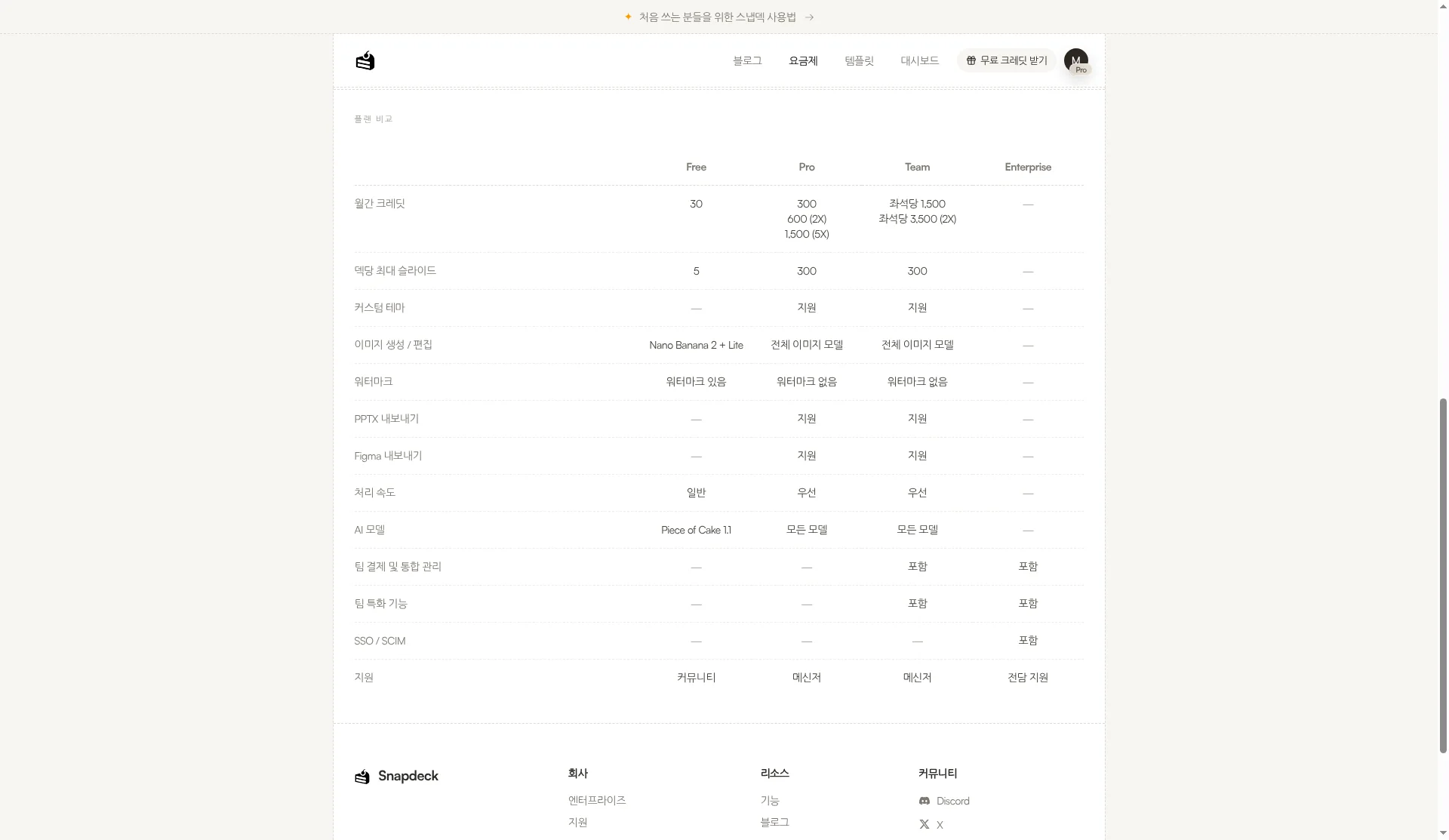
In short: if the goal is a file without paying, Snapdeck Free gets you PDF and PNG (up to 5 slides). If you want to run lots of free generations and present in the browser, Genspark Free's daily credits may go further. Paid prices are in different currencies, so check each pricing page yourself.
Which to pick
Genspark fits when
- You want AI to handle research and structure too.
- You need a PPTX with speaker notes.
- You hand off to Google Slides to keep working with your team.
- You need ratios like 1:1, 9:16, or 21:9.
Snapdeck fits when
- You want to review and edit the outline first, before design.
- The handoff is Figma (.fig) for a designer.
- You need at least a PDF or PNG file for free.
Watch out for
Genspark doesn't export on Free, lists prices only in USD, and we didn't view its signed-in editor this time. Snapdeck has no speaker notes in PPTX, no Google Slides export, and blocks PPTX and Figma on Free.
So
If the finish line is handing off everything from research to notes, Genspark is the natural fit. If it's shaping the outline yourself and handing off as Figma or PPTX, Snapdeck is closer. If you were looking for a Genspark alternative, that one difference is the way to choose.
Want to start from one line and shape the outline first? Try Snapdeck. ☺️
See also
Sources: Genspark AI Slides help, Genspark membership plans, Genspark AI Slides FAQ, Snapdeck pricing. Genspark from public pages checked 2026-10-28 (KST); signed-in UI not captured. Snapdeck screens captured the same day from a signed-in Pro account in the Korean UI.