
How to Turn a Business Plan into a Presentation
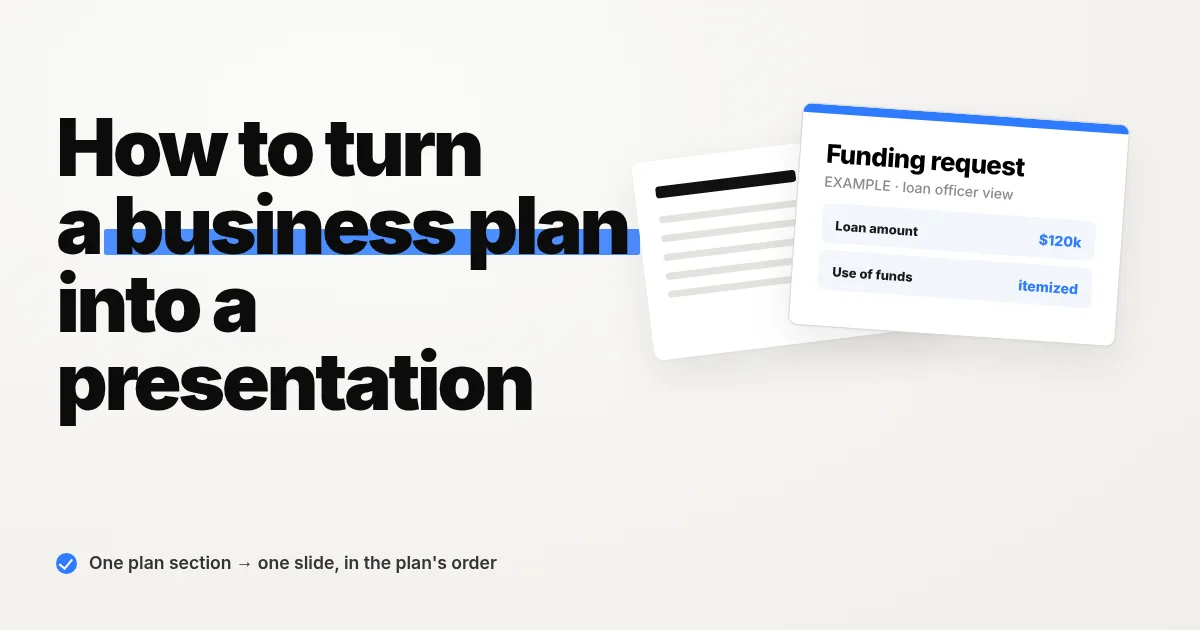
If you have a written business plan but no slides for a bank loan meeting, this guide is for you. You will build a 10-slide deck in Snapdeck that keeps the plan's section order, puts one section on each slide, and leaves missing numbers as [PLACEHOLDER].
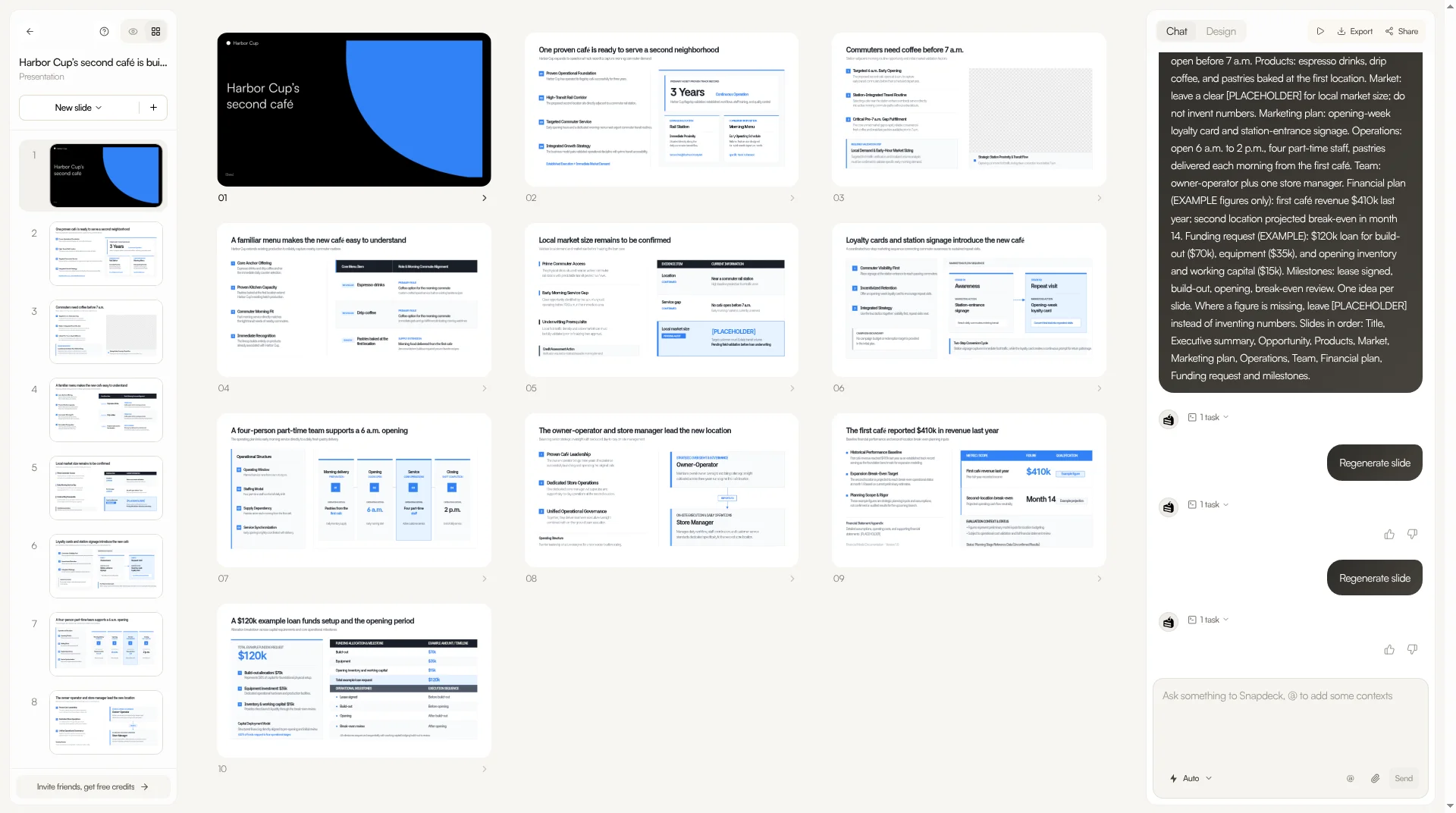
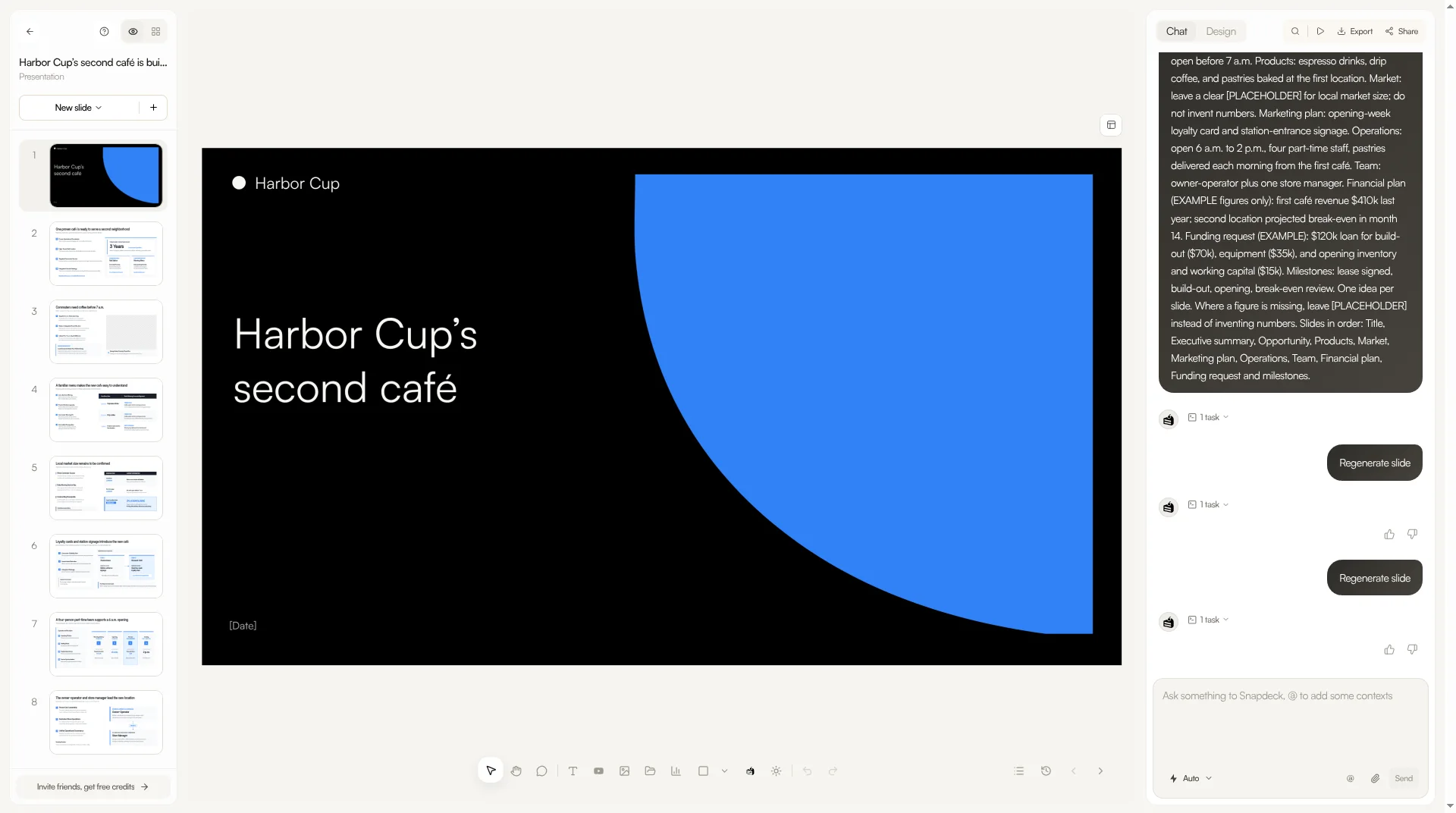
Example deck made for this post: Harbor Cup business plan deck. Harbor Cup is a fictional neighborhood café, and every figure in the post ($410k revenue last year, a $120k loan, and the rest) is an example. After the outline step, we changed this deck's cover and regenerated slide 3 once, so the cover and slide 3 title in the share link and the capture above differ from the outline list in step 4.
When you need this
- You need to turn a business plan into slides for a bank or loan officer meeting
- The reader will flip through the written plan alongside the deck, so you want to keep its section order
- You do not want AI to fill numbers you have not confirmed yet
Follow along: from a business plan to a deck
The walkthrough uses Harbor Cup, a fictional café preparing a loan meeting for a second location near a rail station. All numbers below are examples.
1. Write the business plan brief
Before pasting the whole plan, summarize each section in a line or two. For a lender version, follow three rules.
- Keep the plan's section order. Executive summary → Opportunity → Products → Market → Marketing plan → Operations → Team → Financial plan → Funding request
- One section per slide. The loan officer can match each slide to the written plan.
- Leave missing figures as
[PLACEHOLDER]. The example has no local market size, so it stays blank.
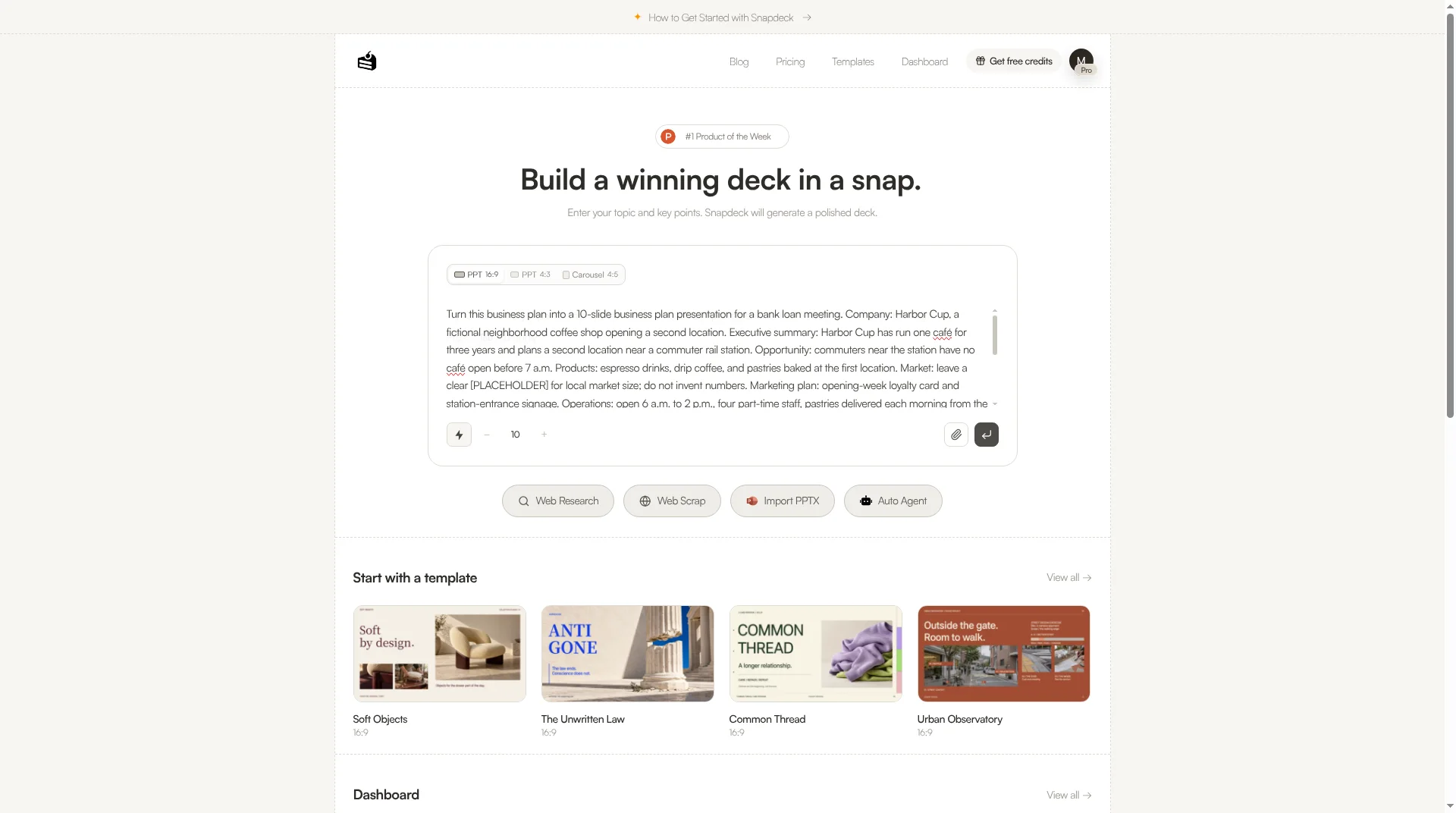
2. Paste it into the home prompt and set PPT 16:9 and 10 slides
On the Snapdeck home screen, paste the brief into the prompt. The prompt used for the example is:
Turn this business plan into a 10-slide business plan presentation for a bank loan meeting. Company: Harbor Cup, a fictional neighborhood coffee shop opening a second location. Executive summary: Harbor Cup has run one café for three years and plans a second location near a commuter rail station. Opportunity: commuters near the station have no café open before 7 a.m. Products: espresso drinks, drip coffee, and pastries baked at the first location. Market: leave a clear [PLACEHOLDER] for local market size; do not invent numbers. Marketing plan: opening-week loyalty card and station-entrance signage. Operations: open 6 a.m. to 2 p.m., four part-time staff, pastries delivered each morning from the first café. Team: owner-operator plus one store manager. Financial plan (EXAMPLE figures only): first café revenue $410k last year; second location projected break-even in month 14. Funding request (EXAMPLE): $120k loan for build-out ($70k), equipment ($35k), and opening inventory and working capital ($15k). Milestones: lease signed, build-out, opening, break-even review. One idea per slide. Where a figure is missing, leave [PLACEHOLDER] instead of inventing numbers. Slides in order: Title, Executive summary, Opportunity, Products, Market, Marketing plan, Operations, Team, Financial plan, Funding request and milestones.
Choose PPT 16:9, set the slide count to 10 with the − / + stepper, and press Enter.
3. Pick a style and a theme
The example uses the Presentation style with the Light theme. A light theme keeps tables and figures on the financial slides easy to read on screen and on paper.
4. Check the outline: section-to-slide mapping and numbers
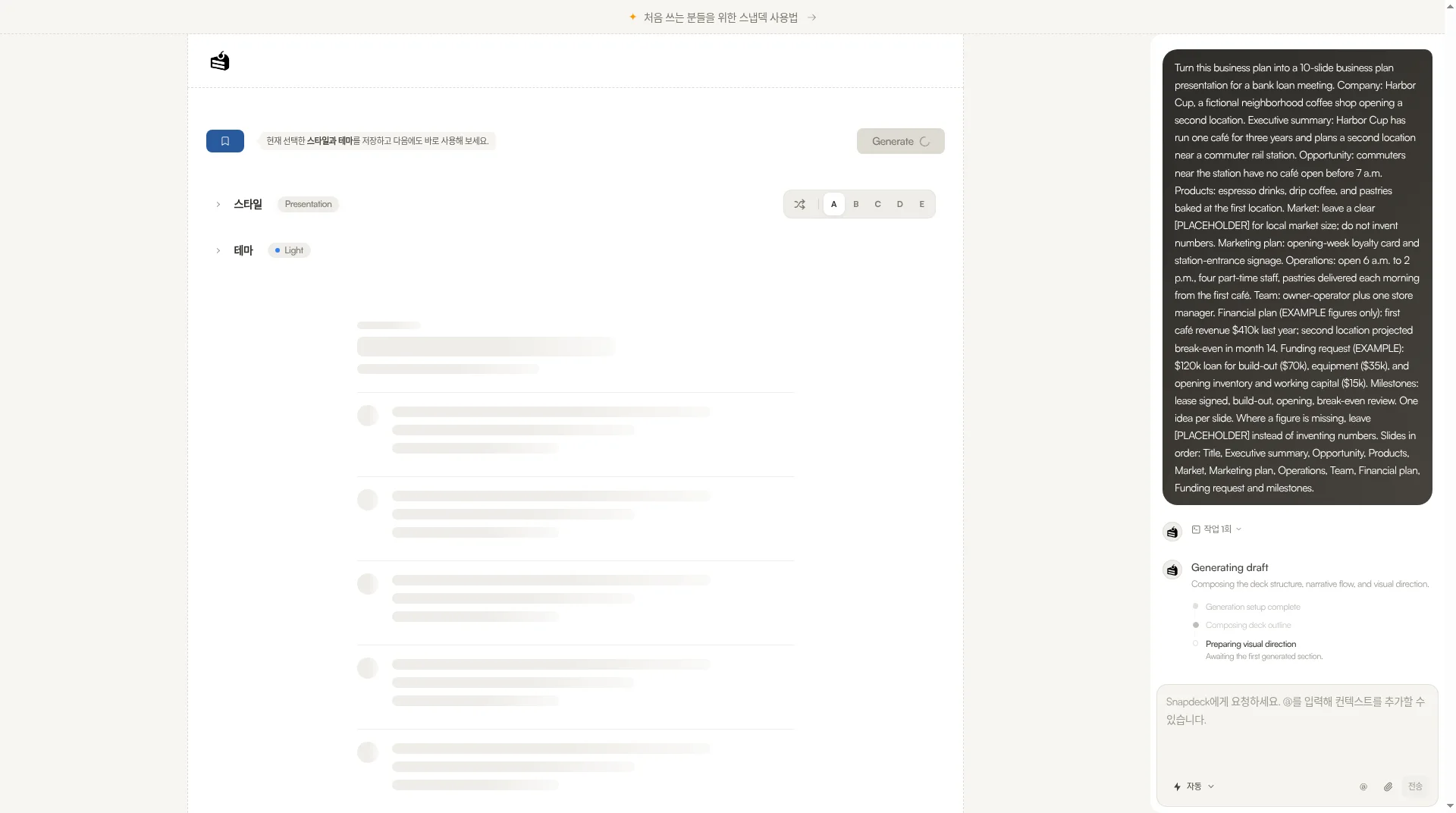
Before Generate, Snapdeck shows a slide-by-slide outline of titles and key points. Check two things: each plan section landed on its own slide in order, and no number appears that was not in your brief.
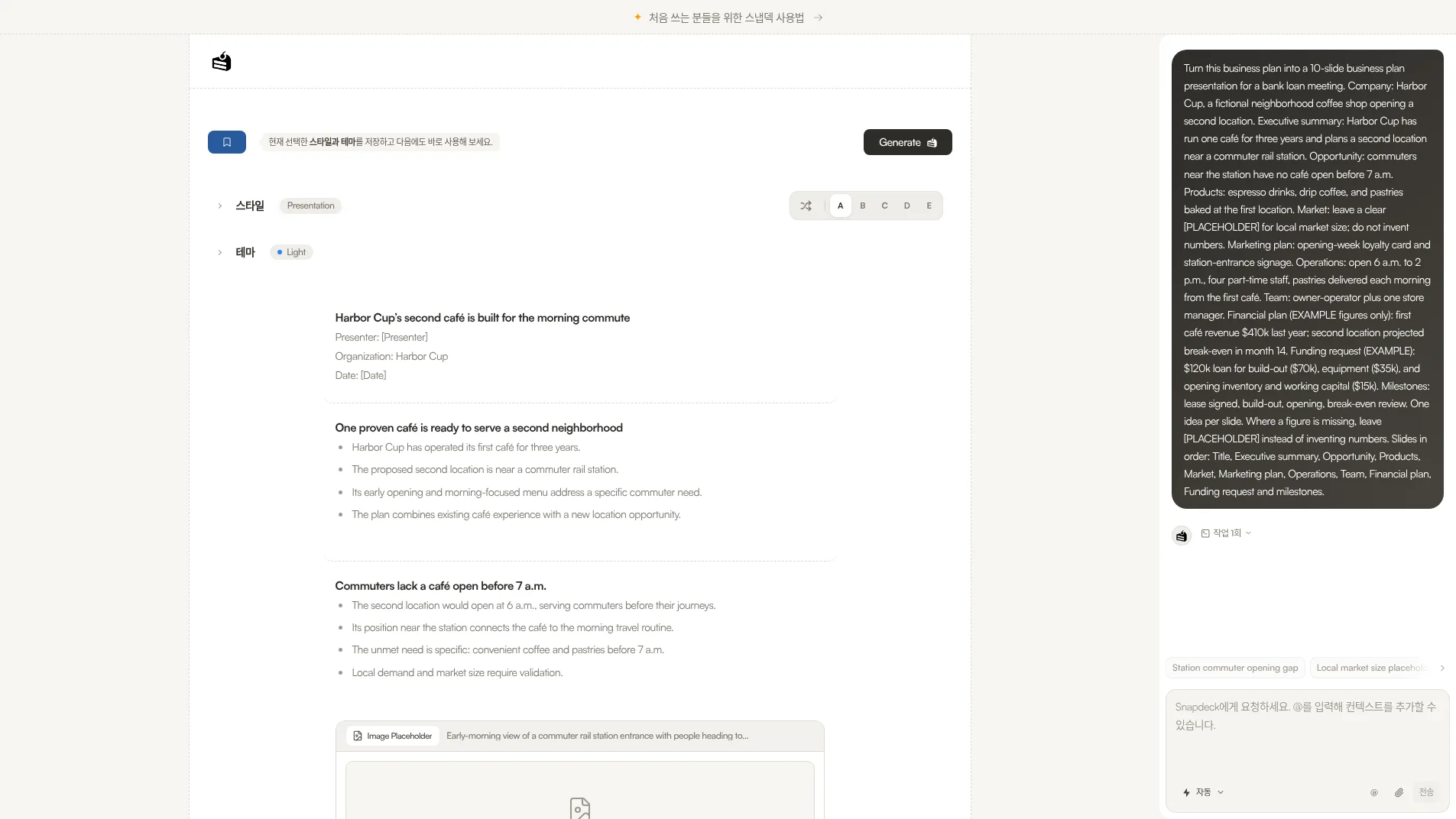
These are the 10 titles the example outline actually produced:
- Harbor Cup’s second café is built for the morning commute
- One proven café is ready to serve a second neighborhood
- Commuters lack a café open before 7 a.m.
- A familiar menu makes the new café easy to understand
- Local market size remains to be confirmed
- Loyalty cards and station signage introduce the new café
- A four-person part-time team supports a 6 a.m. opening
- The owner-operator and store manager lead the new location
- The first café reported $410k in revenue last year
- A $120k example loan funds setup and the opening period
In this run the outline had no numbers that were not in the brief. Slide 5, where market size was left blank, kept a "remains to be confirmed" title. That will not always be the case, so check it every time. The first generated cover (slide 1) also got a "ver 1. 2026" label that was not in the prompt; click the text in the editor to change or delete it.
5. Generate, then check the Financial plan and Funding request slides
Click Generate in the top right. Snapdeck designs the slides and opens the editor. Click any text on a slide to edit it, or type a change into Chat on the right.
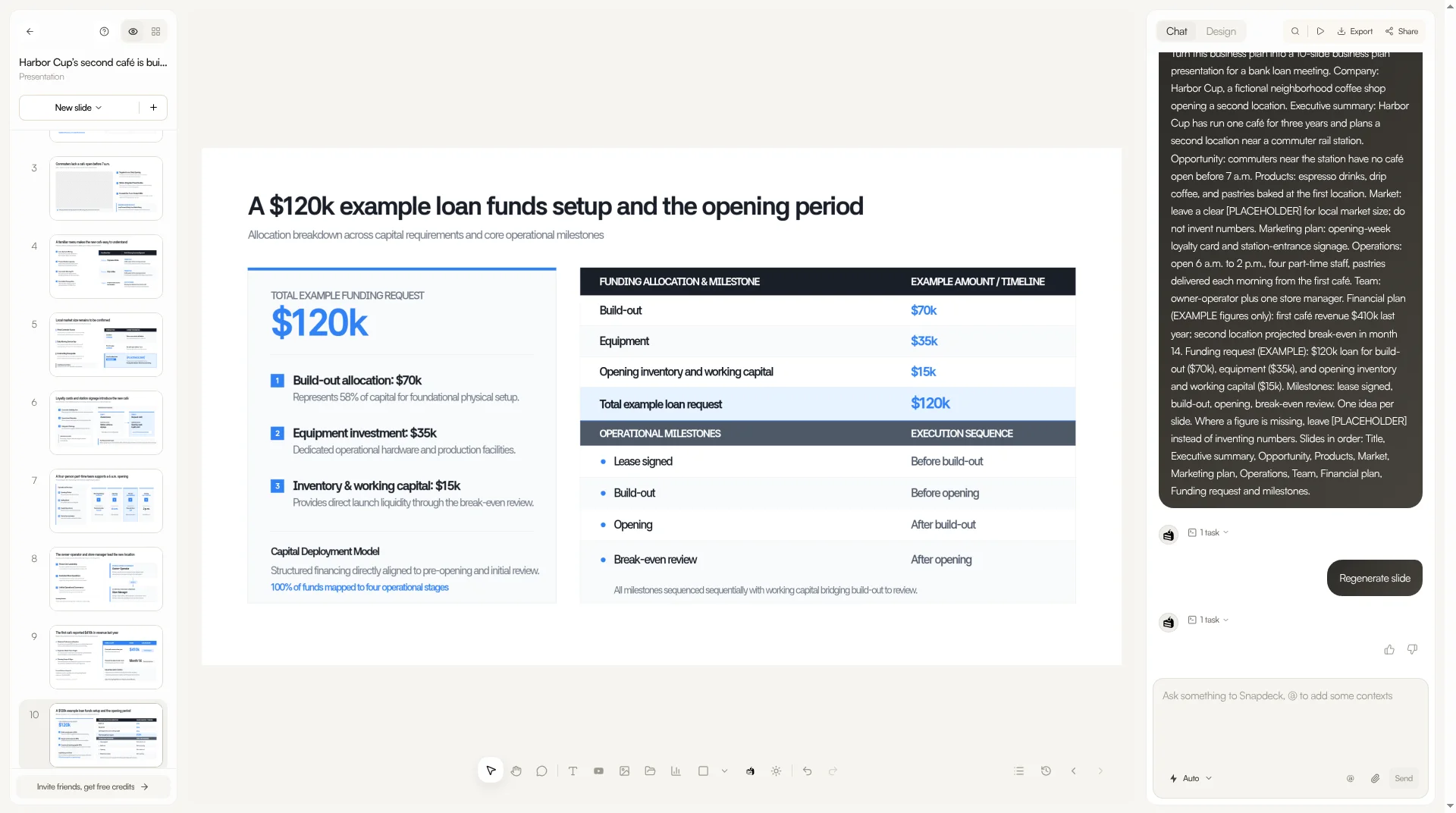
A loan officer will spend the most time on two slides, so check them line by line against the brief.
- Financial plan (9): $410k first-café revenue last year and break-even in month 14 — match the brief and are labeled as examples
- Funding request (10): $120k loan = $70k build-out + $35k equipment + $15k opening inventory and working capital, with milestones (lease signed → build-out → opening → break-even review) — match the brief
- The deck may add a share computed from your numbers (for example, build-out as 58% of the total). It is not a new figure, but check the math.
6. Export or share a link
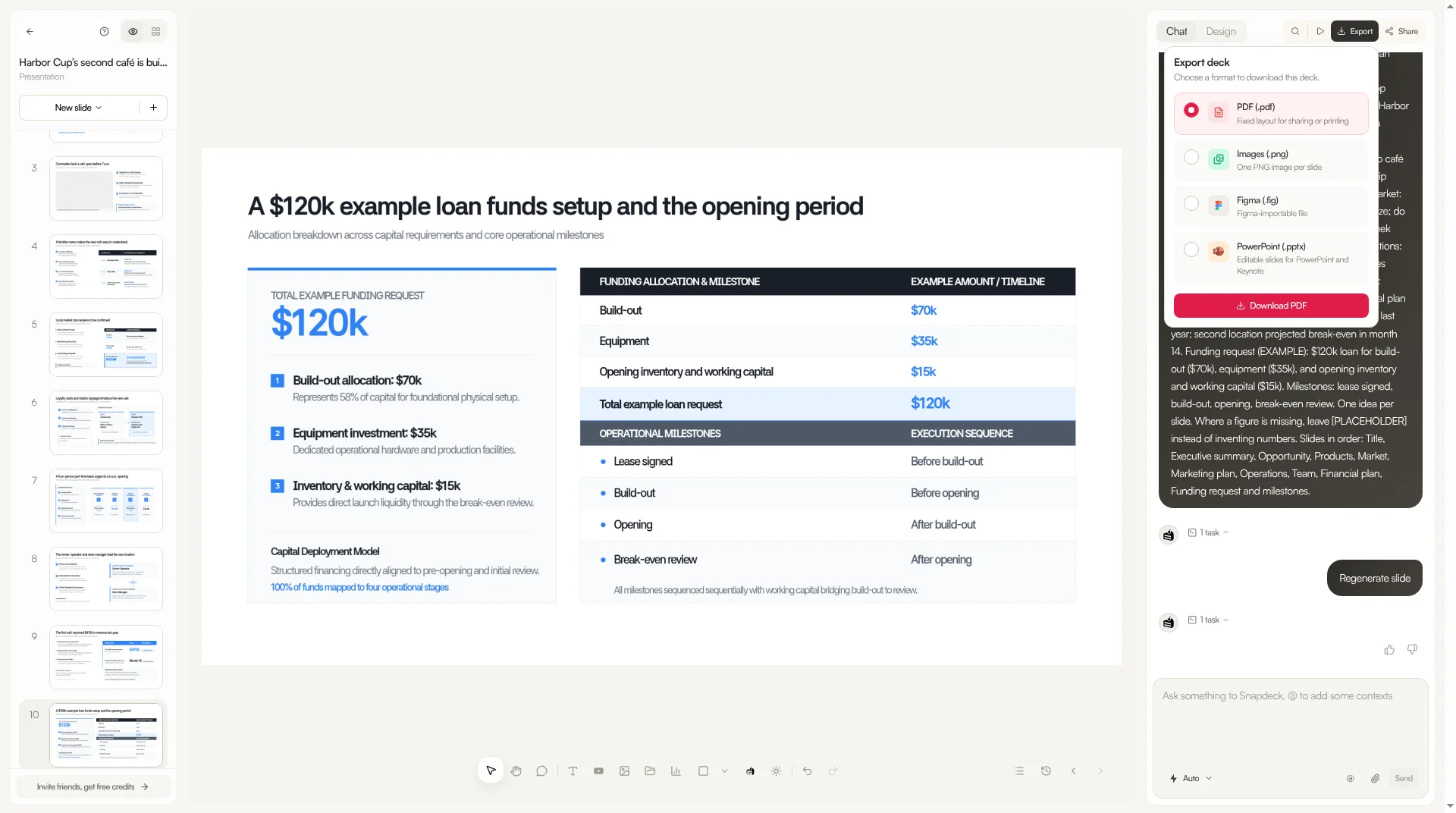
Use Export in the top right to choose PDF (.pdf), Images (.png per slide), Figma (.fig), or PowerPoint (.pptx). PDF and PNG are on every plan; PowerPoint and Figma are Pro. To send a link instead of a file, use Share. The example deck above is shared that way.
Applying it: a lender-facing funding slide
An investor pitch ends on market size and growth. A loan officer reads the last slide for how much you borrow, what it pays for, and how it gets repaid. Fill the funding request slide in this order:
- Loan amount — example: $120k
- Itemized use of funds — example: $70k build-out, $35k equipment, $15k opening inventory and working capital
- How repayment is covered — what pays the monthly installment (for example, cash flow from the existing business)
- Owner contribution — what you put in yourself
- Collateral — what you can offer as security
The example deck covers only 1 and 2. Repayment, owner contribution, and collateral are not in it, because the prompt did not include them. If you do not have those numbers yet, add them to the brief as [PLACEHOLDER] lines like these, so the gaps show on the slide and you can fill them before the meeting.
Repayment: monthly loan payment covered by [PLACEHOLDER] from first-café cash flow. Owner contribution: [PLACEHOLDER]. Collateral: [PLACEHOLDER].
Plan section → slide mapping (example)
| Plan section | Slide | Outline title (example) |
|---|---|---|
| Cover | 1 | Harbor Cup’s second café is built for the morning commute |
| Executive summary | 2 | One proven café is ready to serve a second neighborhood |
| Opportunity | 3 | Commuters lack a café open before 7 a.m. |
| Products | 4 | A familiar menu makes the new café easy to understand |
| Market | 5 | Local market size remains to be confirmed |
| Marketing plan | 6 | Loyalty cards and station signage introduce the new café |
| Operations | 7 | A four-person part-time team supports a 6 a.m. opening |
| Team | 8 | The owner-operator and store manager lead the new location |
| Financial plan | 9 | The first café reported $410k in revenue last year |
| Funding request & milestones | 10 | A $120k example loan funds setup and the opening period |
Steps at a glance
- Summarize the business plan section by section, in the plan's order; leave missing figures as
[PLACEHOLDER]. - Paste it into the home prompt; set PPT 16:9 and 10 slides.
- Choose the Presentation style and the Light theme.
- On the outline, check the section-to-slide mapping and that no numbers were invented.
- Generate, then check the Financial plan and Funding request slides against the brief.
- Export to PDF, PNG, Figma, or PowerPoint, or send a share link.
FAQ
Does the AI fill in numbers that are not in my business plan?
In this example, the outline had no numbers outside the brief, and the blank market size stayed as [PLACEHOLDER] on slide 5. Still, compare the outline with your brief before you click Generate.
Which export formats are available?
PDF, a PNG per slide, Figma (.fig), and PowerPoint (.pptx). PDF and PNG are on every plan; PPTX and Figma are Pro.
Are the Harbor Cup numbers in this post real?
No. Harbor Cup is a fictional café, and the $410k revenue, $120k loan, and other figures are examples for the walkthrough. Put only numbers you have checked into a deck for a real meeting.
Keep reading
- How to turn a Word document into a presentation with AI
- For investors: How to make a pitch deck with AI
- Choosing a tool? Gamma vs Snapdeck