
Change the Cover and Regenerate One Slide with AI
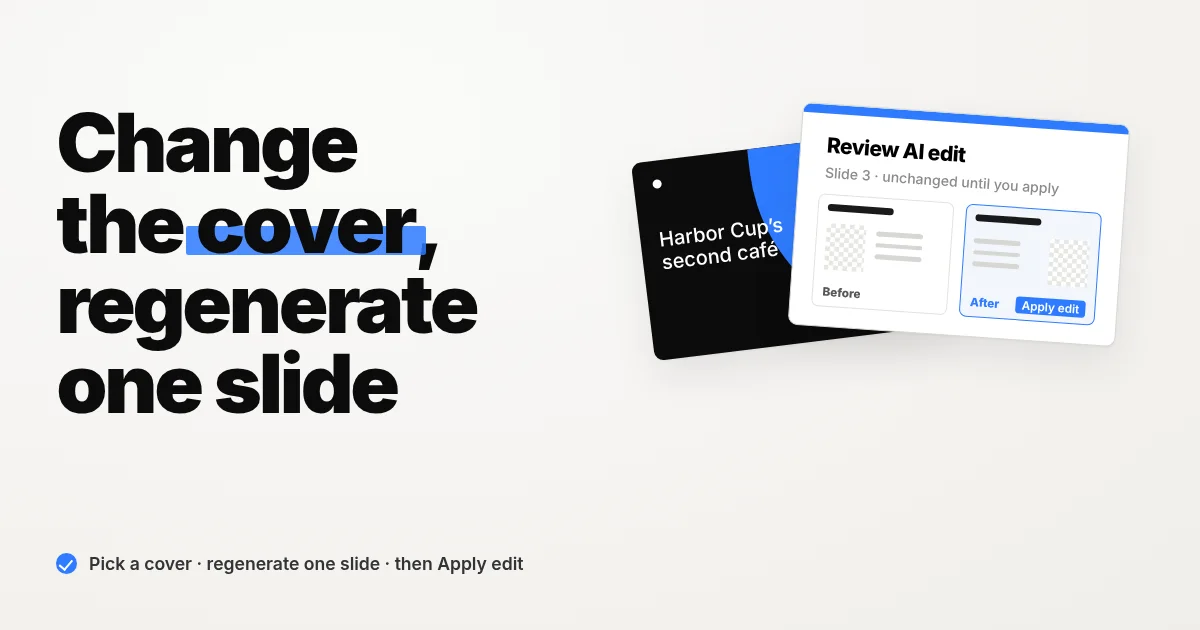
Sometimes the deck is done, but the cover is not quite right, or one slide should look different. Snapdeck now lets you pick a new cover and regenerate a single slide without rebuilding the whole deck. You compare Before and After first, and nothing changes until you apply it.
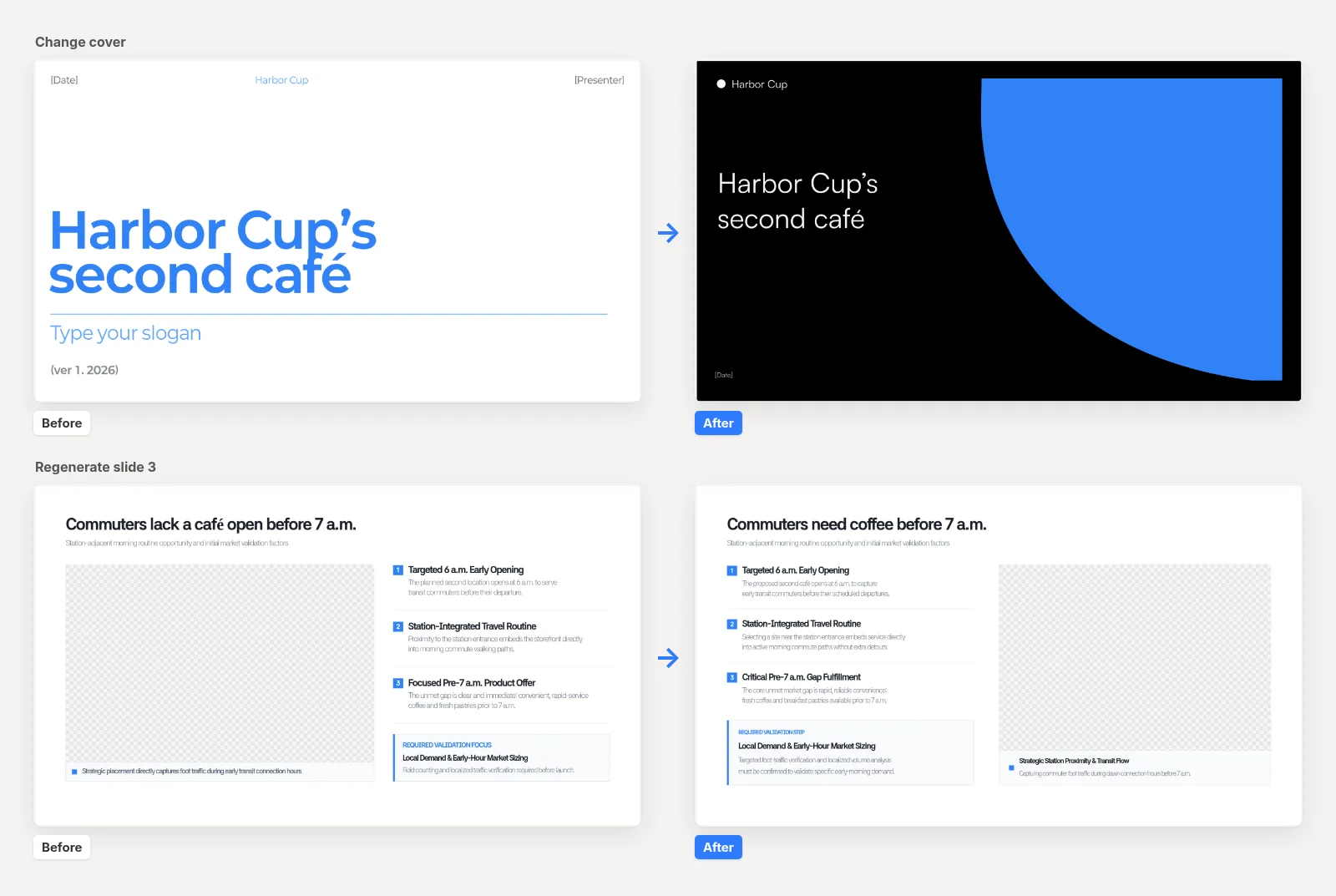
Example deck used in this post: Harbor Cup business plan deck. Harbor Cup is a fictional neighborhood café, and every figure in the deck is an example. The top row above shows the cover before and after the change; the bottom row shows slide 3 before and after regenerating it.
What's new
- Home example prompts: the prompt box shows an example that matches the purpose you picked at signup, and Tab fills in the full prompt.
- Change cover: on slide 1, browse cover previews and pick a new design.
- Regenerate one slide: rebuild a single slide, compare Before and After, then apply it or keep the original.
1. Home: fill a purpose-based example prompt with Tab
When the prompt box on the Snapdeck home screen is empty, it shows a gray "Try: …" example and "Press Tab to apply." The example is picked at random to match the purpose you chose at signup under "What will you be creating?" (Startup Pitch, Business Report, Academic, Sales Deck, or Other). If you skipped that step or are logged out, you get a mix of purposes.
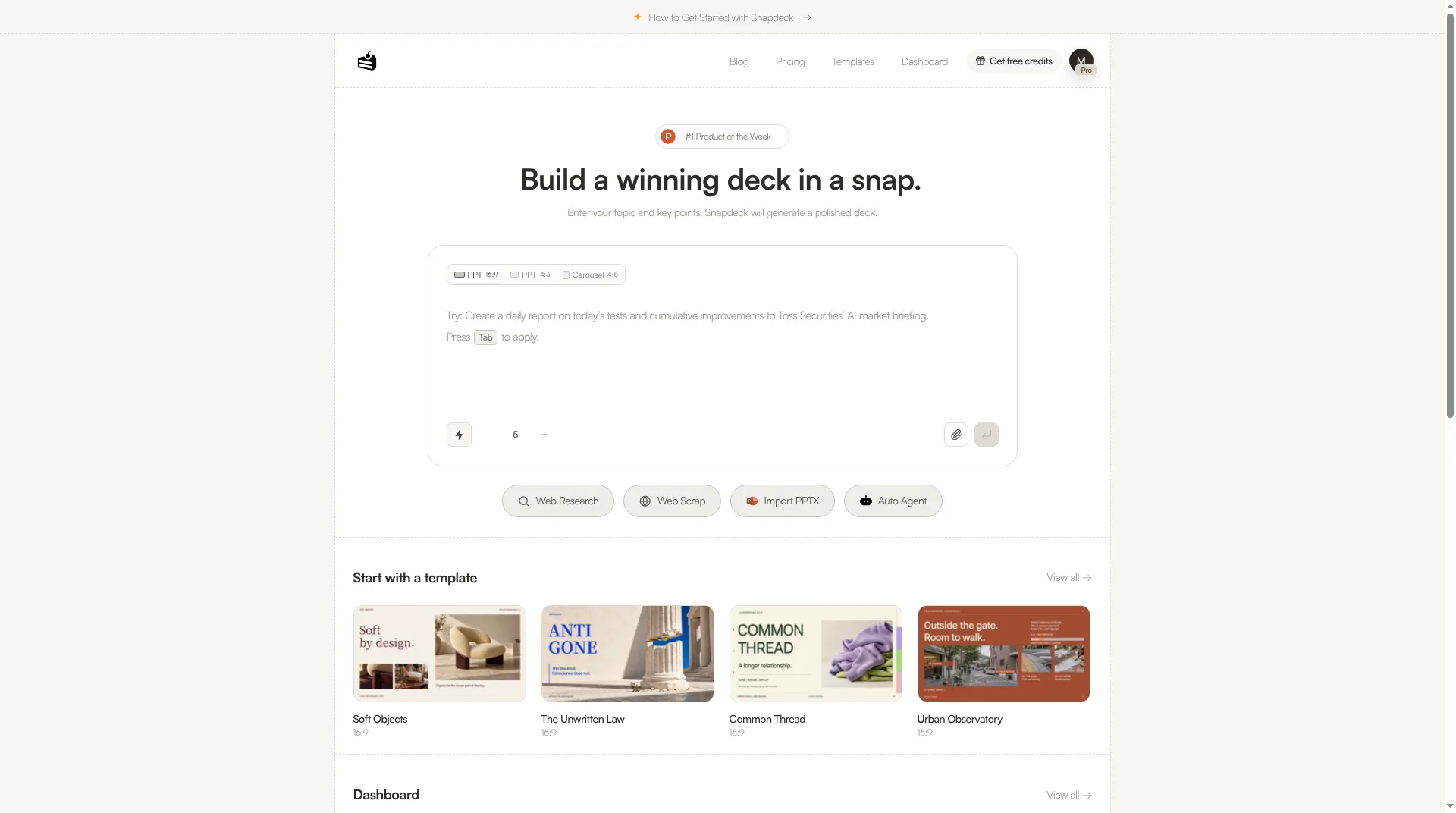
Press Tab while the box is empty and the full prompt, longer than the preview, is filled in. Press Enter as is, or swap in your own company and topic. The hint disappears as soon as you start typing.
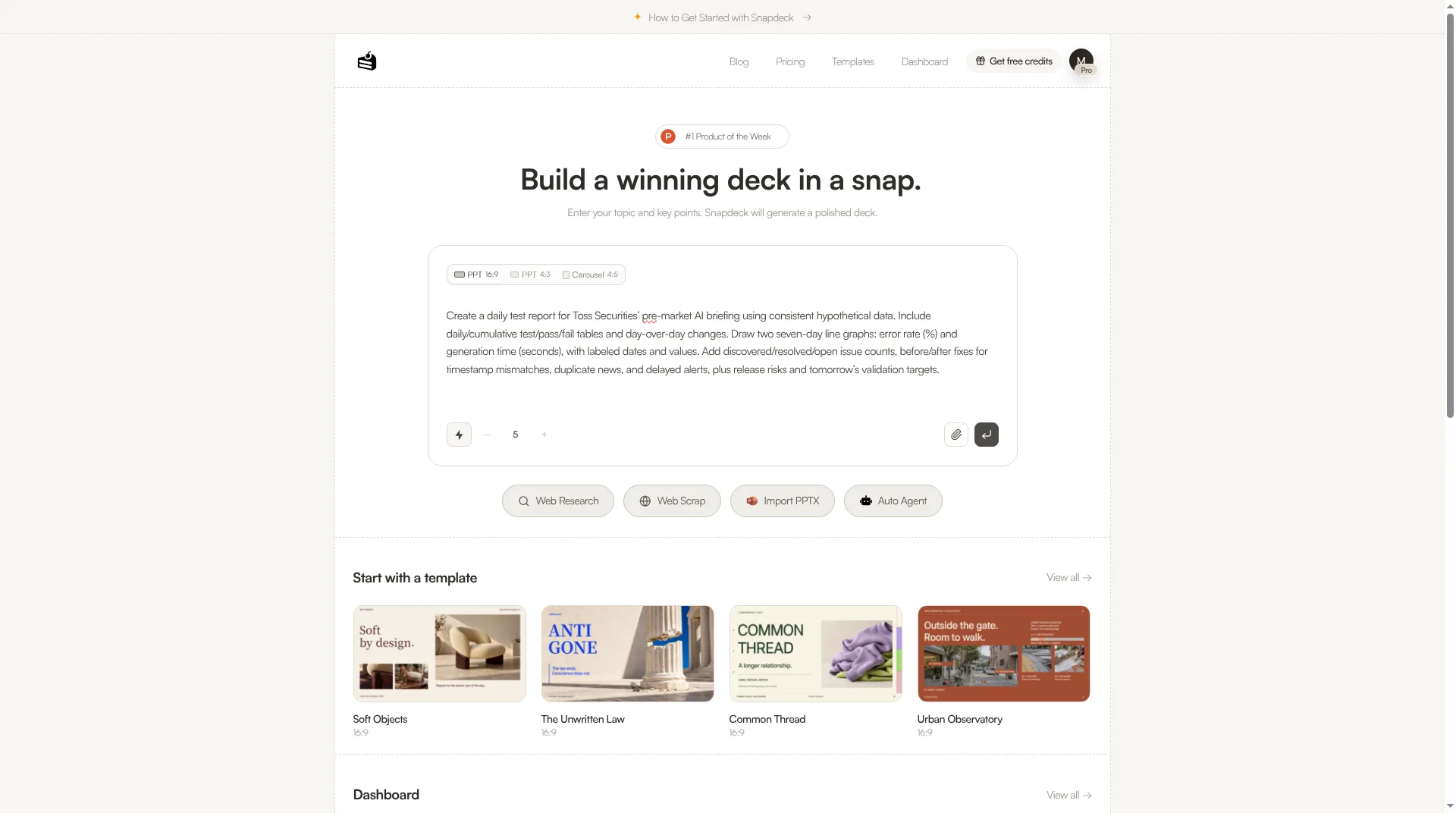
With a file attached, the example becomes "Create materials summarizing the key points from the attached file…". With Carousel 4:5 selected, you get card-news style examples.
2. Change cover: pick a new cover from previews
1) Open "Change cover" on slide 1
Open slide 1 in the editor and a Change cover button appears at the top right of the canvas.

You can also open it from the slide list on the left. On the slide 1 thumbnail, the ↻ button that other slides have is replaced by a cover icon.

2) Pick a cover in "Choose cover"
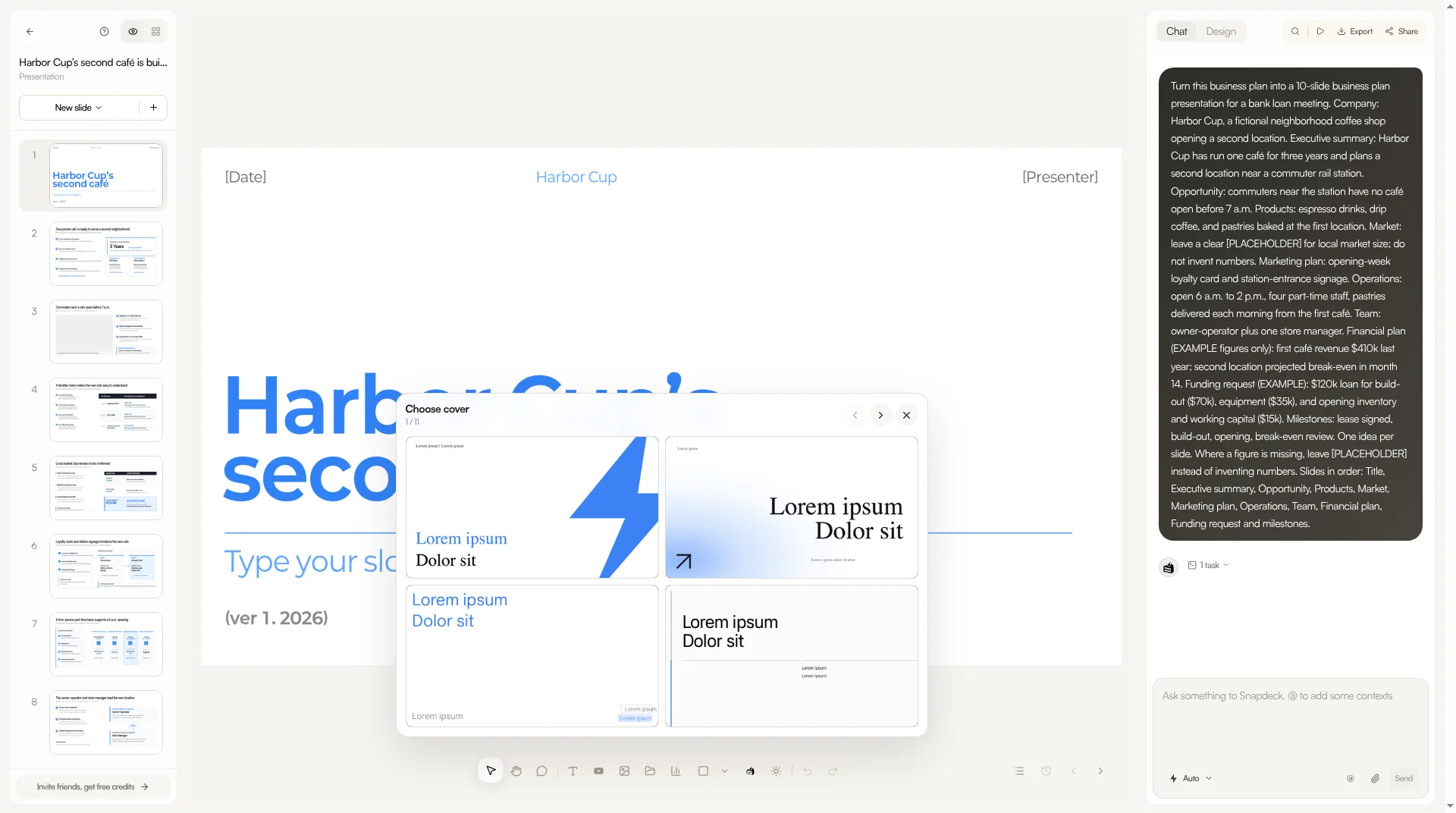
The Choose cover picker shows cover previews drawn in your current theme, four per page. Page through them with the ‹ › buttons, the ←/→ keys, or your mouse wheel or trackpad. Press Esc or ✕, or click outside, to close it.
3) Apply the cover
Click a preview and the cover is rebuilt in that design, followed by the same Before/After review described below. In the example, the white cover with a large blue title became a black cover with a blue quarter circle.

- Proposal and Portfolio decks now keep the cover you pick. Before, these two styles could swap in a different design instead of the one you picked.
- Change cover is not available on decks made from a template, Carousel 4:5 decks, imported PPTX decks, or decks with only one slide.
3. Regenerate one slide: review Before and After, then apply
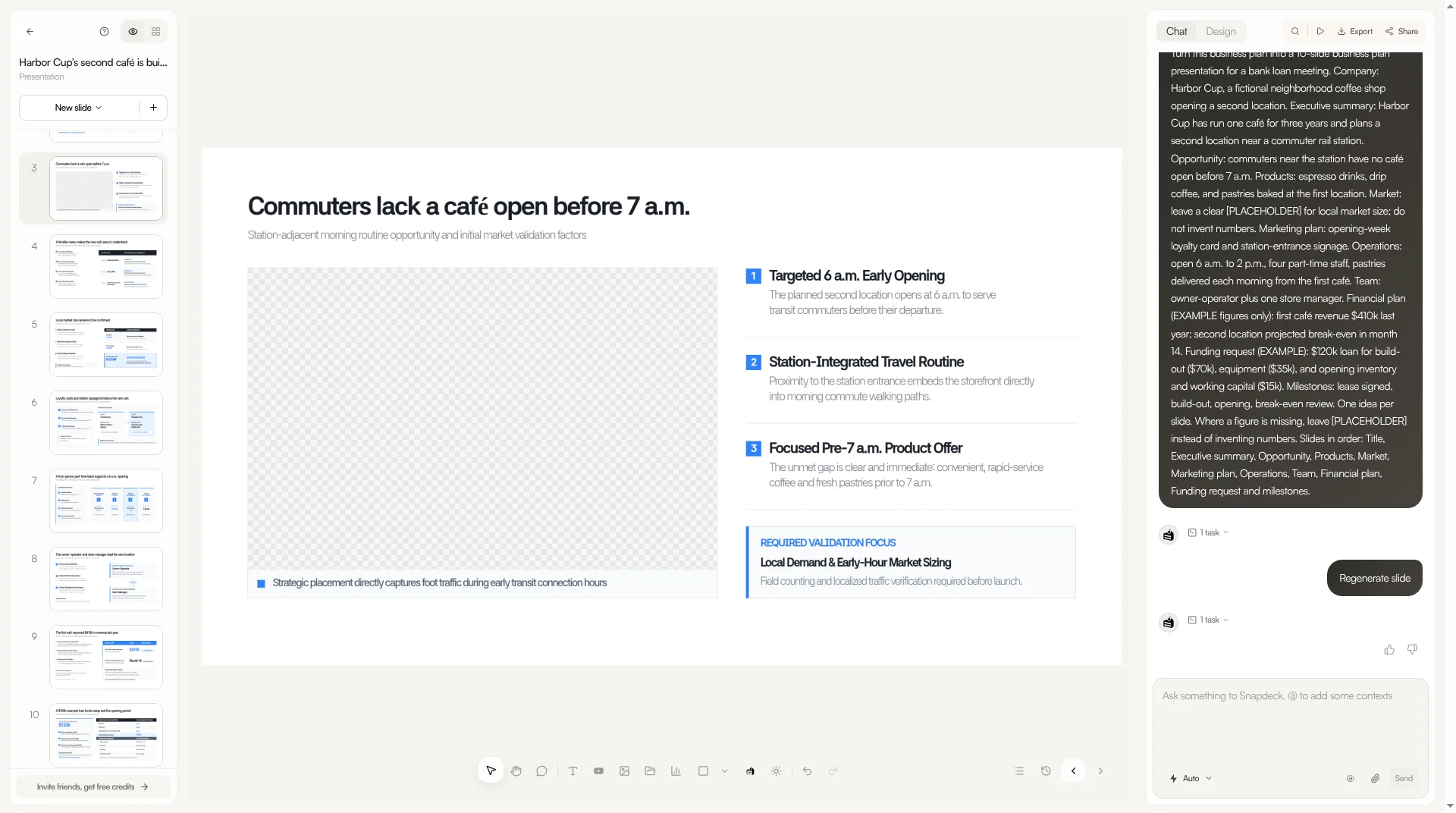
1) Click ↻ on a thumbnail
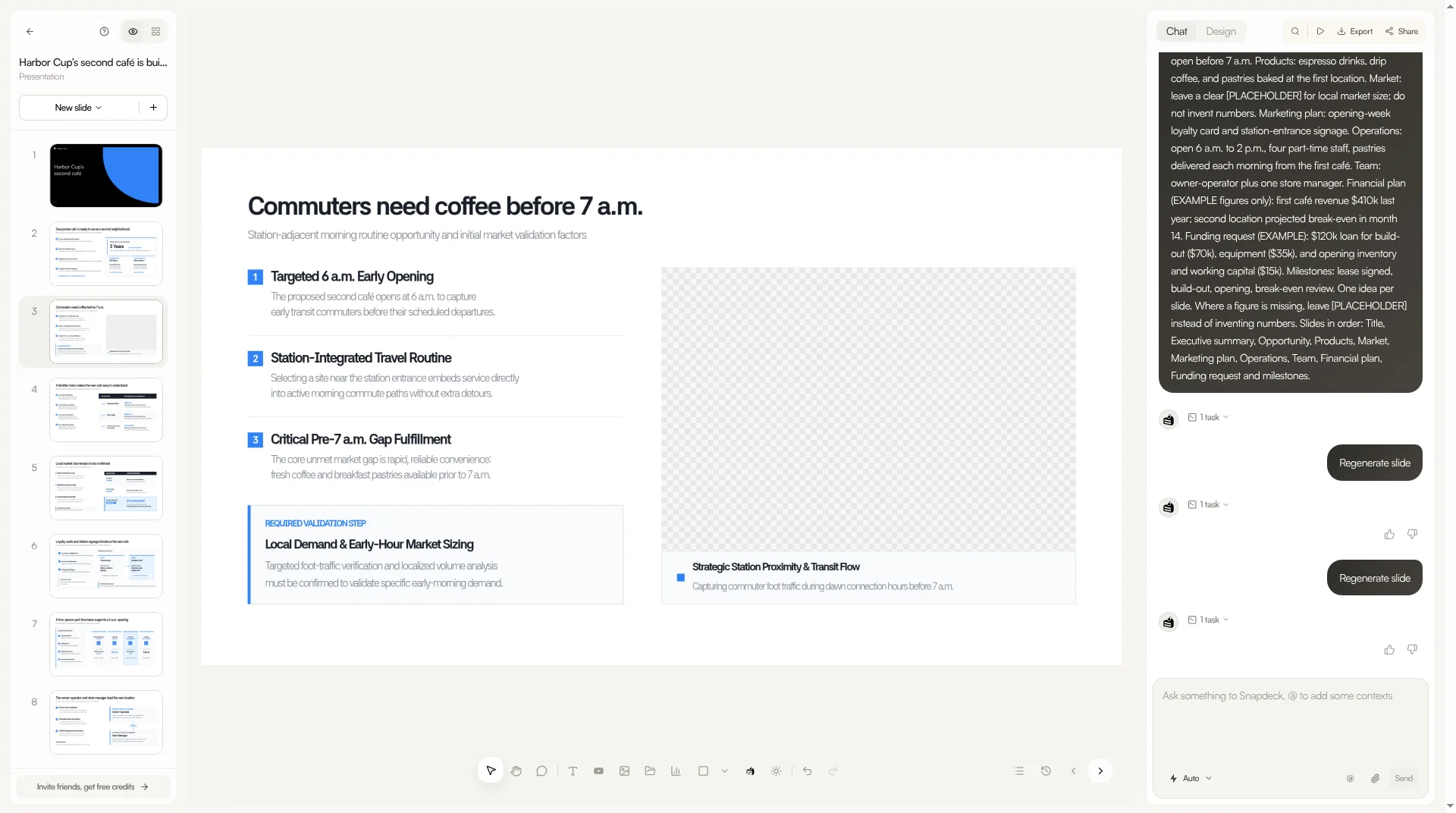
In the slide list on the left, click the ↻ button on the thumbnail of the slide you want to change. The example uses slide 3, "Commuters lack a café open before 7 a.m."
2) Describe the change in "Regenerate slide", or leave it empty
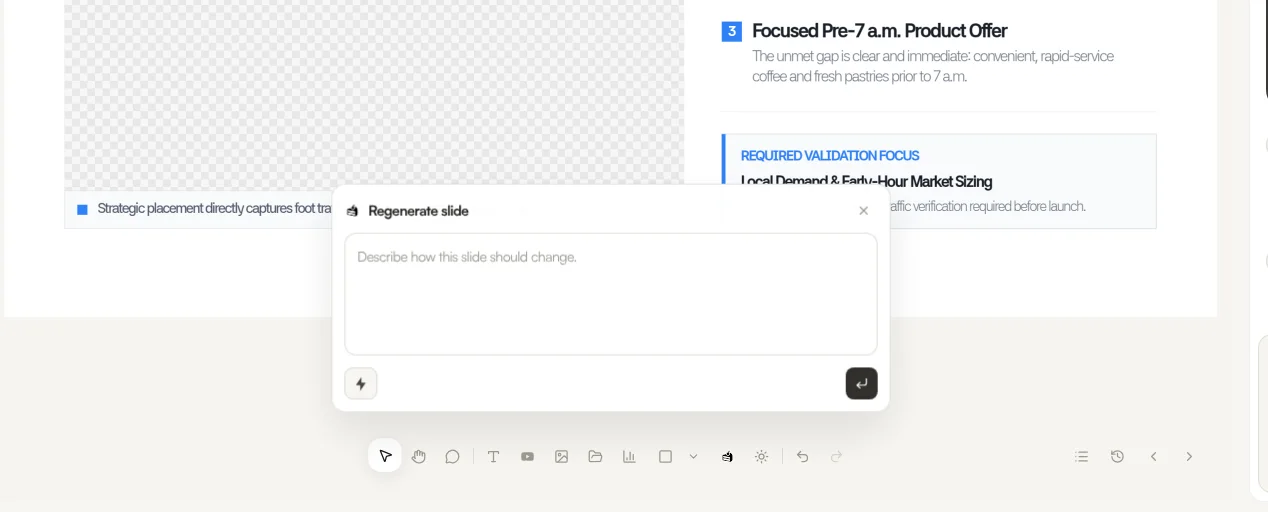
In the Regenerate slide box, describe how the slide should change and send it. The instruction is optional. Send it empty and Snapdeck keeps the content, numbers, and names, but gives the slide a visibly different title, wording, and layout. We left it empty for the example.
3) Compare in "Review AI edit" and choose
When the result is ready, Review AI edit shows Before and After side by side. Choose Keep original (Esc) to leave it, or Apply edit (Ctrl+Enter, or ⌘+Enter on Mac) to use it. Until you click Apply edit, neither the slide nor its Draft (the slide's draft text) changes.
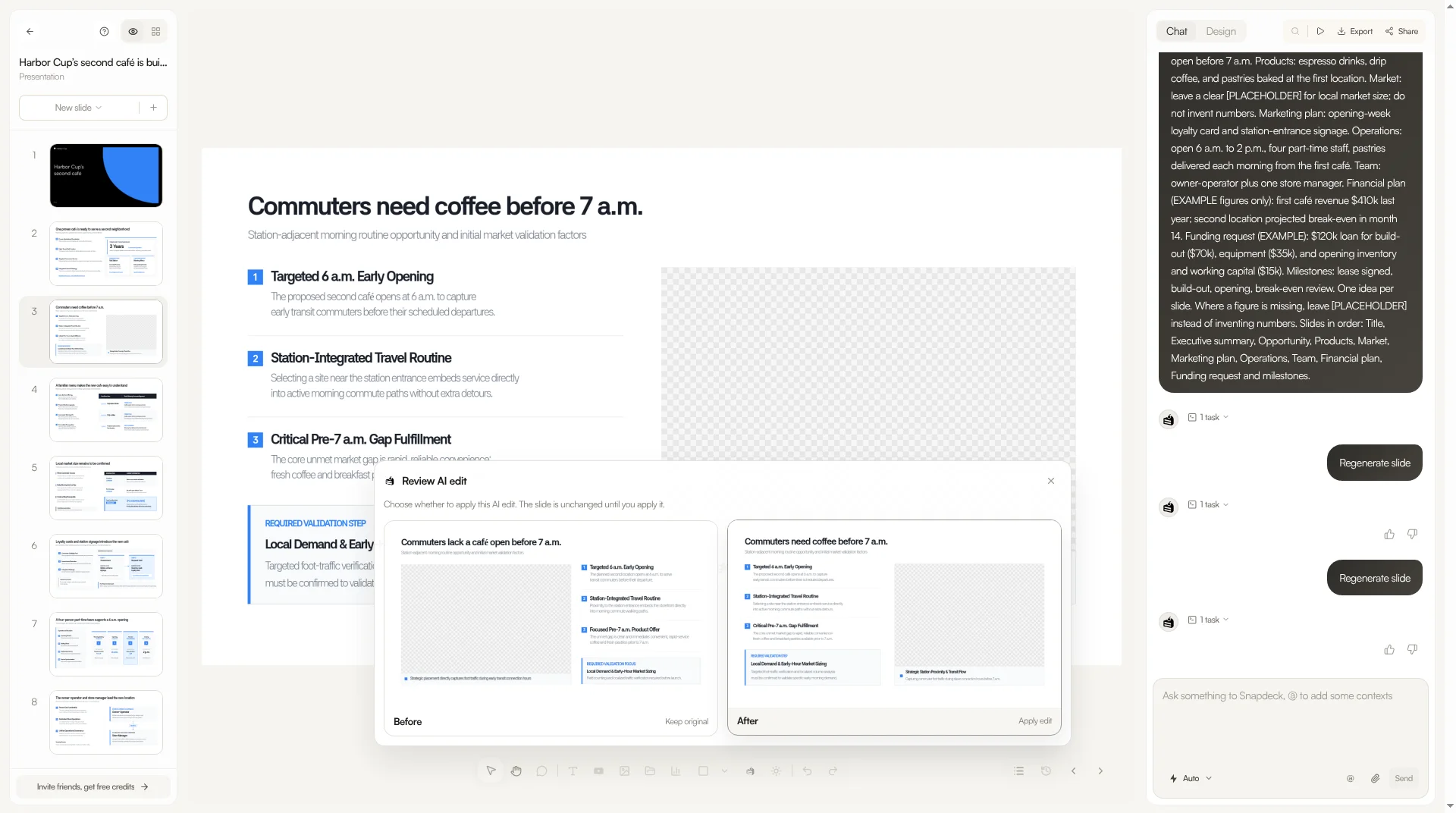
Here is what changed in the example:
- Title: "Commuters lack a café open before 7 a.m." → "Commuters need coffee before 7 a.m."
- The 6 a.m. opening and the before-7 a.m. facts stayed, and no new numbers were added.
- The image area moved from the left to the right.
Steps at a glance
- With the home prompt box empty, press Tab to fill a purpose-based example prompt.
- On slide 1, open Change cover (the canvas button or the thumbnail icon).
- In Choose cover, page through four at a time and pick a cover.
- Click ↻ on the slide you want to change, then send an instruction or leave it empty.
- In Review AI edit, compare Before and After, then choose Keep original or Apply edit.