
Claude for PowerPoint vs ChatGPT for PowerPoint vs Snapdeck: edit inside your deck, or build one and hand it off
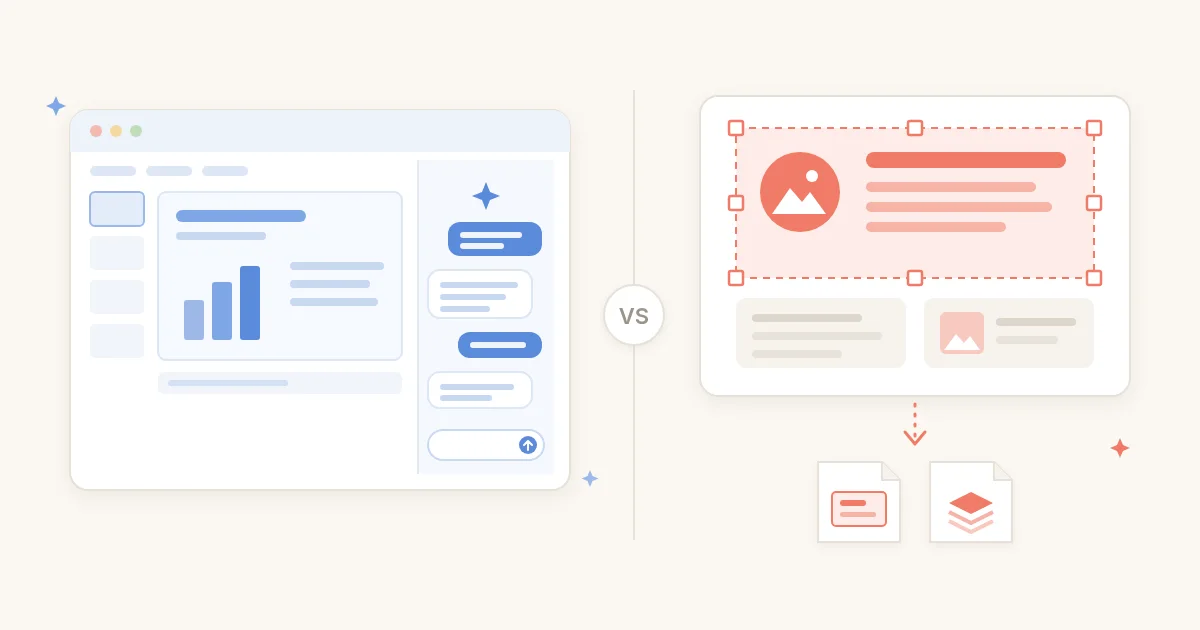
You can now open Claude or ChatGPT straight from the PowerPoint ribbon. Keep the company-template file open and say "shorten this slide" or "rework the flow of slides 3 to 5." So do you still need a dedicated deck tool? 🤔
One question splits them. Does the result have to live inside the PowerPoint file you have open, or can you build a new deck and hand it off as PPTX or Figma?
In one line: If the job is filling and fixing a company-template .pptx, Claude or ChatGPT for PowerPoint. If it's starting from a blank prompt, picking a style and theme, polishing on a canvas, and handing off Figma (.fig) or PPTX, Snapdeck is closer. To try without paying, ChatGPT for PowerPoint works on Free (limited usage), and Snapdeck Free exports PDF and PNG.
No ranking. Just scenes. 🙂
Claude and ChatGPT details come from official pages checked on 2026-11-18 (KST): the Claude for PowerPoint help article, the Claude for Microsoft 365 page, Claude pricing, the ChatGPT for PowerPoint help article, and the Microsoft Marketplace listings for Claude and ChatGPT. We did not sign in and use either add-in ourselves. Snapdeck comes from same-day screenshots of a signed-in Pro account (Korean UI) and the pricing page. This post covers the PowerPoint add-ins only (separate features such as Slides in the Claude app are out of scope).
At a glance
| Claude for PowerPoint | ChatGPT for PowerPoint | Snapdeck | |
|---|---|---|---|
| In one sentence | Claude in a PowerPoint sidebar. Reads your template, builds and edits slides | ChatGPT in a PowerPoint sidebar. Creates, edits, and explains decks | A deck canvas in the browser. Prompt → style and theme → edit → export |
| Where | PowerPoint on the web, Windows (Microsoft 365, build 16.0.13127.20296+), Mac 16.46+. Not iPad, Android, or 2016/2019 perpetual licenses | PowerPoint on the web, Windows 2013+, Mac 2016+ (per the Office Store install page) | Web browser |
| Who can use it | Paid plans (Pro, Max, Team, Enterprise). Not on Free | Free and Go (limited usage), Plus, Pro, Business, Enterprise, Edu, K-12 | Free ₩0 / Pro ₩13,500/month / Team ₩54,000/user/month |
| Company template | Reads the slide master's layouts, fonts, and colors and follows them | Designed to work within existing templates, but "may not always match" | Its own styles and themes. Bring an existing PPTX in with Import PPTX |
| How you edit | Pinpoint edits to selected slides, via chat | Add and revise via chat; ask for a plan first on big edits | Direct canvas editing plus a chat panel |
| Charts and diagrams | Bullets → diagrams and native charts (editable) | Charts and diagrams "when supported"; native chart editing may not be supported yet | Edit on the canvas |
| Speaker notes | Academy lists "adding speaker notes" | Updated "when supported" | No speaker notes in PPTX |
| Output file | The same .pptx, from the start | The same .pptx, from the start | PDF and PNG (incl. Free), Figma (.fig) and PPTX (Pro, Team) |
| Figma | Not in official docs | Not in official docs | .fig export (Pro, Team) |
Where Claude and ChatGPT for PowerPoint fit: finishing inside the company deck
Both add-ins share one strength: the file never moves. The .pptx you have open is the deliverable, so sharing, co-authoring, and company storage rules stay exactly as PowerPoint already handles them.
The help article describes Claude for PowerPoint like this:
- With a company or client template already loaded, it builds new slides using the slide master's layouts, fonts, and colors.
- It edits only the slides you pick, without regenerating the deck.
- It turns bullets into diagrams or native PowerPoint charts you can edit directly, not static images.
- Connectors pull in outside context, Skills save repeatable recipes, and one conversation can span Excel, Word, and Outlook.
Per the help article and Marketplace listing, ChatGPT for PowerPoint:
- Creates slides from notes, documents, spreadsheets, images, or existing decks, rewrites slides, and adds sections.
- Answers questions about your deck, such as "What's the story here?"
- Is one add-in across Excel, Word, and PowerPoint.
- Biggest difference: it opens on Free, with limited usage on Free and Go.
Honestly, if you already have the company-template file and the recipient will open that same .pptx, this is the lower-friction route. Turning bullets into native charts and asking questions about a deck feel natural inside PowerPoint.
The caveats, all from official wording:
- Claude: not recommended for final deliverables without human review; it warns about prompt injection from external files. Chat history is stored locally in the browser and doesn't sync across devices. The help article also flags that after the September and October 2026 Windows Microsoft 365 updates, some users are missing chat history and uploaded skills.
- ChatGPT: output may not always match your template, and native chart editing, deeper shape and formatting controls, animations, complex templates, and custom fonts may not be supported yet. It can delete or mis-edit content, so OpenAI suggests duplicating the file first. Add-in chats don't sync with ChatGPT.com, and memory isn't available.
- Both: official docs show no path to Figma, and we found no official statement on Korean-language deck quality.
How it works in Snapdeck: input → style and theme → generate → edit → export
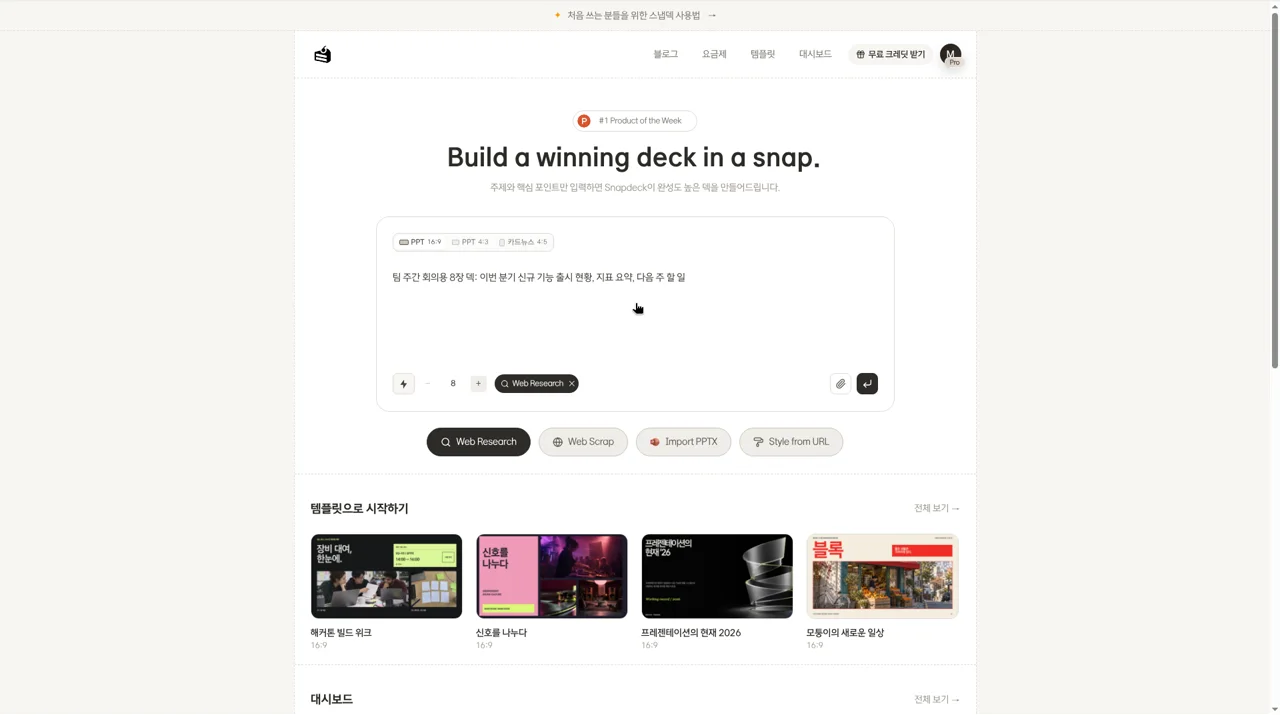
Same day, in a Snapdeck Pro account (Korean UI), we asked for "an 8-slide weekly team meeting deck: this quarter's feature launches, a metrics summary, and next week's to-dos."
1. Input. Type the topic in the home prompt box, pick a ratio (PPT 16:9, PPT 4:3, card news 4:5), and set the slide count (+/−, default 5; we chose 8). Web Research is on by default, with Web Scrap, Import PPTX, and Style from URL right below.
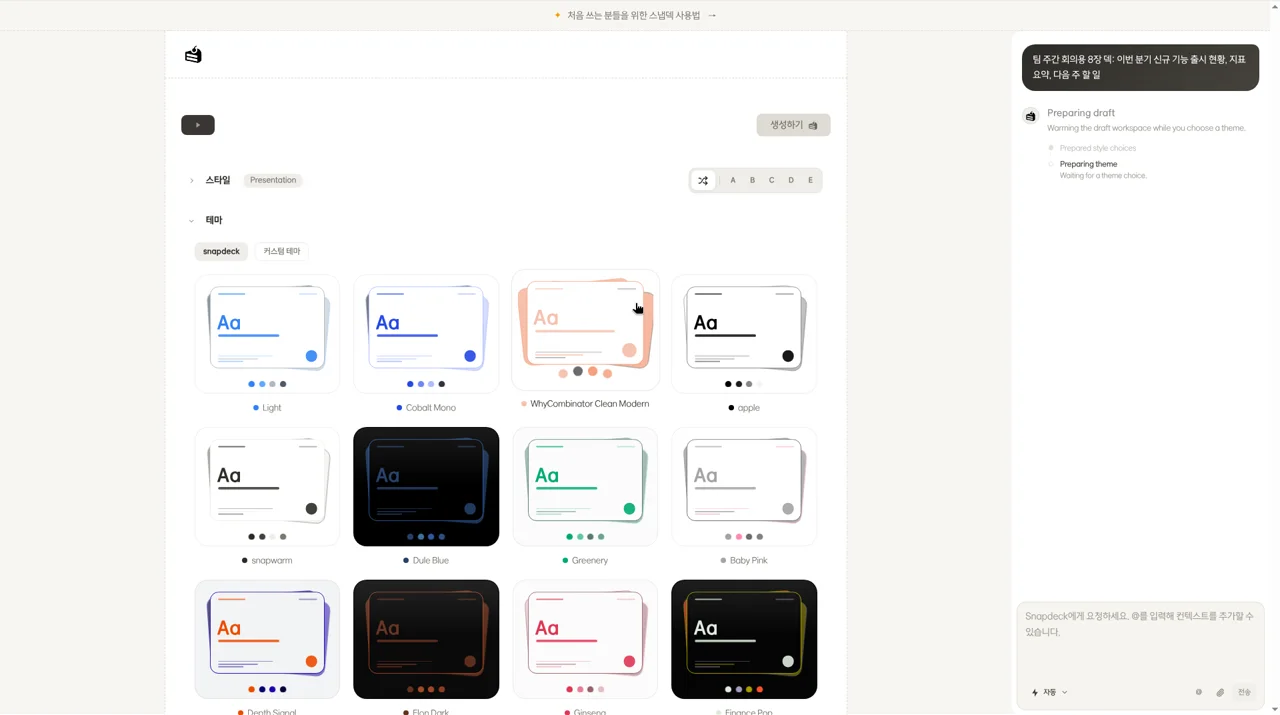
2. Style and theme. On the draft screen, pick a style (Presentation here) and a theme (Light and others). Built-in snapdeck themes and custom themes sit in separate tabs.
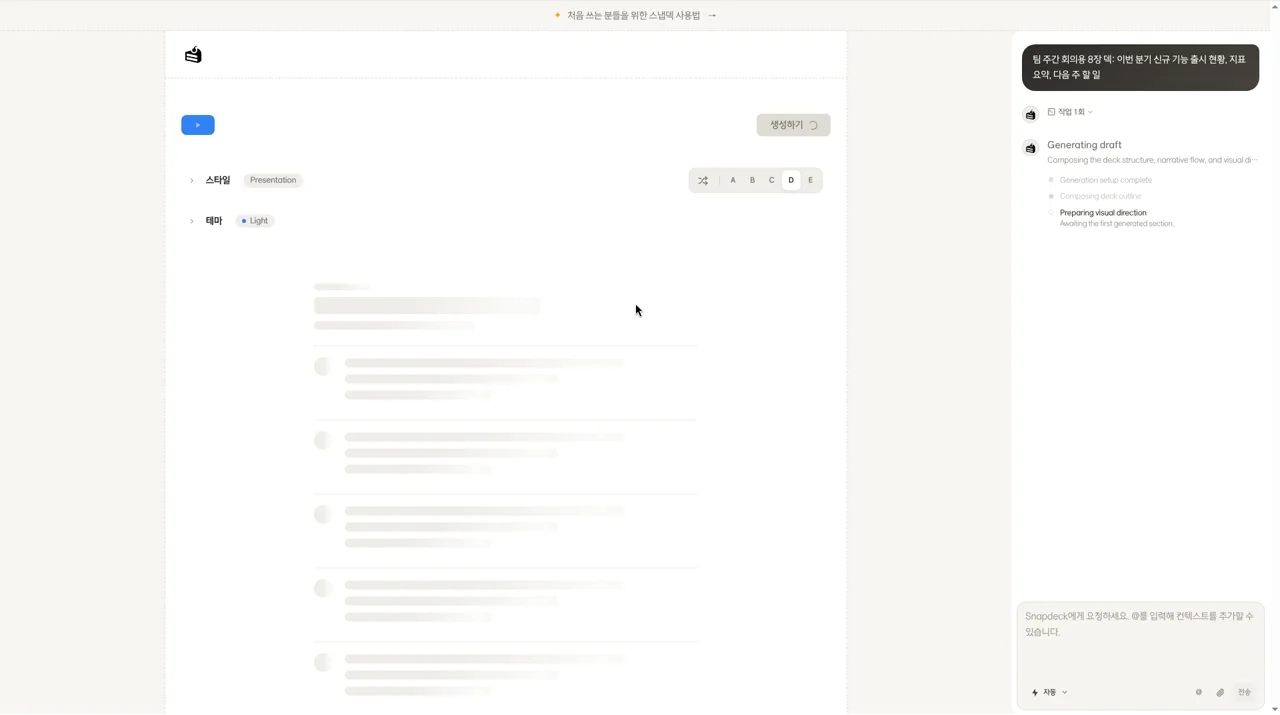
3. Generate. Once you choose, the draft starts generating, with progress steps in the right panel.
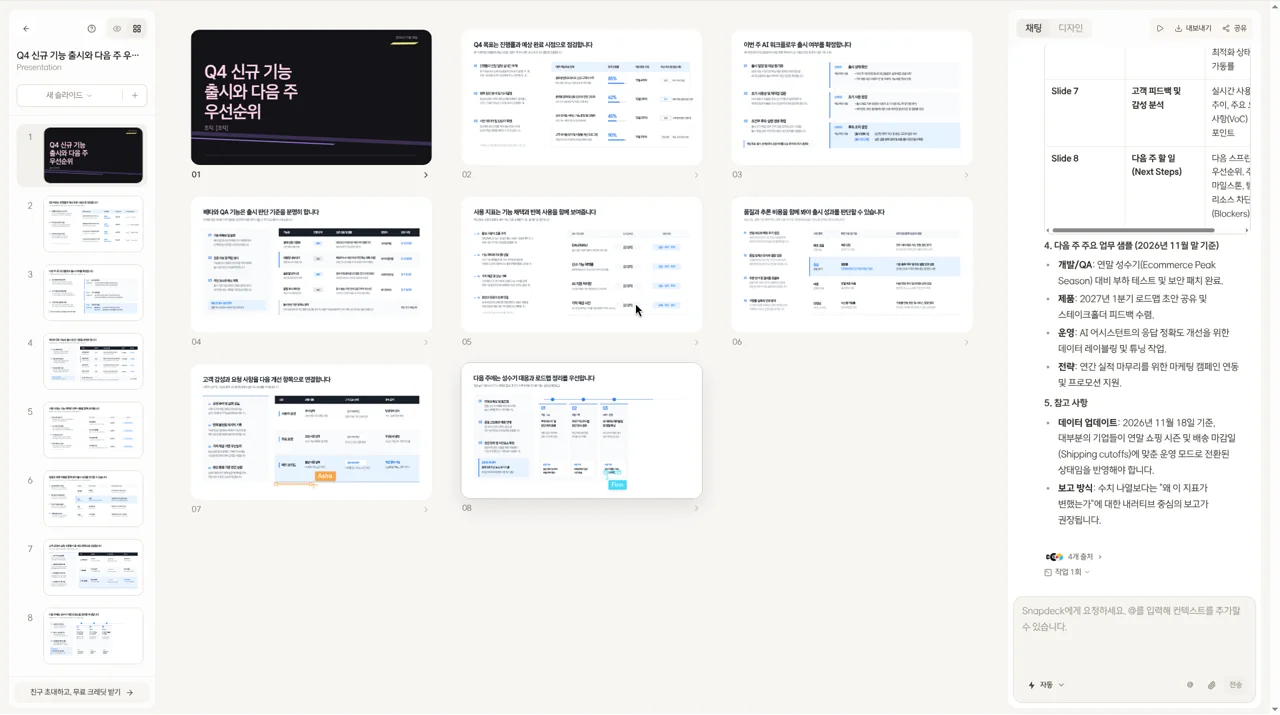
4. Edit. All 8 slides open in a grid, with a chat panel on the right for changes. You can also edit text and shapes directly on the canvas.
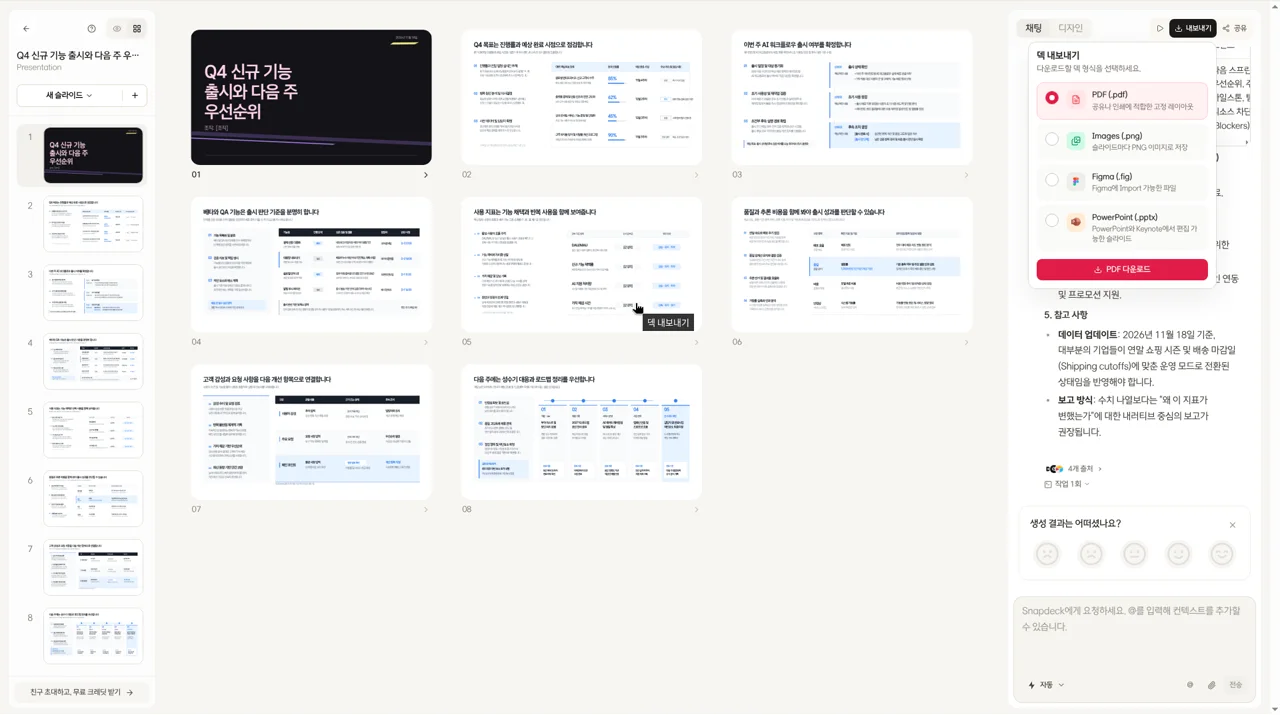
5. Export. "Export deck" offers PDF (.pdf), Images (.png), Figma (.fig), and PowerPoint (.pptx). The menu describes Figma as a file you can import into Figma, and PowerPoint as slides editable in PowerPoint and Keynote. For taking the PPTX back into company PowerPoint, see PPTX import and export.
Honestly: Snapdeck doesn't work inside your company-template .pptx. Existing files come in through Import PPTX, and strictly following a slide master is more natural with an in-PowerPoint add-in. Snapdeck PPTX has no speaker notes, and Free can't export PPTX or Figma.
Cost: how far Free goes, and where paid starts
- Claude for PowerPoint: not on Free (the pricing table lists Claude for Microsoft 365 as "No" on Free). Pro is US$20/month billed monthly, or US$17/month billed annually (US$200 up front), before tax (checked 2026-11-18). Usage counts against your Claude account limits.
- ChatGPT for PowerPoint: Free and Go get limited usage; Plus, Pro, and Business use it within the plan's agentic usage limit. We couldn't read ChatGPT's price numbers as text on the official pricing page this time, so we left them out.
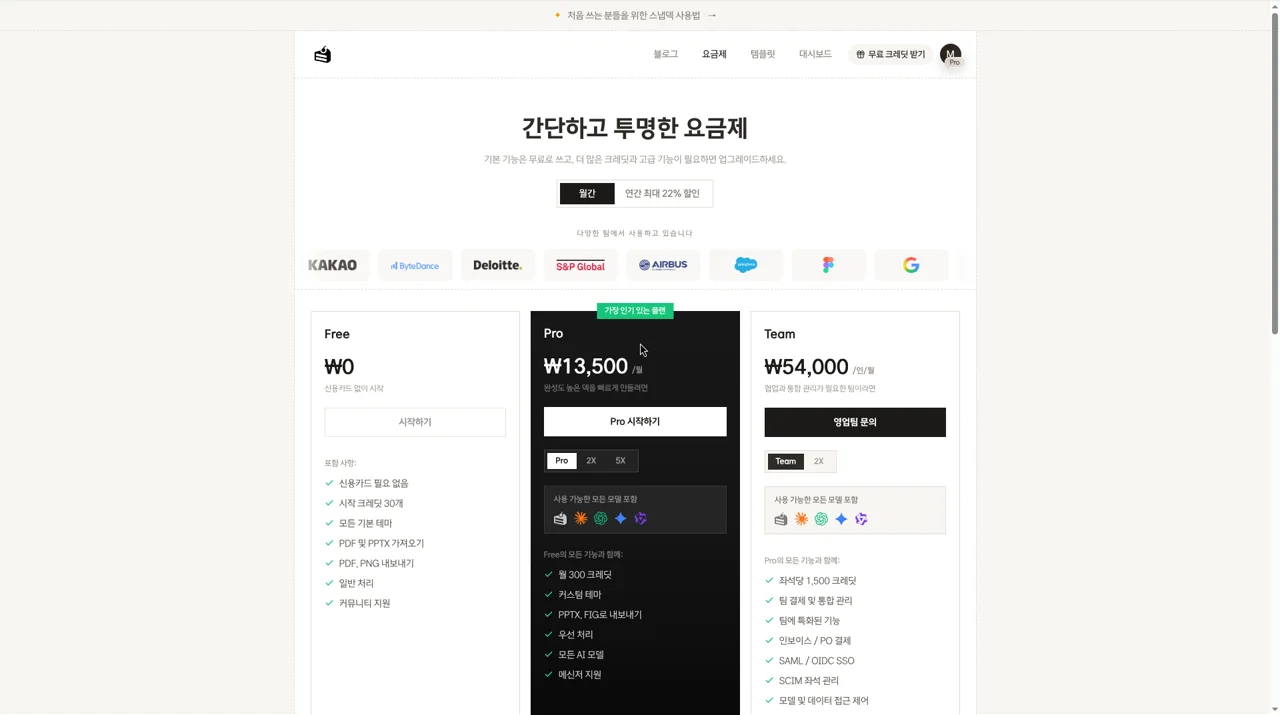
- Snapdeck: pricing is Free ₩0 / Pro ₩13,500/month / Team ₩54,000/user/month. PPTX and Figma export are on Pro and Team. Free includes PDF and PNG export, 30 starter credits, a 5-slide cap per deck, and a watermark. Annual billing saves up to 22%.
Which to pick
Claude for PowerPoint fits when
- You're filling a company or client-template .pptx and must keep the master layouts.
- You want bullets turned into editable native charts and diagrams.
- You already pay for Claude and want context to carry across Excel and Word.
ChatGPT for PowerPoint fits when
- You want to try AI inside PowerPoint without paying (Free, limited usage).
- You want to ask about an existing deck ("What's missing?", "Tighten this for execs") and refine it.
Snapdeck fits when
- You start from a blank prompt and want to pick a style and theme first for a new deck.
- You hand off as Figma (.fig) to a designer, or as PPTX to a colleague.
- PDF and PNG for free are enough.
You can also combine them. Draft in Snapdeck, export PPTX, then finish in company PowerPoint with an add-in.
So
If the work ends inside the company .pptx you have open, Claude or ChatGPT for PowerPoint is the natural fit. If it's building a new deck and handing it off as Figma or PPTX, Snapdeck is closer. If you were looking for a Claude or ChatGPT for PowerPoint alternative, that one difference is the way to choose.
Want to start a new deck from a blank prompt and pick the style first? Try Snapdeck. ☺️
See also
- Pick by what you hand off: AI presentation maker comparison (hub)
- PowerPoint Copilot vs Snapdeck
- Plus AI vs Snapdeck
Sources (all checked 2026-11-18 KST): Claude for PowerPoint help (docs version), Claude for Microsoft 365, Claude pricing, Claude Academy, Marketplace: Claude for PowerPoint, ChatGPT for PowerPoint help, Marketplace: ChatGPT, Office Store: ChatGPT install page, Snapdeck pricing. Claude and ChatGPT from public docs only; signed-in add-in screens not captured. Snapdeck screens captured the same day from a signed-in Pro account in the Korean UI.