
NotebookLM (Gemini Notebook) slides vs Snapdeck: source-grounded decks or an editable PPTX/Figma handoff

"I want to drop a pile of sources and get presentation slides out of them." That's usually why people look up NotebookLM. Since July 2026 the official product name is Gemini Notebook—same product.
Gemini Notebook Slide Decks are built to draft from your uploaded sources. Snapdeck works a little differently. It shows you an outline first, you pick a style and theme, edit on a canvas, and hand off as PPTX or Figma.
In one line: If you want a source-grounded draft you can present or share in-app, Gemini Notebook is closer. If you want to shape the outline yourself and hand off a Figma (.fig) file or PPTX, Snapdeck is closer. For a free file, Snapdeck Free exports PDF and PNG. Gemini Notebook's help also lists PDF and PPTX downloads (generation limits still depend on plan).
There's no ranking here. Let's split it by situation. 🙂
Gemini Notebook (NotebookLM) details come from the official Slide Deck help (Korean), plans help, plans page, Google AI plans (KR), checked on 2026-11-04 (KST). We did not log in to Studio or open a real PPTX export; public pages only. Snapdeck details come from a signed-in Pro account in the Korean UI the same day, plus the pricing page.
The comparison, in one pass
| Gemini Notebook Slide Deck | Snapdeck | |
|---|---|---|
| In one sentence | Build a Slide Deck from sources in Studio; present, PDF, or PPTX | Outline → style and theme → canvas edits → export |
| Official name | Gemini Notebook (formerly NotebookLM, July 2026) | Snapdeck |
| How you start | Add sources → Studio Slide Deck → format, language, length, sources, description | Prompt, ratio (PPT 16:9 / 4:3, card news 4:5), slide count, Web Research, Import PPTX, Auto Agent |
| Outline before design | Help calls co-create Google AI Ultra; the 2026-10-21 Workspace update says all users. We did not verify on a live account | Outline screen is the default path; edit, then Generate |
| How you edit | Top Revise: per-slide instructions → Generate revised deck (a new deck). Sources are not used during revisions | Direct canvas editing + Chat |
| Export | PDF, PowerPoint (.pptx) per help | PDF, PNG (per slide), Figma (.fig), PowerPoint (.pptx) |
| Edit text inside PPTX | Help only documents download. We did not open a file this time | Export menu: slides editable in PowerPoint and Keynote (same-day UI) |
| Figma | Not in the Slide Deck help | .fig export (Pro and Team) |
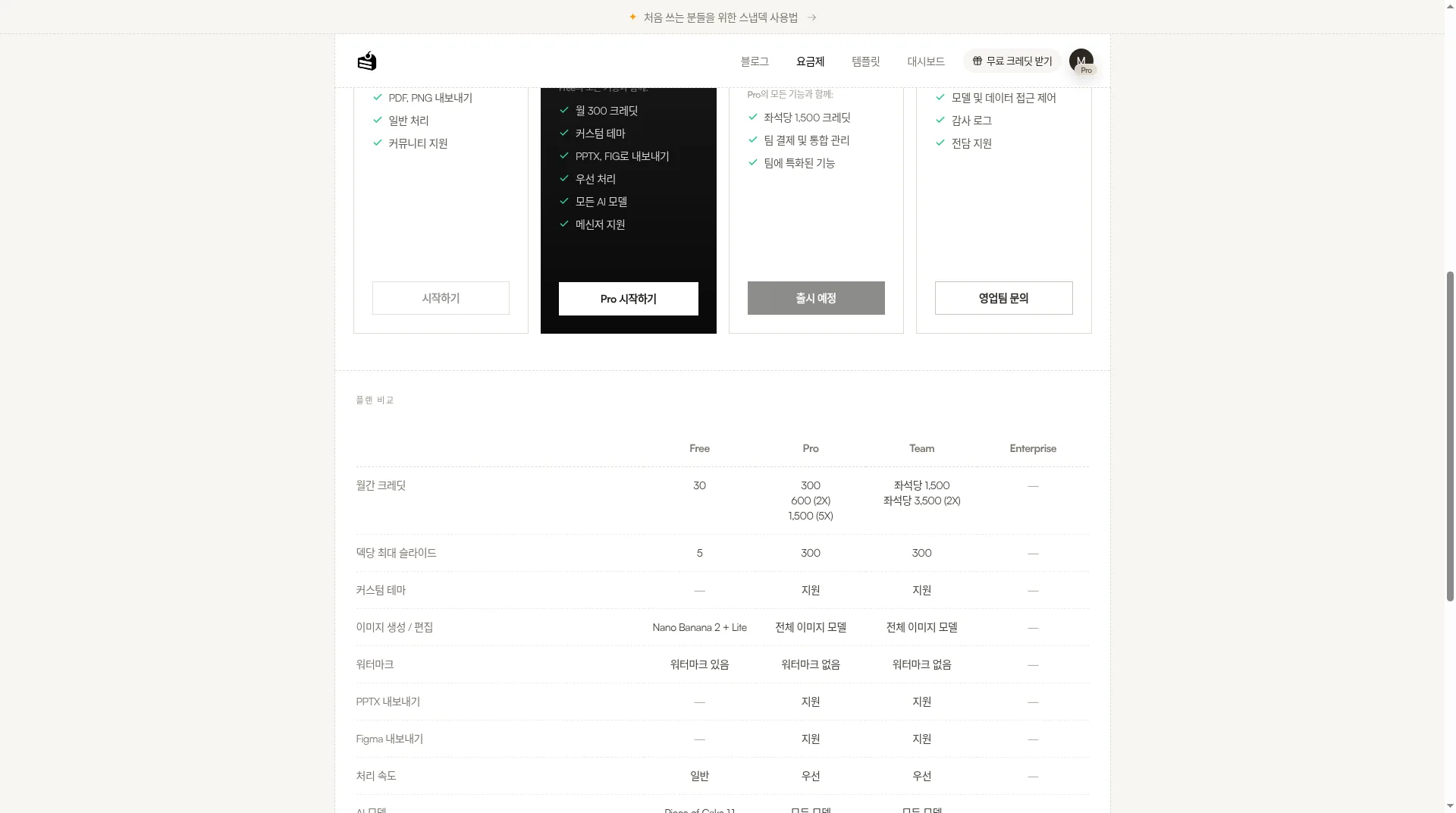
| What Free covers | Standard (free) can generate Slide Decks (limits depend on plan/region). The help text we read does not gate PDF/PPTX download behind a paid plan | 30 starter credits, PDF/PNG export, max 5 slides per deck, watermark |
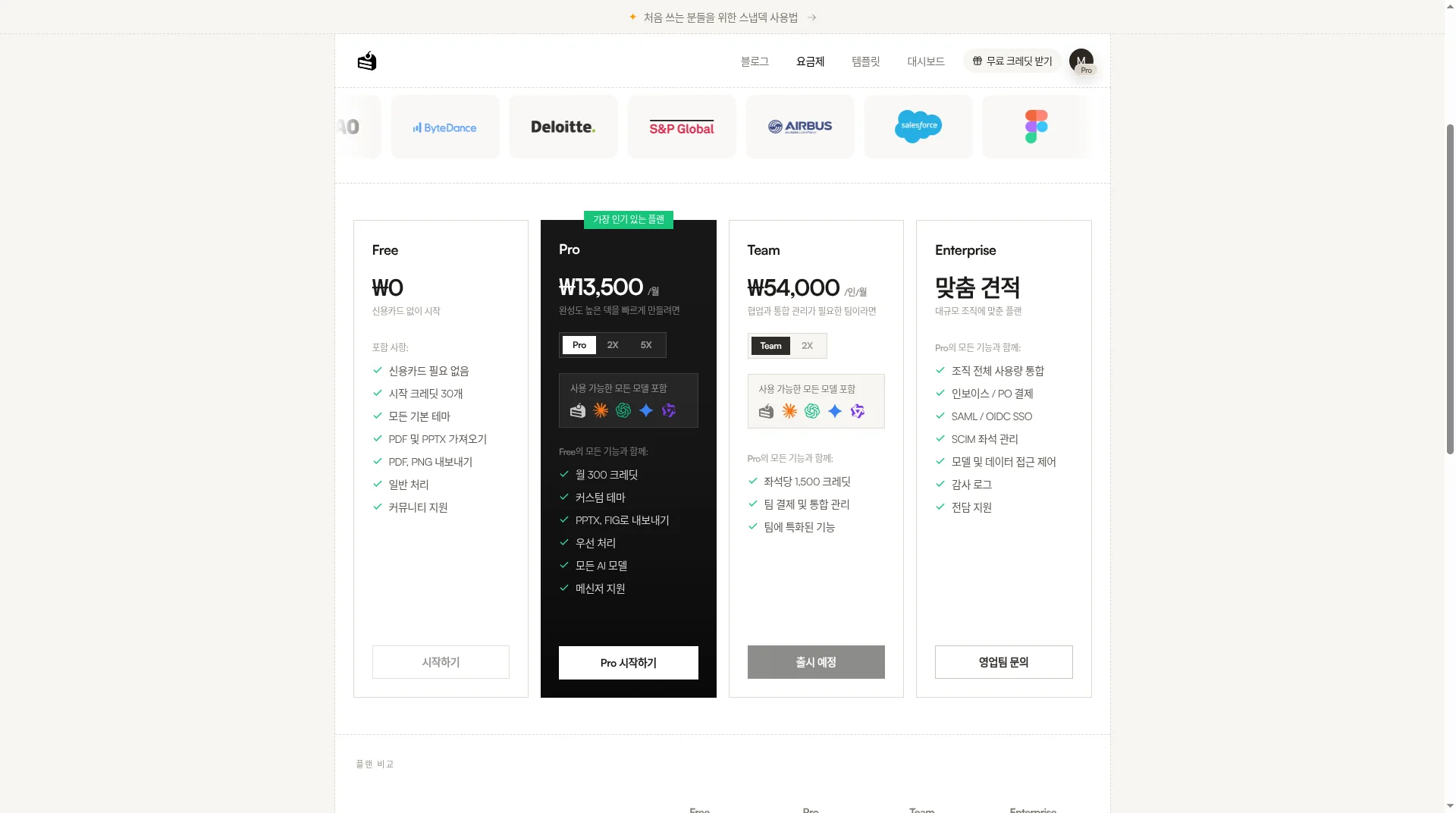
| Paid entry (reference) | Google AI Plus ₩7,500/mo, Pro ₩29,000/mo, Ultra 5x ₩119,000/mo · 20x ₩300,000/mo (KR Google One, 2026-11-04) | Pro ₩13,500/month · Team ₩54,000/user/month (same-day Korean pricing UI) |
Where Gemini Notebook fits: a fast draft grounded in your sources
The plans FAQ says NotebookLM became Gemini Notebook in July 2026. The Slide Deck help says you transform sources into a presentation, present in the app, or share as a PDF. The download menu includes Download PDF Document (.pdf) and Download PowerPoint (.pptx) (same as the 2026-03-20 Workspace announcement).
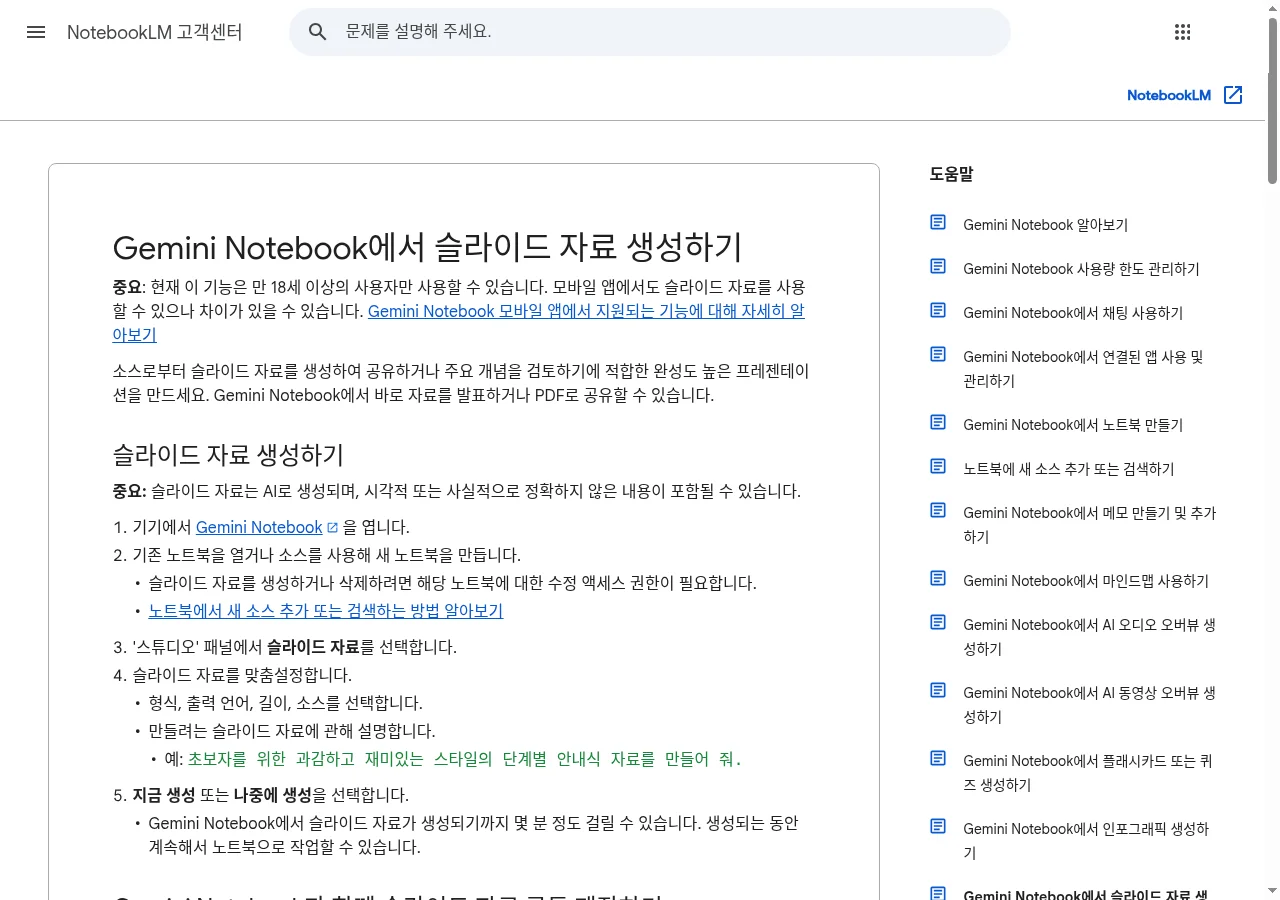
Gemini Notebook is clearly ahead in a few places.
- Source-grounded. Slides come from the sources in your notebook—ideal when the research pile already exists.
- Format, language, length, sources, and a description before you generate. Generation can take a few minutes; you can keep working in the notebook.
- Present in-app. Start slideshow, share a link (public sharing for consumer accounts; disabled for Workspace Enterprise/Education), or share the whole notebook.
- Prompt-based revisions. Enter instructions per slide (text, layout, visuals), then generate a revised deck. Each revision creates an entirely new deck, and sources are not taken into account during revisions.
- Outline review. Help's co-create section says Ultra; the 2026-10-21 Workspace update says Review outline is available to all Workspace and personal accounts. We did not confirm which gate applies on a live account.
To be honest: Slide Decks are 18+, may contain visual or factual inaccuracies, and downloads can be blocked when a Play Books ebook is a source. There is no canvas editor in this help flow where you drag text boxes by hand—you revise with prompts or open an exported file elsewhere.
PPTX editability: Official help only says you can download PowerPoint (.pptx). Whether text and shapes are editable in PowerPoint is something we did not verify by opening a file. If you need a company template, open the export before the deadline.
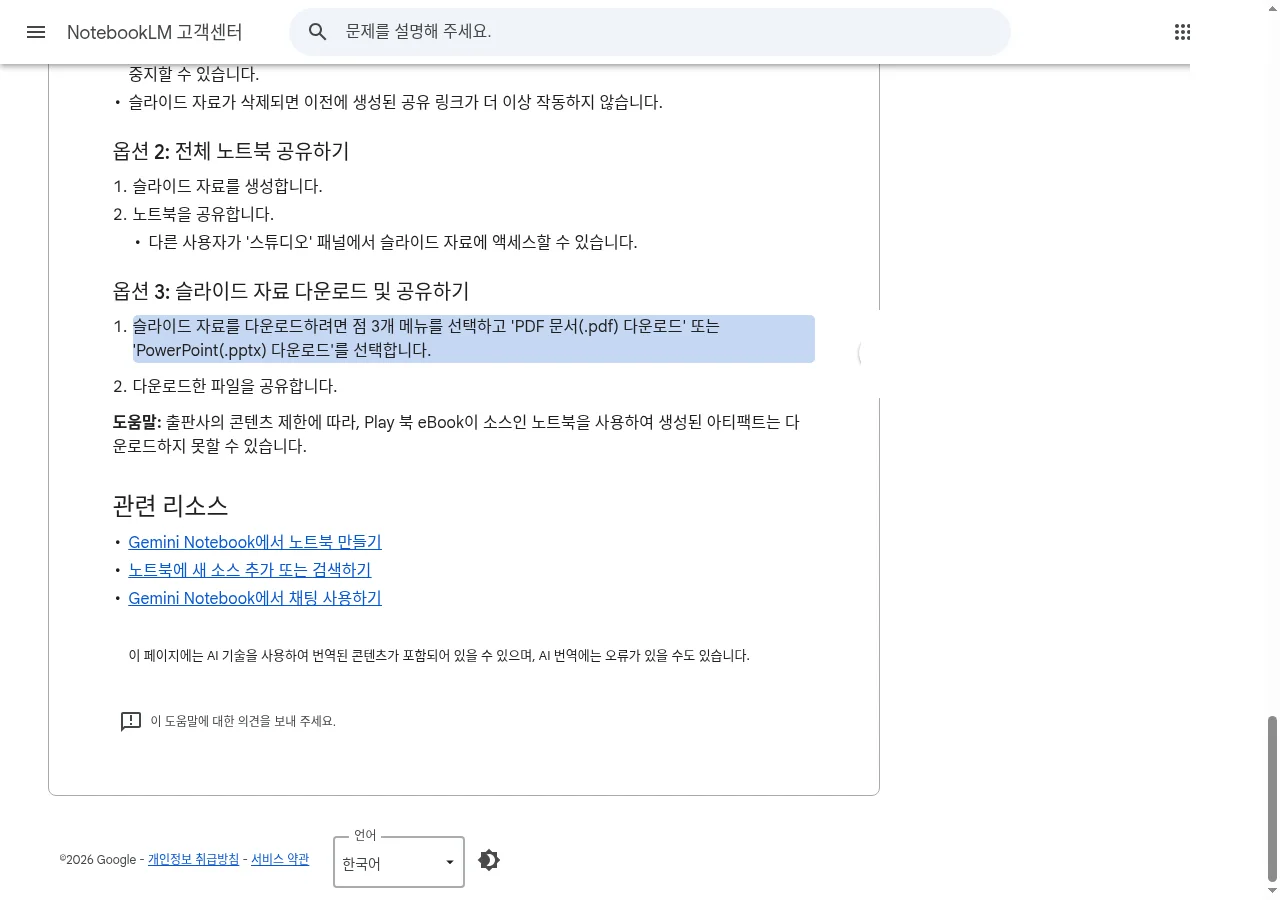
How it works in Snapdeck: input → style → generate → export
We ran “a 8-slide market research deck for a new SaaS product” the same day in a Snapdeck Pro account (Korean UI).
1. Input. On home, pick a ratio (PPT 16:9 / 4:3, card news 4:5) and a slide count, then type the prompt. Web Research, Web Scrap, Import PPTX, Auto Agent, and file attach sit underneath.
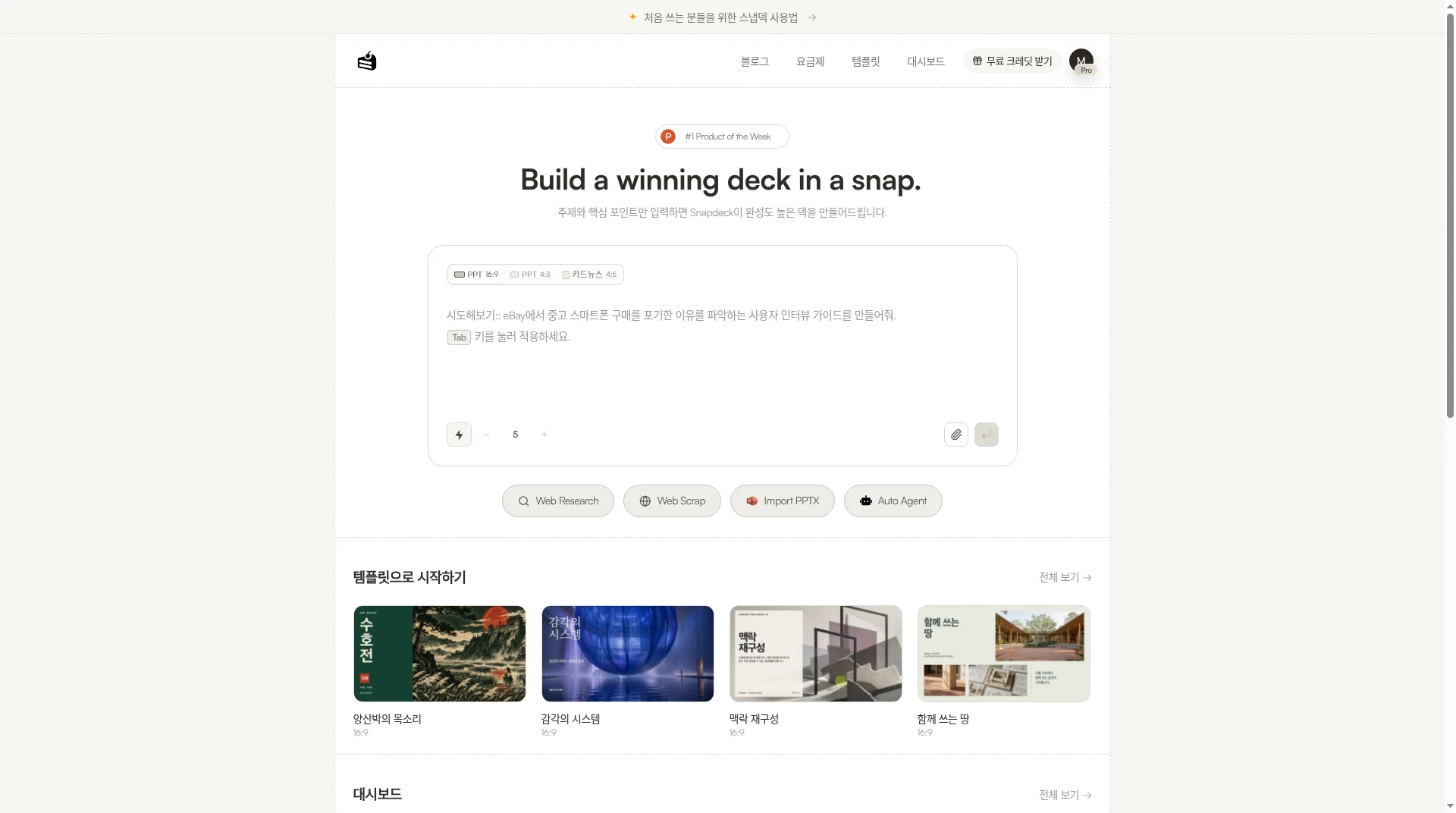
2. Review the outline. Slides don't appear right away. You get an outline first. That step is default, not a paid gate.
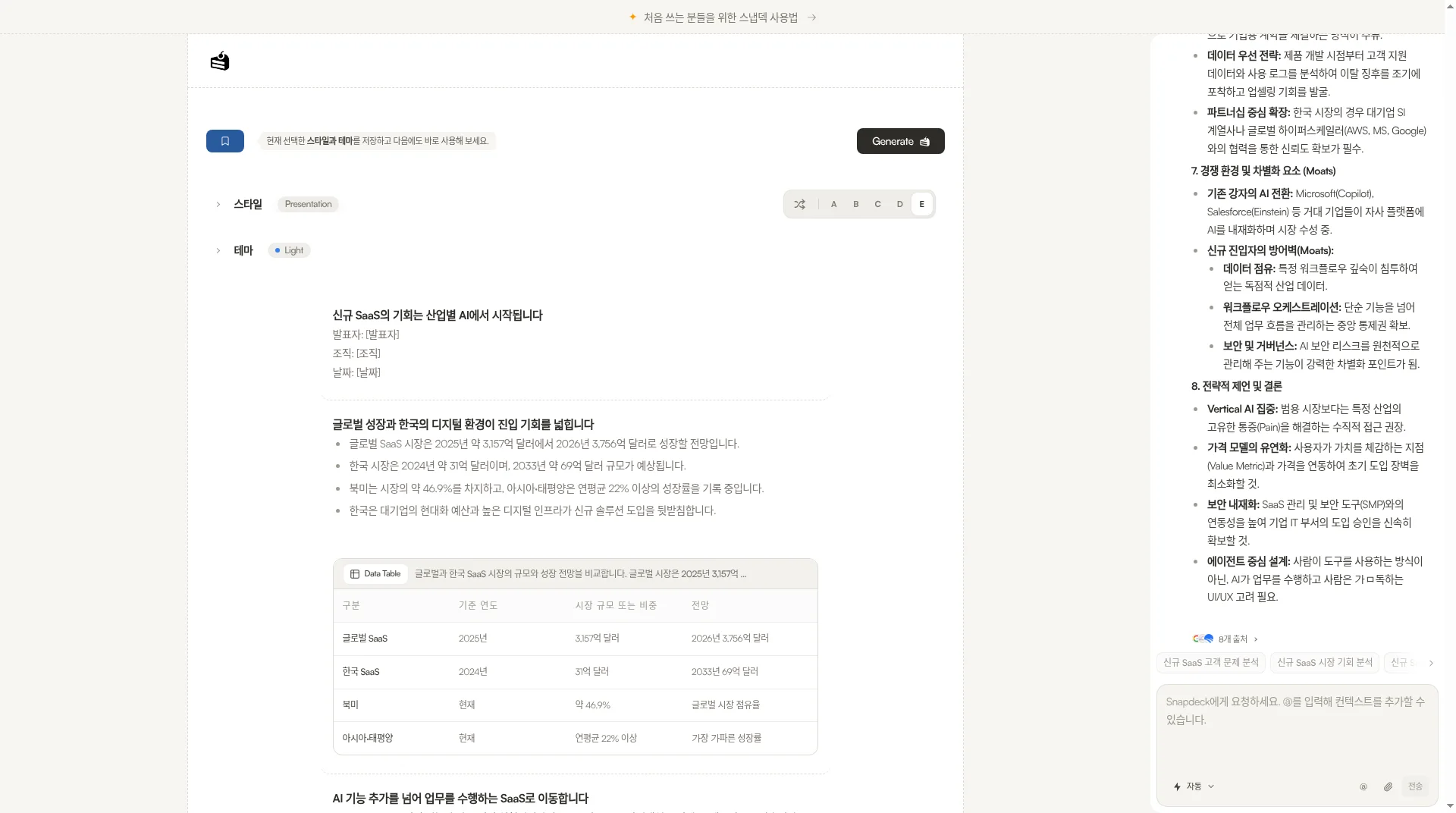
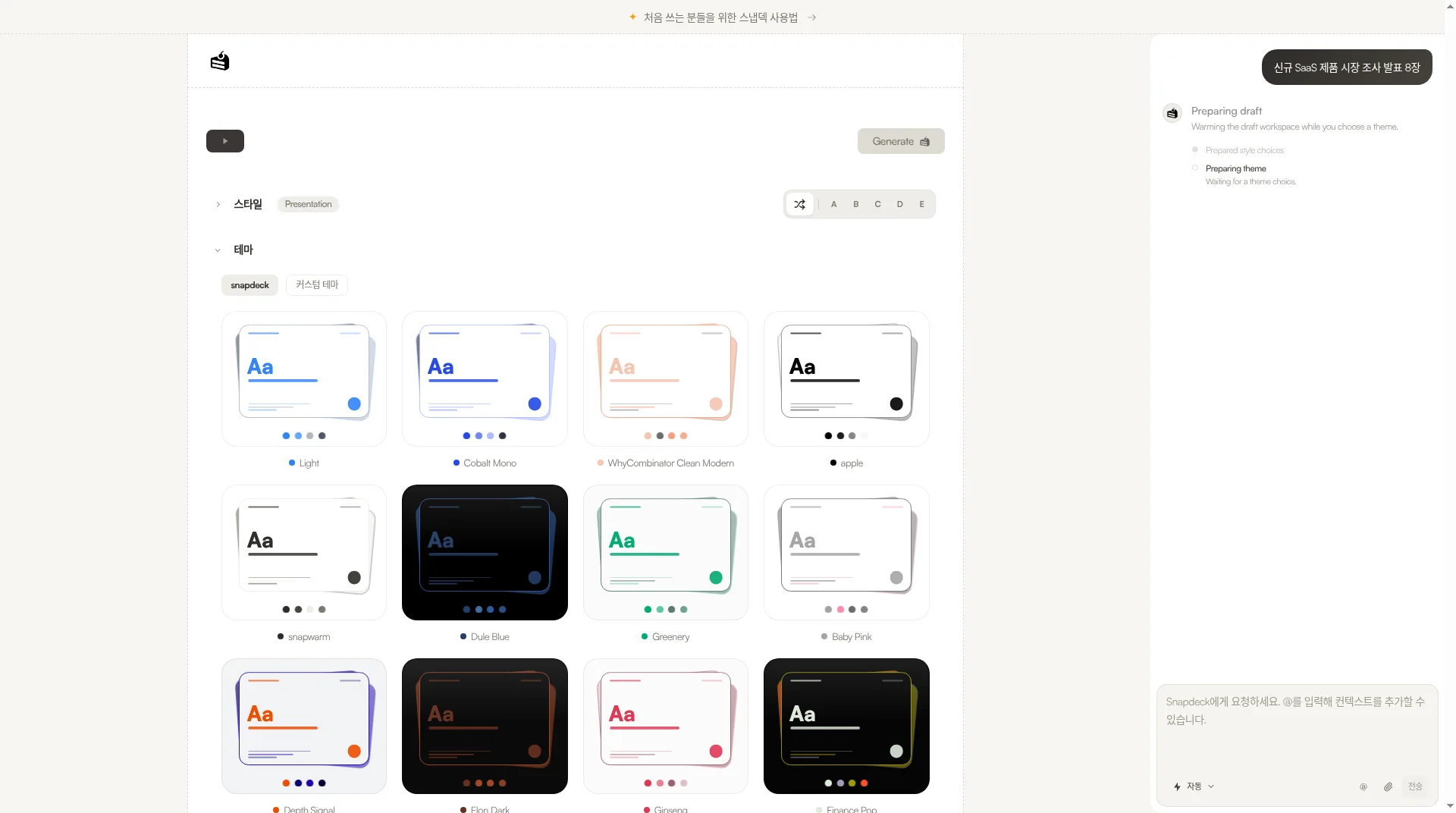
3. Style and theme. Report / Standard / Presentation / Keynote / Portfolio / Proposal, A–E variants, and the theme grid. Custom themes start on Pro.
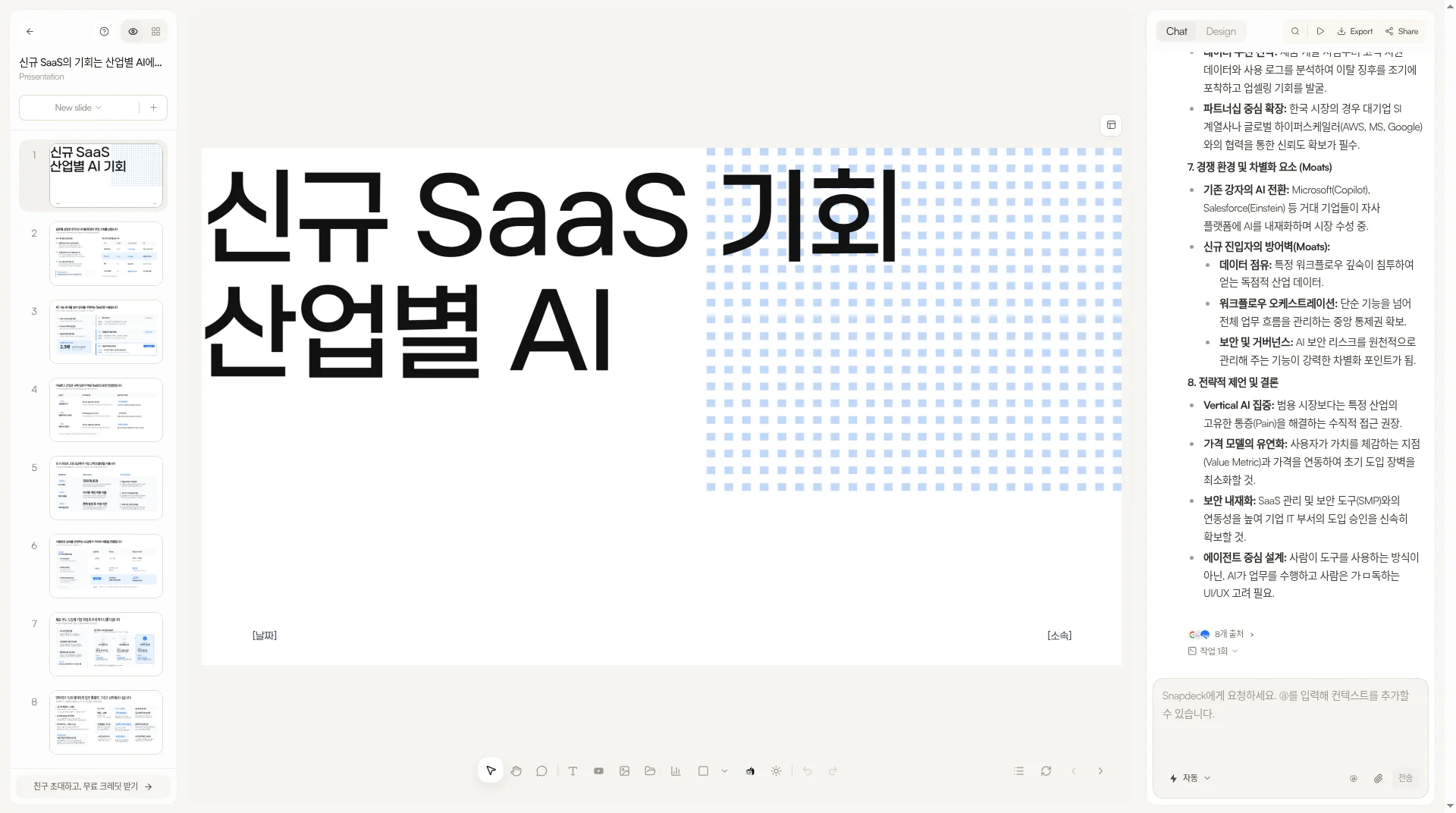
4. Generate and edit. Thumbnails on the left, canvas in the middle, Chat and Design on the right.
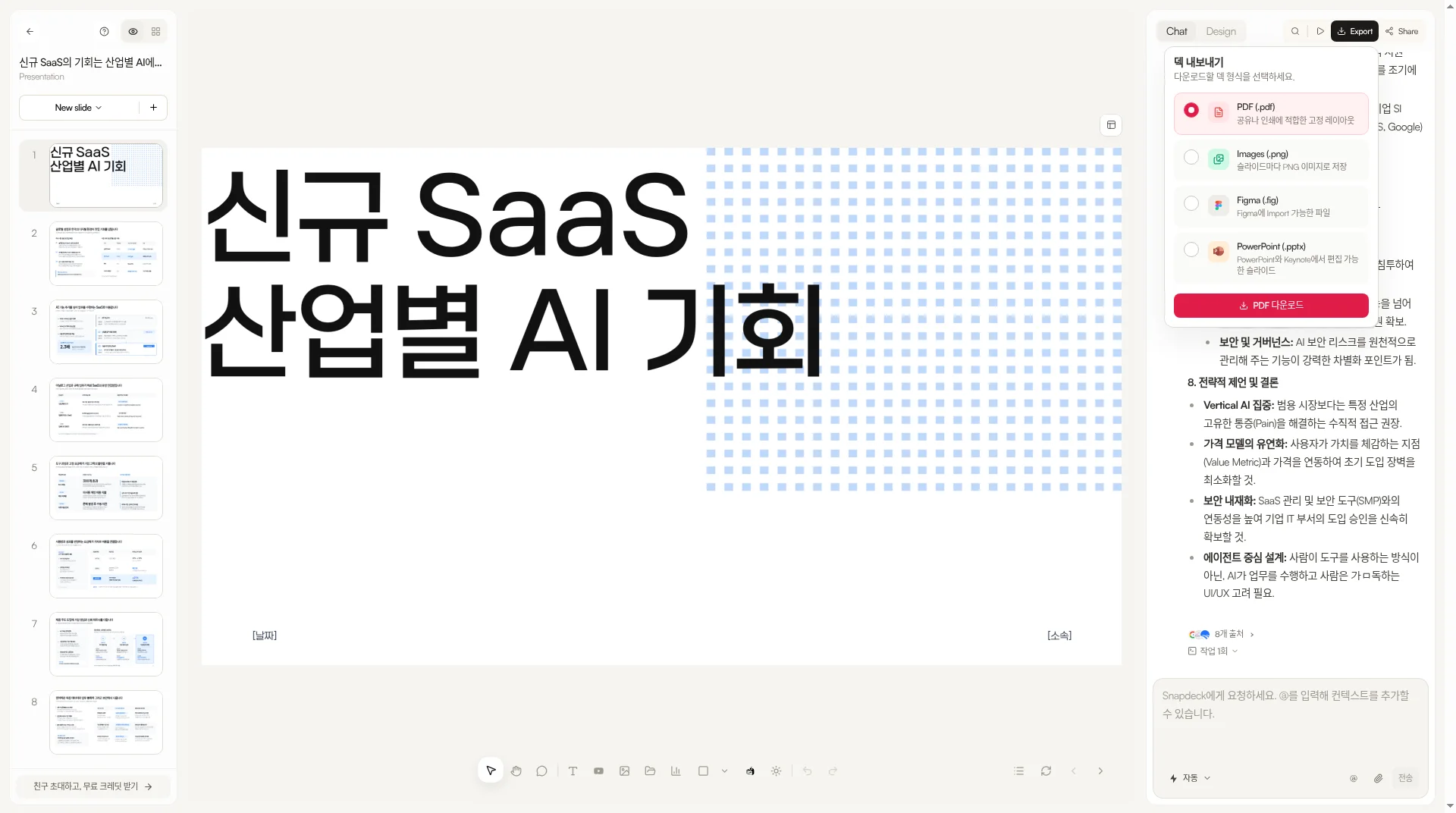
5. Export. PDF, PNG, Figma (.fig), PowerPoint (.pptx). The Figma item reads as a file you can import into Figma; PowerPoint reads as slides editable in PowerPoint and Keynote. More on PPTX: PPTX import and export. For turning a document into a deck (how-to), see Turn a document into a presentation.
To be honest: Snapdeck is not a source-grounded notebook product. For long PDFs and notes turned into a study deck, Gemini Notebook is the more natural fit. Snapdeck's PPTX has no speaker notes, Free blocks PPTX and Figma, and Free caps decks at 5 slides with a watermark.
Cost: how far Free goes, and where paid starts
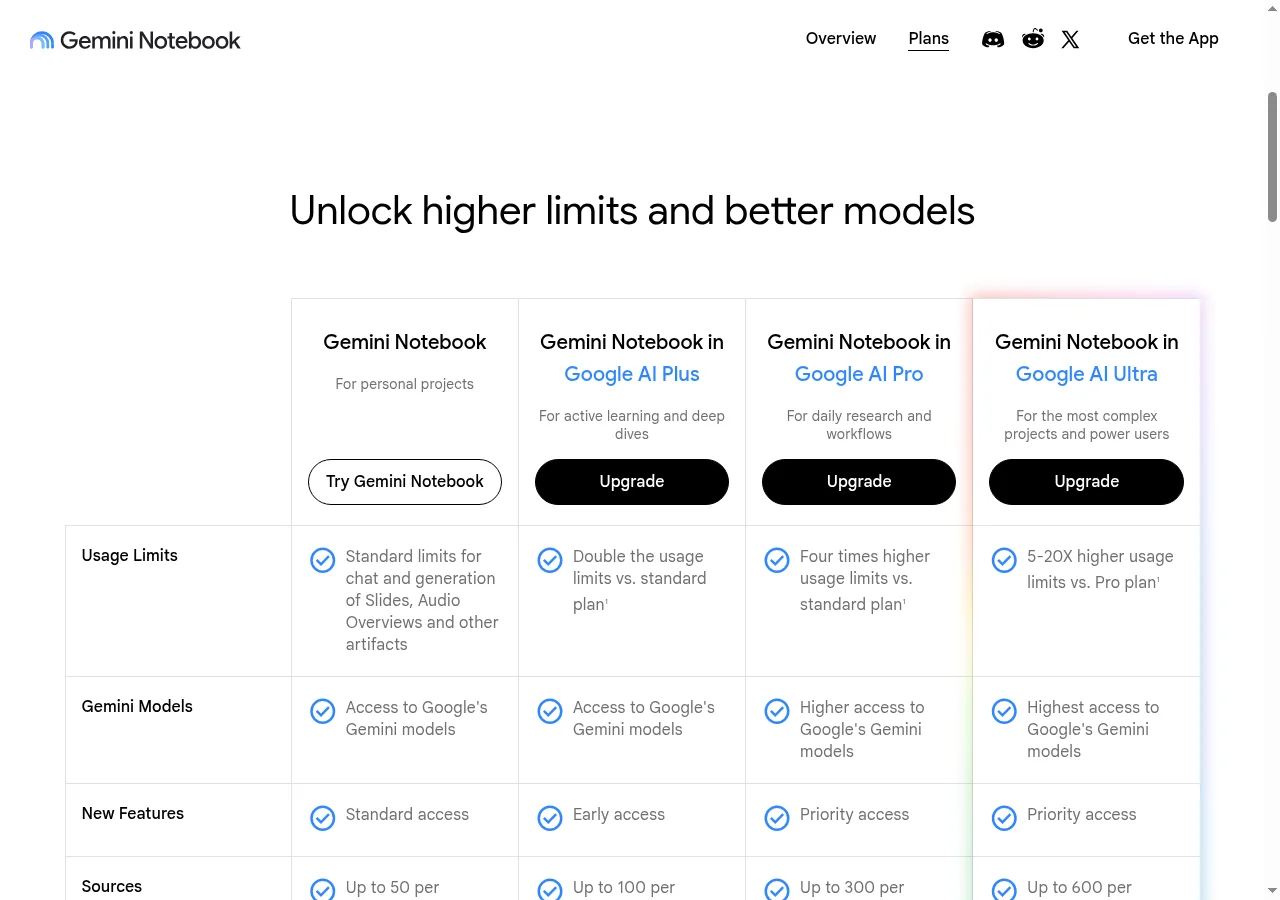
Gemini Notebook limits follow the plans help and plans page. Standard (free) has notebook, source, and generation limits; Plus, Pro, and Ultra raise them. Korea list prices on Google AI plans (checked 2026-11-04): Plus ₩7,500/mo, Pro ₩29,000/mo, Ultra 5x ₩119,000/mo, Ultra 20x ₩300,000/mo. US list: Plus US$4.99 / Pro US$19.99 / Ultra US$99.99 and US$199.99. Availability varies by country.
Snapdeck pricing (same day, signed-in Pro, Korean UI, monthly) is Free ₩0 / Pro ₩13,500/month / Team ₩54,000/user/month, with PPTX and Figma on Pro and Team. Free has 30 starter credits, PDF/PNG export, a 5-slide cap, and a watermark. The Team button says "coming soon," and Enterprise is a custom quote.
Which to pick
Gemini Notebook fits when
- You already have PDFs, notes, or web sources and want a grounded draft.
- You'll present in-app or share a notebook link.
- Slide Decks sit inside a research notebook workflow.
Snapdeck fits when
- You want to edit the outline first as the default path.
- You need canvas edits or a Figma (.fig) handoff.
- You want at least PDF/PNG for free.
Watch out for
Gemini Notebook revisions regenerate a new deck, skip sources while revising, and we didn't verify PPTX editability ourselves. Outline-review availability differs between Help and the Workspace update. Snapdeck isn't a NotebookLM-style grounded notebook, has no speaker notes in PPTX, and blocks PPTX/Figma on Free.
So
If the finish line is a fast draft from your sources, Gemini Notebook (NotebookLM) is the natural fit. If it's shaping the outline yourself and handing off as Figma or PPTX, Snapdeck is closer. If you were looking for a NotebookLM alternative, that one difference is the way to choose.
Want to start from one line and shape the outline first? Try Snapdeck. ☺️
See also
Sources: Slide Deck help, Korean help, plans help, plans, Google AI plans KR, 2026-10-21 Workspace update, Snapdeck pricing. Gemini Notebook from public pages checked 2026-11-04 (KST); signed-in UI and PPTX file not captured. Snapdeck screens captured the same day from a signed-in Pro account in the Korean UI.